
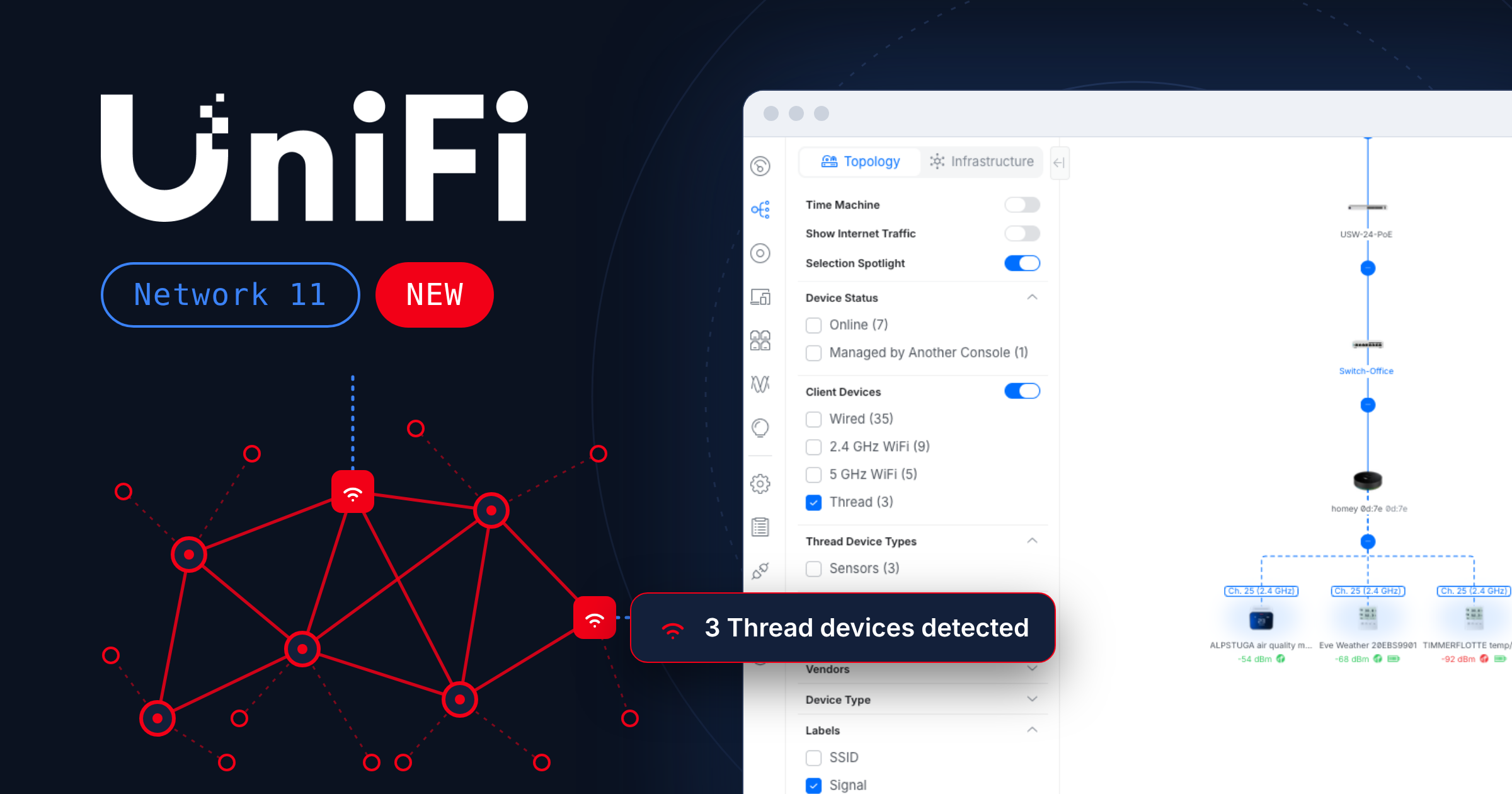
With UniFi Network 11, you can integrate your Matter devices into a unified dashboard to get an even more detailed view of your entire network. This post provides a tutorial on how to enable Matter support in Network 11, how to add a device, and where to view your Matter devices in the topology view.
Step 1: Enable Gateway-mDNS-Proxy in your network
Settings -> Network
The first step is to ensure that the mDNS Proxy is enabled. This can be found under Settings -> Network. There you can configure the mDNS Proxy:
- Auto: The mDNS Proxy works across all VLANs in your network.
- Off: The mDNS Proxy is disabled.
- Custom: You can select specific VLANs for which the mDNS Proxy should be enabled. For my setup, this is the best choice because I only want to use the mDNS Proxy on one dedicated VLAN where all my smart home devices live.
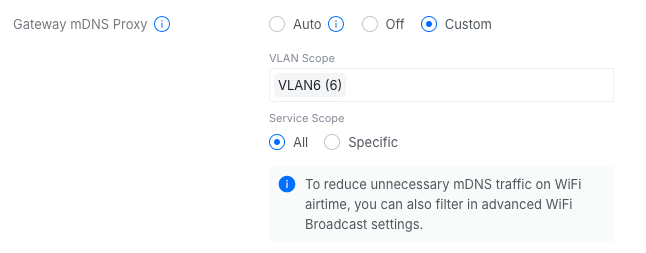
After making your decision, simply press the “Apply” button to save the new settings.
Step 2: Add Matter devices
In the next step, we will add the Matter devices to the UniFi network. First, you need to switch to the Matter view: Settings -> Matter.
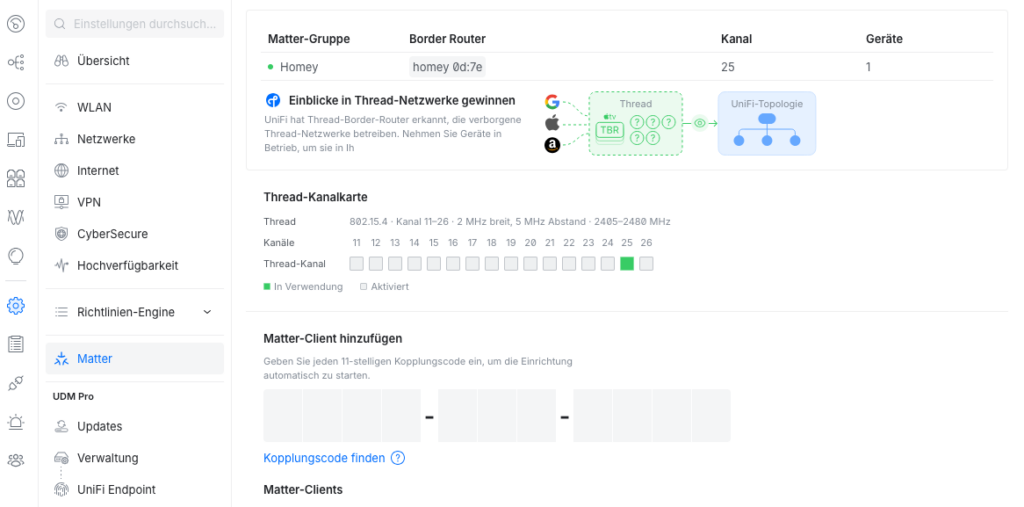
Usually, you will see your border router automatically identified by UniFi. In my case, I am using a Homey as a border router.
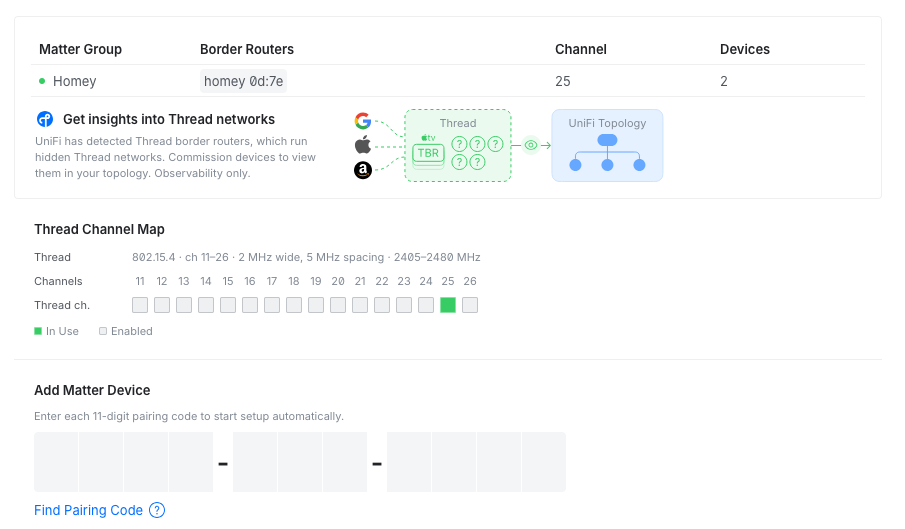
Below the “Thread Channel Map”, you can add your Matter devices by entering the pairing code. To get the pairing code, you must go into the app where you manage your smart home devices.
Using Homey, for example: open the Homey app on your smartphone, switch to Devices, select the appropriate Matter device (in my case, an IKEA device), and select Open Settings. Then, go to “Advanced settings” -> scroll down until you see the “Share Matter-Device” button -> press the button to generate a code -> enter that code into the UniFi Network. After entering the last digit, the device will be added to the list of Matter devices with the status “Setting Up” in the connection column.
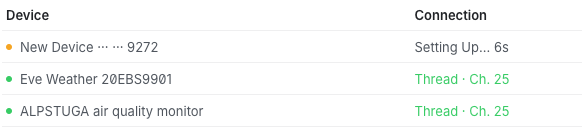
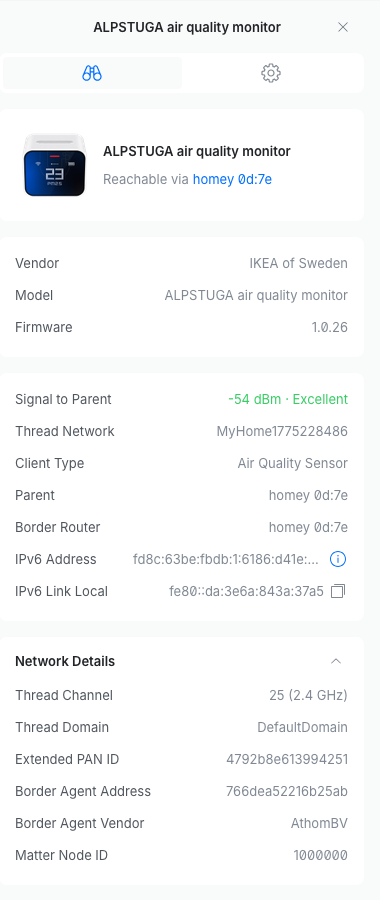
After a short while, the devices will be successfully added and shown in the list. When you click on a device, a window with detailed information about the device and its connection will appear.
The “Overview” tab provides additional information such as:
- Vendor
- Model
- Firmware
- Signal quality to parent
- Thread Network
- Client Type
- Parent
- IPv6 address It even shows network details like:
- Thread Channel and frequency
- Domain, etc.
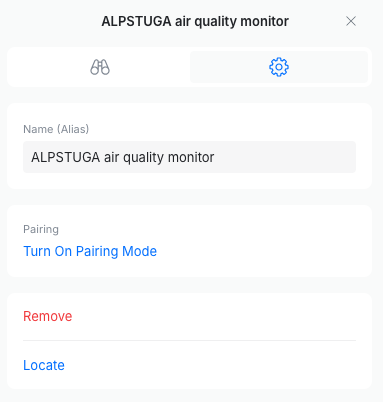
In the “Settings” tab, you can change the name, turn on pairing mode to connect the device, or simply enable the device’s location mode.
Showing Matter devices in the network topology
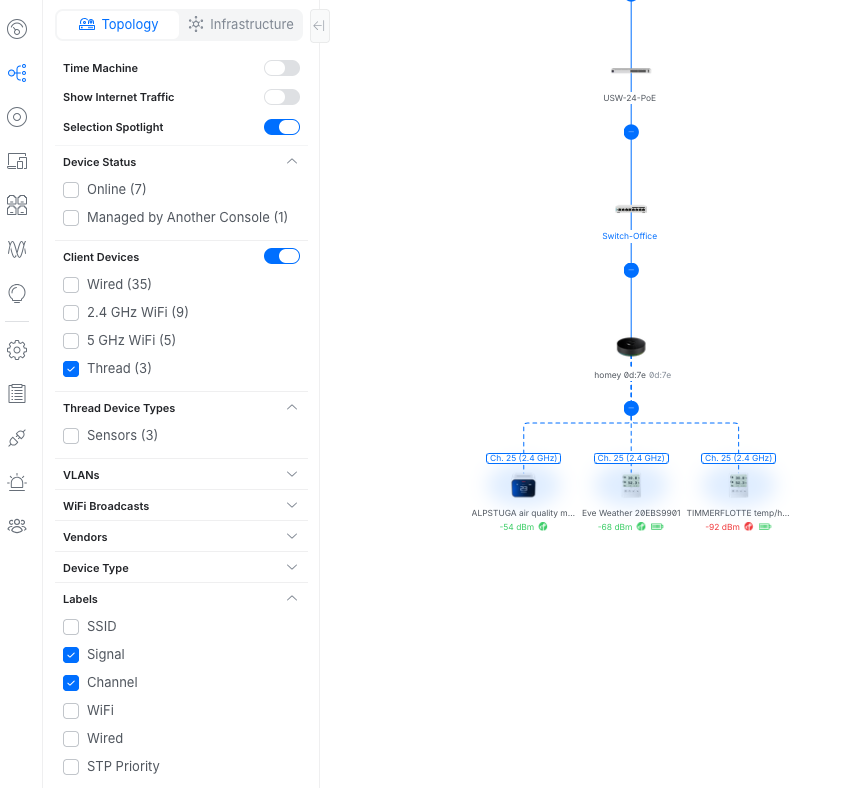
One of the great things about Matter integration is that all Matter devices can be displayed as part of the overall network topology of your UniFi network. This is the main reason to use the integration, as it provides a single view of your entire network where Matter and Thread are part of the system rather than isolated. In my opinion, this is a game changer, because most Matter applications (even Home Assistant without an extension) do not offer a complete view of your network. This is particularly important for troubleshooting mesh networks.
To show the network topology, switch to the Topology view and check the “Thread” box; all Matter devices will then appear as part of your whole network. You can even see the connection strength and the channel if you have selected the appropriate labels at the bottom of the selection menu. If you have a Router or Repeaters in your Thread network, it will also be shown in the topology.
Summary
With the new Thread integration, UniFi has taken a significant step towards a unified network view by including the Matter and Thread standards. Especially for organizations or users with larger networks, this approach helps to gain a better overview and quickly identify issues. Personally, the announcement of the Matter integration was one of the biggest highlights from UniFi for me this year, as it is something I have requested for a long time.
While I use Homey as my smart home hub—which is a great and reliable solution for integrating various devices—it lacks the level of observability that I need as an IT professional. On the other hand, I am not so invested in smart homes that I want to spend time implementing these features via scripts or plugins; therefore, I am very happy that UniFi has handled this for me.


Leave a Reply