Category: paperless Office

  • Datenmanagement mit Agorum®

    Agorum, ein DMS (Dokumenten Management System), der gleichnamigen deutschen Firma, ermöglicht Ihnen die effiziente Verwaltung von Dateien, Daten und Dokumenten. 

    Dank Echtzeitindexierung können Dokumente nicht nur nach Dateinamen, sondern auch nach Inhalt durchsucht werden. Frei wählbare Metadaten ermöglichen die Dokumente näher zu definieren.

    Versionierung und eine integrierte Messaging- bzw. Ticketfunktion ermöglicht die Zusammenarbeit an Dokumenten über Distanzen.

    Mithilfe der Webanwendung kann man jederzeit und überall auf seine Dokumente zugreifen. Agorum kann auch per Netzlaufwerk eingebunden werden und vereint damit die Vorteile eines klassischen Fileservers mit jenen eines webbasierten DMS.
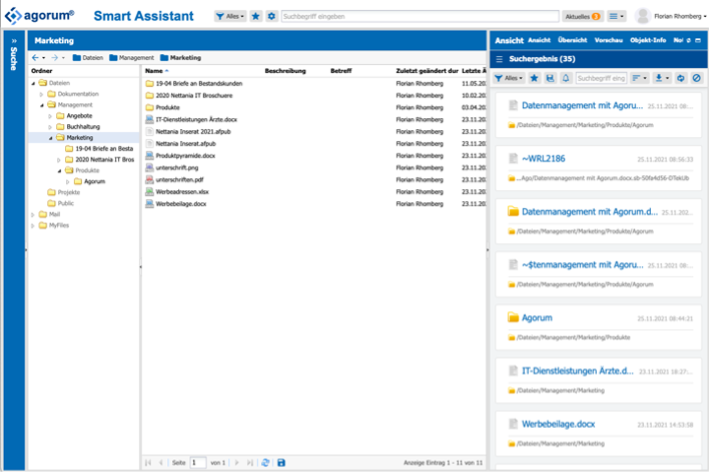
    Neben Dokumentenverwaltung bietet Agorum auch zahlreiche weitere Funktionen an, wie Adressbücher, Vorlagen, Wikis, den eingangs erwähnten Messenger bzw. Ticket Dienst, die die alltägliche Arbeit erleichtern.

    Agorum verfügt über einen integrierten Mailserver, über den man auch per IMAP oder POP3 zugreifen kann. Damit zählt Agorum zu jenen DMS bei denen auch E-Mails vollständig in den DMS Prozess integriert sind. 

    Mithilfe des kostenlosen „Agorum Core Basic Archive Plugin“ kann man „virtuelle Akten“ erstellen. „Virtuelle Akten“ sind im Prinzip vorgegeben Ordner und Dateistrukturen, die man mit zusätzlichen Metadaten beschreiben kann und so z.B. eine Vorlage für eine Projektstruktur definieren kann, die man mit einem Klick erstellen kann.

    Teil dieses Plugin ist eine virtuelle Ablage in die man Dokumente per Drag & Drop hineinziehen kann (oder per Netzlaufwerk kopieren) um sie später beschlagworten und den „Akten“ zuzuordnen.

    Ebenso kann damit eine revisionssichere Speicherung der Daten nach den gesetzlichen Vorschriften in der EU erfolgen.Agorum wird in zwei Varianten angeboten: Agorum Core kann als Open Source Variante, kostenlos genutzt werden. Agorum Core Pro ist kostenpflichtig und erweitert die Anwendung um zusätzliche Funktionen, wie u.a. OCR, integrierter Workflow Editor, File Sharing und universelle Dokumentenvorschau.

    Mein Fazit

    Agorum ist ein fortschrittliches und umfangreiches DMS, mit dem man alle Geschäftsprozesse und Workflows abbilden kann.

    Der Zugriff per Netzlaufwerk erweitert den Funktionsumfang erheblich und macht es auch für Umsteiger sehr interessant. Leider kann man im Windows Explorer nicht auf Vorgängerversionen eines Dokuments zugreifen, dies funktioniert nur über das Webinterface.

    Die Speicherung und Darstellung von E-Mails ist vorbildlich. Für all jene die eine DMS Lösung suchen, in der man den E-Mail-Verkehr nahtlos integrieren kann, sei Agorum ans Herz gelegt.

    Das „Agorum Core Basic Archive“ hat sich tatsächlich zu einem meiner Lieblingsfeature entwickelt, auch wenn es aufs erste unspektakulär klingt. Ich habe mir eine Vorlage für meine Kundenakten erstellt, in denen ich neben Systemdaten, auch der E-Mailverkehr, Aufträge, Rechnungen, etc. speichere. Während meiner Testphase hat sich das in Kombination mit der Zentralablage als äußert hilfreich und komfortabel erwiesen. Gerade die Speicherung der gesamten Kundenkommunikation konnte ich so sehr komfortabel durchführen. Gerade im Bereich des Projektmanagement, in dem es unzählige E-Mails gibt, spielt diese Lösung ihre Stärke aus.

    Die „Zentralablage“ ist auch ein gelungenes Feature. Hier kann man z.B. aufs schnelle ein Dokument erstellen, welches man erst später einem spezifischen Projekt zuordnet, da man gerade anderweitig beschäftigt ist. Man muss also nicht das Projekt wechseln.

    Was mir nicht so gut gefällt, ist die Weboberfläche, da diese wenig anpassbar ist, etwas „altmodisch“ wirkt und nicht überall die Benutzerfreundlichkeit anderer DMS Lösungen aufweist. Allen voran Ansichten für verschiedene Datentypen fehlen, so wäre z.B. eine Galeriefunktion für Fotos sehr sinnvoll.

    Ein weiterer Minuspunkt, ist die Agorum App für Smartphone und Tablet, diese ist funktionell, wirkt aber auch wie aus einer anderen Zeit.

    Das Lizenzmodell von Agorum, abseits der kostenlosen Open Source Version, ist leider, wie bei fast allen DMS Anbietern, nicht auf KMUs zugeschnitten. Die monatlichen Lizenzkosten setzen sich aus der Anzahl der Benutzer und der Datenvolumen zusammen. Hier ist es so, dass das Datenvolumen überproportional den Preis beeinflusst.

    Aus meiner Sicht ist daher für KMUs, die ein größeres Datenvolumen haben, nur die kostenlose Open Source Variante interessant. Das einzige fehlende Feature, welches aus meiner Sicht schmerzt, ist die Freigabe von Daten oder Verzeichnissen über das Internet.

    Sollten Sie Interesse an Agorum haben, oder an einer anderen Lösung für Datenmangement, dann können Sie mich gerne jederzeit kontaktieren. Meine Firma ist in diesem Bereich tätig, wir bieten Ihnen in diesem Bereich individuelle Beratung, Umsetzung und Betreuung aus einer Hand an. 
  • TrueNAS/FreeBSD NextCloud jail enable HEIC support

    Next Cloud uses ImageMagick to create, display and manipulate images in the web frontend. Unfortunately the NextCloud Plugin has been created without ImageMagick support for HEIC. Therefore we need to make our own ImageMagick package with enabled HEIC support and replace it by the original one. This can be done using ports:

    The FreeBSD Ports and Packages Collection offers a simple way for users and administrators to install applications. Instead to the pkg approach, with Ports no precompiled and configured packages are downloaded and installed on your FreeBSD system. You download the source code and create your own package based on your needs.

    To start, login to the console of your NextCloud jail:

    Step 1: Install required PKG packages:

    When I tried to make my own package in my jail I got several errors because required dependencies needed by make where not installed or could not successfully compiled. Instead of searching for the reason I decided to go the easy way and installed some dependencies, using PKG:

    pkg install dialog4ports
    pkg install gobject-introspection
    pkg install gdk-pixbuf2
    pkg install libheif

    Step 2: Download ports and build your own ImageMagick package:

    Fetch a snapshot of Ports:

    portsnap fetch

    Extract the snap

    portsnap extract

    Go into the ImageMagick ports source folder:

    cd /usr/ports/graphics/ImageMagick7-nox11

    Configure the new package:

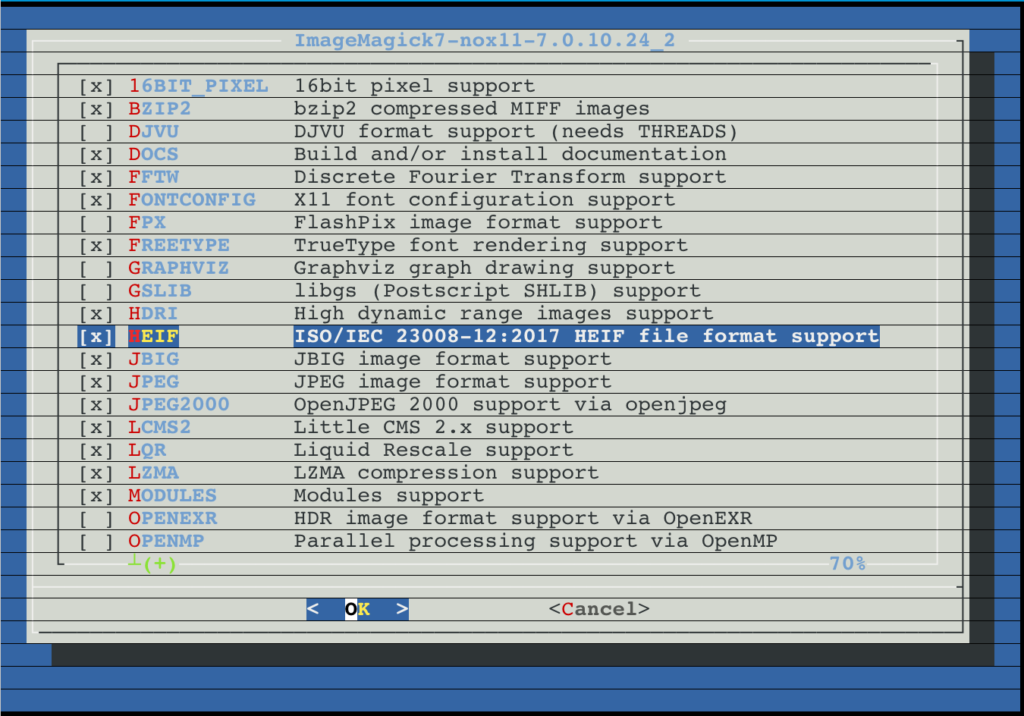
    make config

    Enable HEIF (this is the same as HEIC) in the window (and other image formats you want that ImageMagick should support):

    Press OK/Enter to confirm.

    Make&build the package:

    make -DBATCH -DALLOW_UNSUPPORTED_SYSTEM

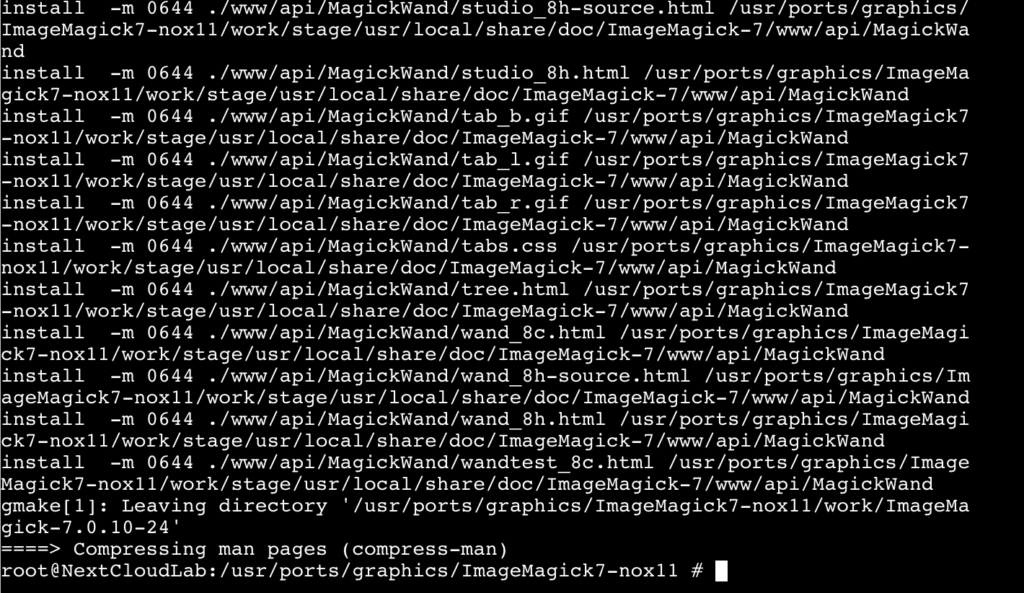
    I need to add the -DALLOW_UNSUPPORTED_SYSTEM flag because I have an older jail version which is no longer natively supported by Ports. I you have a newer jail version you can skip this flag. Now the system ist building/compiling the ImageMagick package. Dependent on your system resources, this can take a while.

    If make could successfully finished (like the above image), enter the following command to replace the current ImageMagick Version by our compiled one:

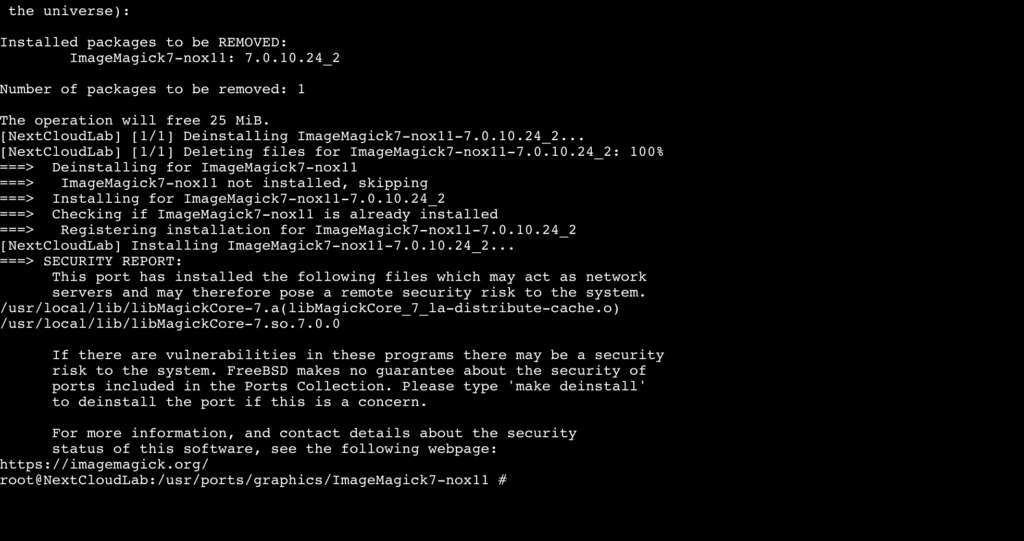
    make deinstall reinstall

    Now lock the ImageMagick package:

    pkg lock ImageMagick7-nox11

    Confirm the lock by pressing y

    Autoremove all leftovers of the original ImageMagick package:

    pkg autoremove

    Again confirm with y

    Check if HEIC/HEIF is now enabled by using the following command:

    convert -list format | grep HEIC

    You should get the following return:

    Congratulations, you have successfully compiled your own ImageMagick package with enabled HEIC/HEIF. After a short time you should be able to see thumbnails of HEIC/HEIF images in your NextCloud instance.

    Optional: Release the lock:

    pkg unlock ImageMagick7-nox11

    Warning: if you update your jail with an unlocked ImageMagick it is possible that the changes will be overwritten.

    This tutorial bases on the following discussion in the TrueNAS Forum:

  • Creating a private cloud using TrueNAS Core and NextCloud (part one)

    Last summer I decided to replace my QNAP NAS by a more comprehensive NAS. I am working a lot with Dell servers, and therefore it was an easy decision for me to use a Dell PowerEdge R340 with currently two 10 TB Seagate Iron Wolf hard discs, and two 16GB microSDHC/SDXC Cards as replacement. I know using such a server as a private NAS might be exaggerated, for some, but I wanted a rack device and more important enough server resources for experimental reasons. As operating system I decided to use TrueNAS Core, formerly FreeNAS.

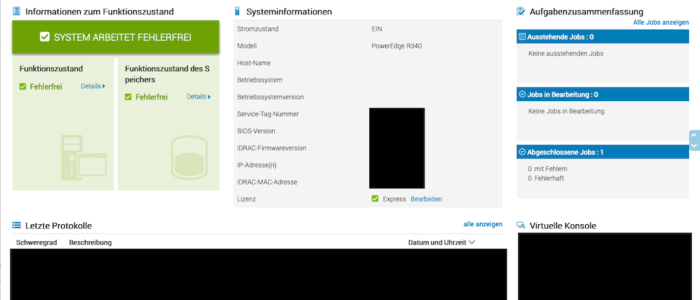
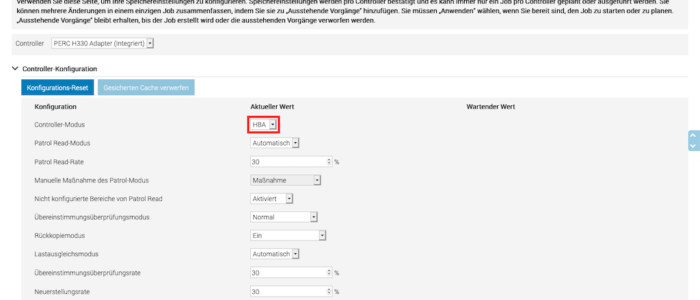
    I configured the PERC Raid Controller in HBA mode using iDRAC, because TrueNas is using ZFS which has an integrated RAID functionality. In fact, using a Hardware RAID with TrueNAS is definitely not suggested! The two screenshots below show, how to switch to HBA mode using iDRAC:

    I installed TrueNAS on one of the two 16GB microSDHC/SDXC Cards. The two 10TB Seagate discs should exclusively be used as storage devices and not partly for the operating system. The second 16GB microSDHC/SDXC Card will later be used to mirror the operating system.

    I performed the installation using the web interface of iDRAC, which is really a comfortable way to do it. iDRAC is an independent administration tool, shipped with all Dell servers and works immediately after the server is plugged in to the power supply. From iDRAC you can control and administrate the complete server. There is also a remote console feature.

    There are a lot of tutorials available in the web how to install TrueNAS therefore I do not want to go into detail and refer to them.

    After installing TrueNAS Core, creating one or more pools and sharing we have a working NAS which we can access, using SMB, AFP etc. Again, I do not want to go into detail and reference to the TrueNAS documentation because scope of this blog is how to create a private cloud using NextCloud and how to access it from anywhere in the world.

    Installing NextCloud

    Now let us start with the installation of NextCloud. TrueNAS provides a certain number of plugins to extends the functionality of the NAS. Each plugin will be installed in his own jail and is therefore independently. Wikipedia defines a jail as a “OS-level virtualization that allows system administrators to partition a FreeBSD-derived computer system into several independent mini-systems called jails, all sharing the same kernel, with very little overhead”. Simply spoken, it’s a FreeBSD container virtualization like Docker. Some plugins are officially maintainanced by iXsystems and there are also a certain number of community plugins available.

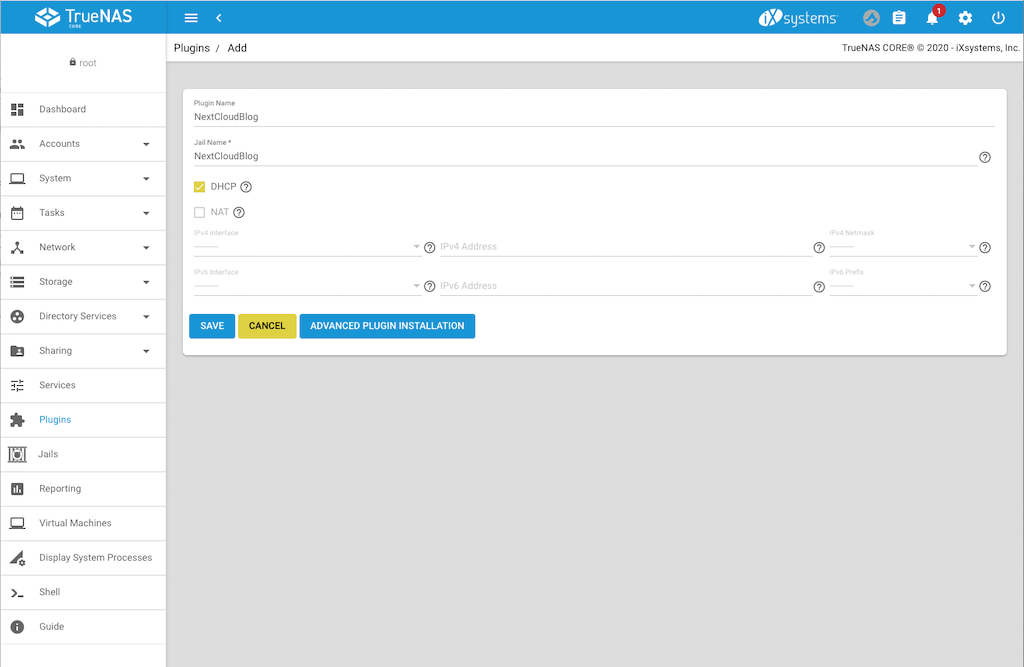
    NextCloud is an official plugin, therefore we simply goes to Plugin int the TrueNAS backend and select NextCloud. At the time when this entry was written the plugin is using NextCloud 20.0.4, instead of 20.0.5. However this is nearly the current version and shows me, that the plugin is actively maintenanced by iXsystem. Select the plugin and press install. A form is opened where you can define the settings. Enter the plugin name and jail name you want. Disable NAT, we will give this jail its own IP-Address. Select the interface on which the NAS ic connected, enter the IP-Addres you want that next cloud is listening and the netmask. Alternatively press DHCP if you want to manage the IP-Address in your router, as I mostly do. The following screenshot shows the settings:

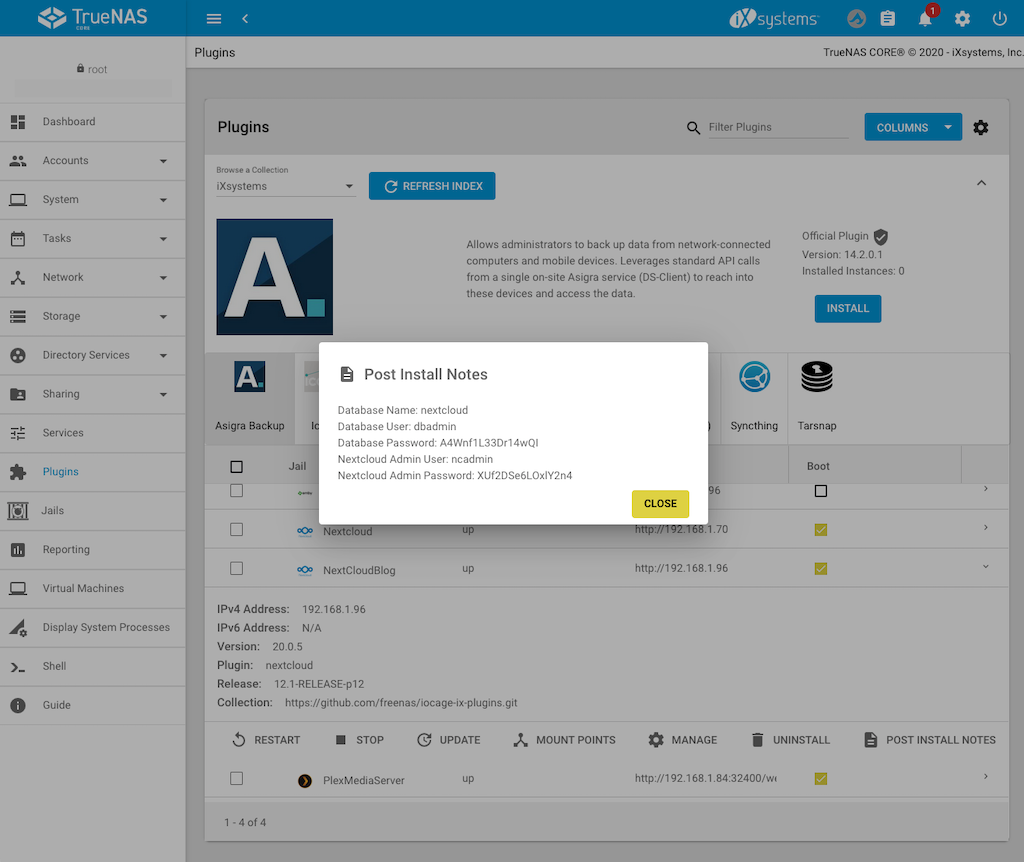
    Press save and installation dialog is displayed and wait until it is finished. Press “Close” to close the dialog which informs you about the successfully installation. Next press “Post Install Notes” to display the username and password for the admin access to NextCloud and copy it or write it down:

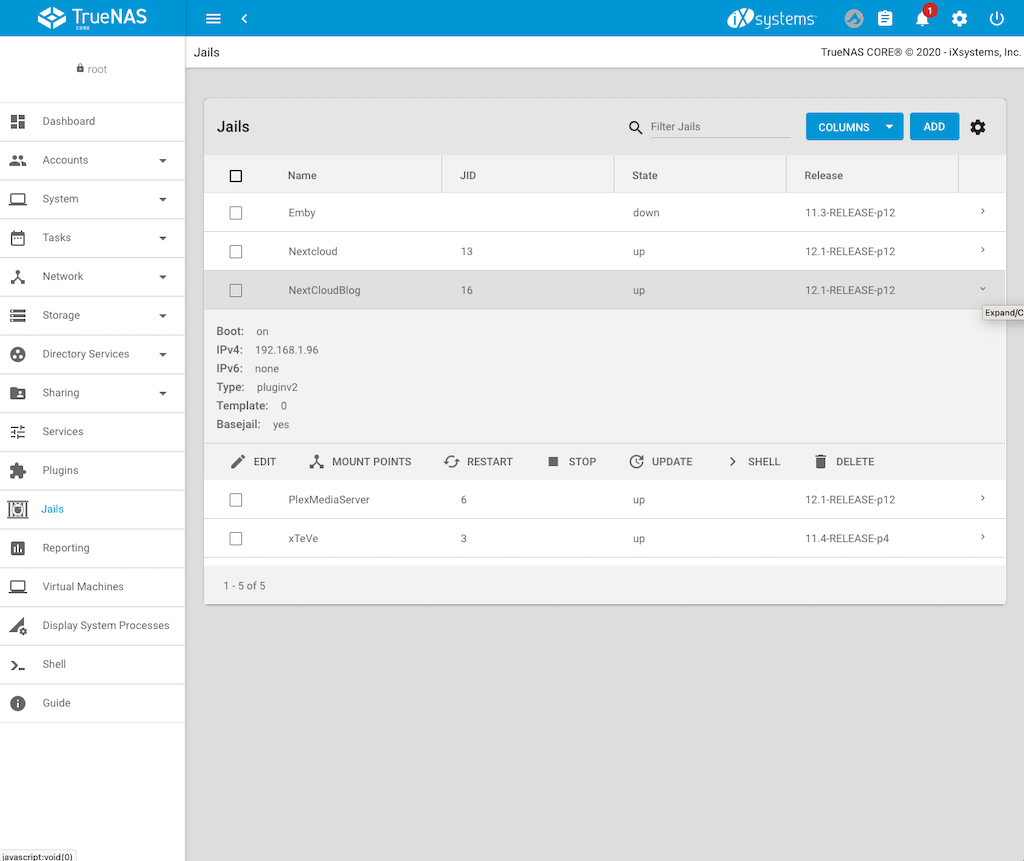
    Now switch to Jails to get the IP-Address of your NextCloud jail and to create mount points:

    Creating the mount points for the jail

    Before we access our NextCloud instance for the first time, we will mount the NAS directories which should be accessible from the jail and therefore from NextCloud. To do this:

    1. Stop the jail
    2. After the jail has stopped press “Mount Points”
    3. Press on “Actions” and select “Add”
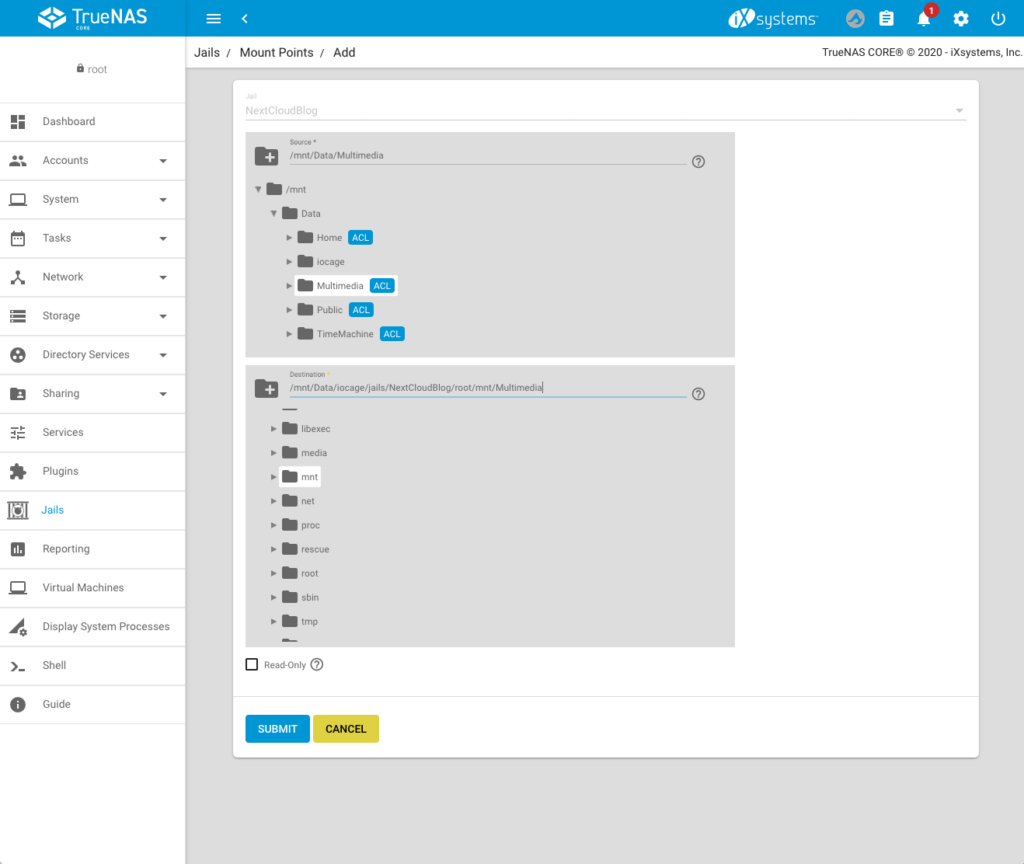
    4. On the top, select the directory which should be accessable from the jail (in my case /mnt/Data/Multimedia)
    5. Below select the mounting point in the jail (in my case: /mnt/Data/iocage/jails/NextCloudBlog/root/mnt/Multimedia). You do not have to create the folder in the jail first, you can directly enter the path (the folder Multimedia does not exist in the jail, but it will now be created).

    6. Press “Submit”. You can add additional Mount Points if you want.
    7. Go back to jails and start the jail.

    Add the local network to the trusted domains of NextCloud

    Unfortunately before we can use the NextCloud webinterface we need to add the local network to the trusted domains. To do this:

    1. Select the NextCloud jail and press the “Shell button”
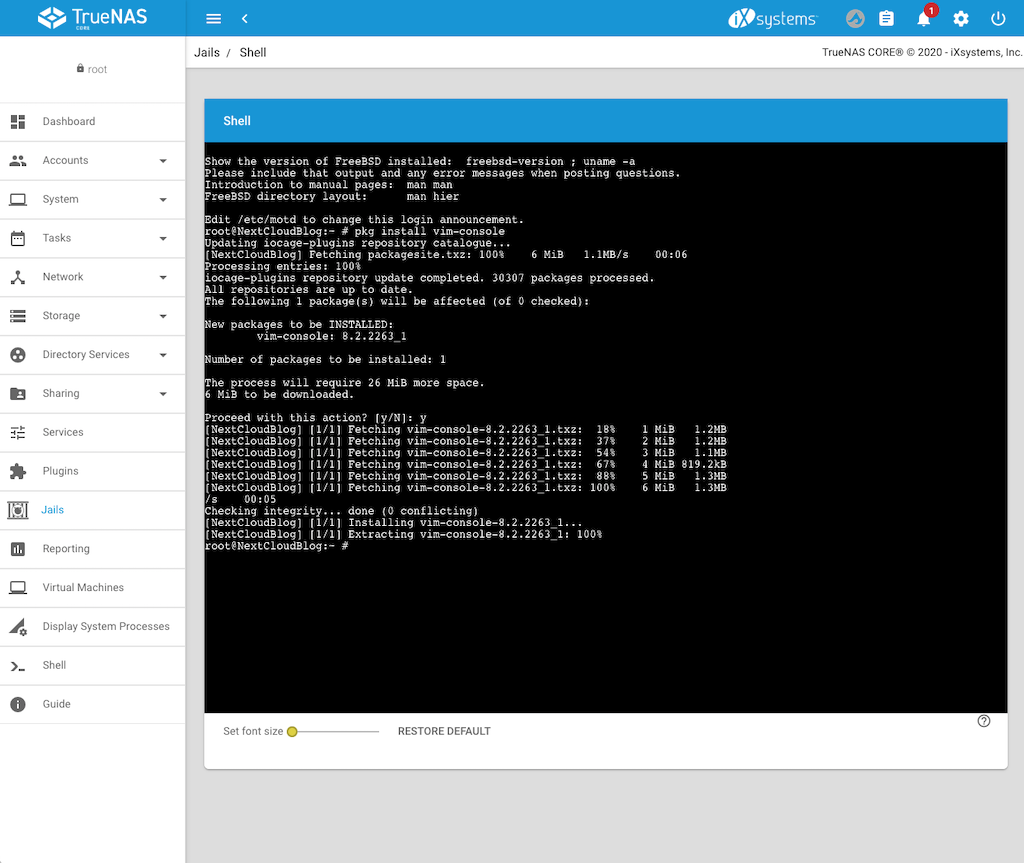
    2. Install the vim editor to directly edit the config.php file by using the following command:
      pkg install vim-console
    3. Go to the config file by the entering the following command:
      cd /usr/local/www/nextcloud/config
    4. Open config.php file to edit:
      vim config.php
    5. Press i to insert and edit the lines
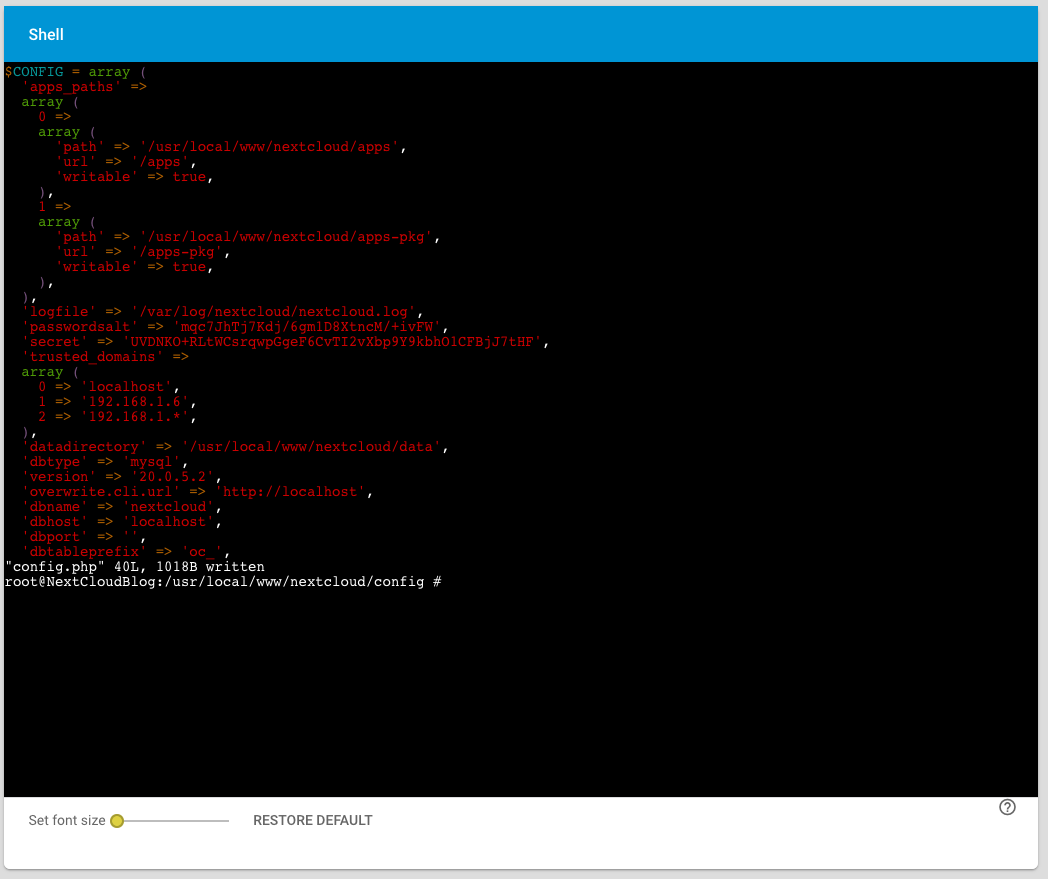
    6. Add the whole home network by adding the following line to the trusted domains:
      2 => '192.168.1.*'
      or whatever your home network IP-Address is.
    7. Press Esc and then enter :wq to store the file and exit vim.

    Accessing NextCloud for the first time

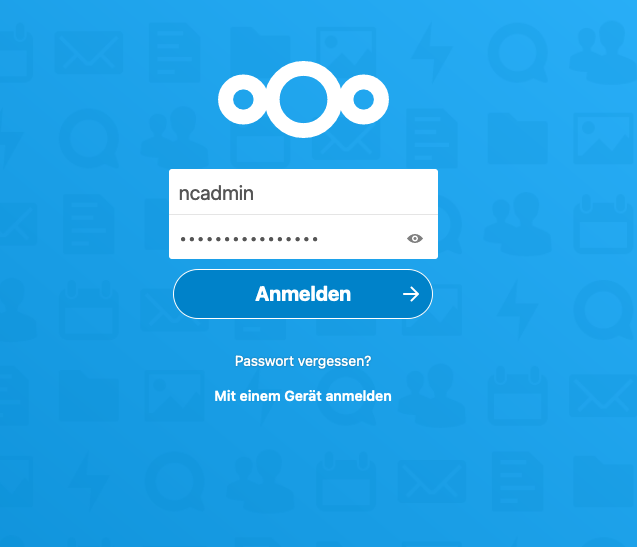
    No we can login to NextCloud for the first time by entering the IP-Address of the Jail:

    I would suggest to change the password of ncadmin or simply create a new admin user. In the next step we will add the Multimedia mounting point to NextCloud.

    Enable External storage to add a local directory to NextCloud

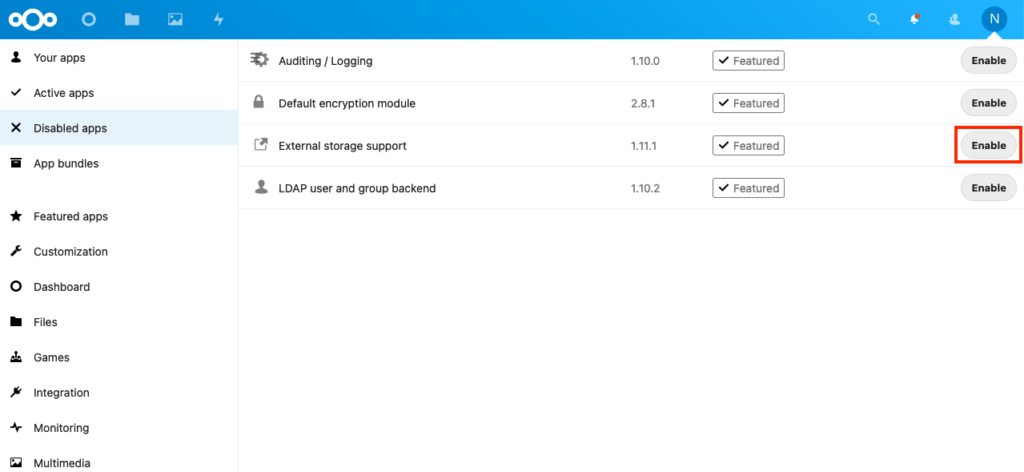
    In the NextCloud backend we switch to apps and then to “Disabled apps”. There we find the “External Storage support” app and enable it:

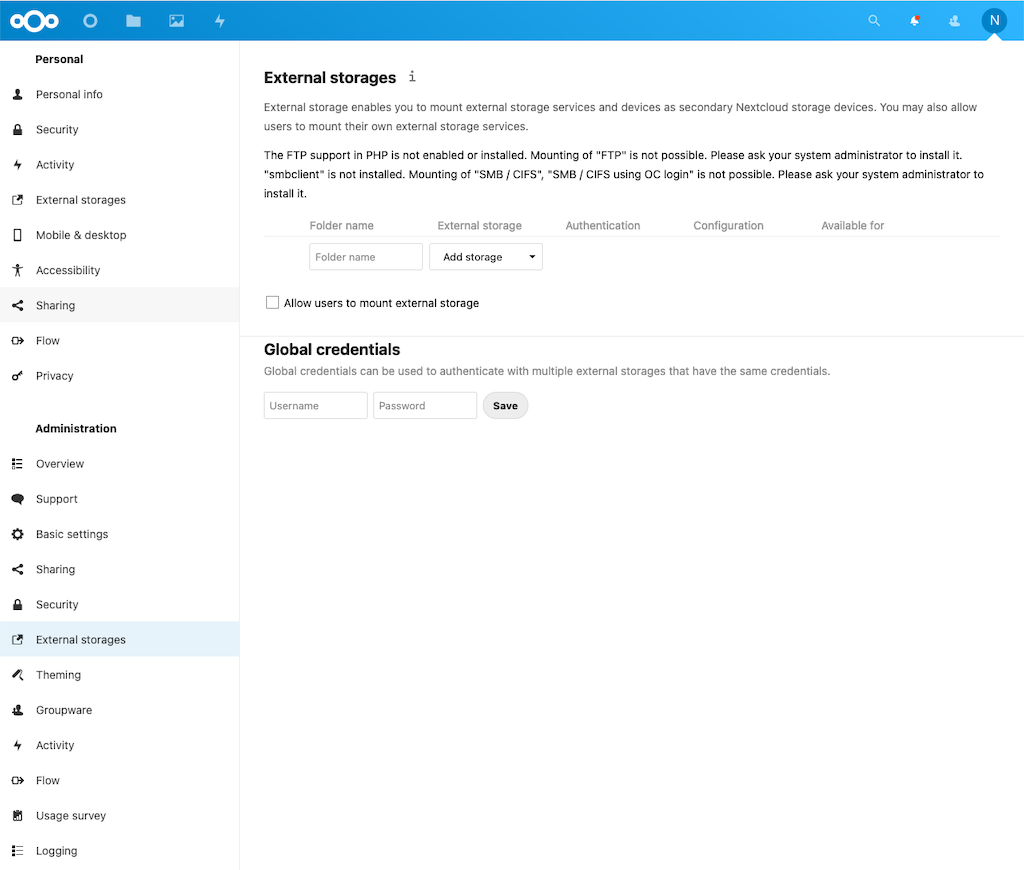
    In the next step we switch to settings and select “External Storages”

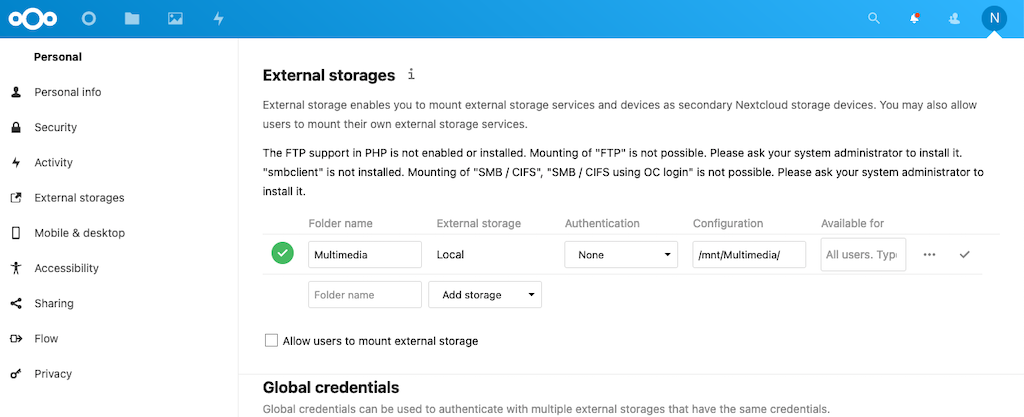
    Now we can enter the “Folder Name”, the type of “External storage” (Local), the “Authentication”, the “Configuration” (meaning mounting point, or location) and who is allowed to access our external storages (“Available for”). Final press the Checkmark to check and store the configuration. Based on this tutorial the external storage configuration looks the following way, the green checkmark confirms that the external storage is accessable:

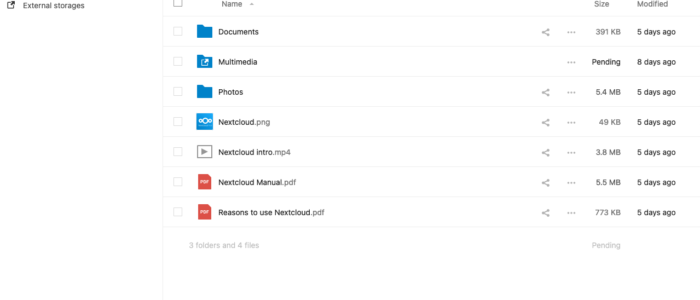
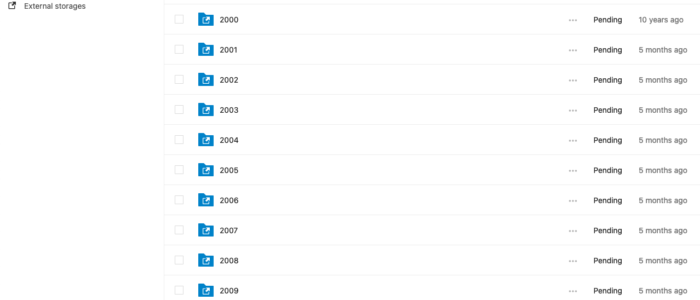
    If you now switch to “Files” you will see a reference to the external storage:

    Congratulation, you are now able to access the external storage using NextCloud! You can now download the NextCloud App on you mobile devices and use it.

    In part two of this tutorial we will secure the NextCloud jail using https with let’s encrypt and allow access from outside the local network.

    Any kind of feedback is highly appreciated.