
In part one of this tutorial we installed TrueNAS and created a NextCloud jail which makes the NAS content available using a web browser or the NextCloud app locally. In part two we will secure our NextCloud instance using https and make it reachable from the Internet.
To do this we need the following requirements:
- A domain name which can be resolved from the Internet: Select oder register a domain name and make a DNS record pointing to the public IP-Address of your internet connection. I you have a dynamic IP-Address, you can use Dynamic DNS providers like NoIP to register a domain name.
- NAT and/or Port Forwarding for 80 and 443 on your Firewall and/or Router to the NextCloud IP-address: Configure your firewall for NAT or Port Forwarding that your TrueNAS server is reachable from outside using port 80 and 443.
Because there is a huge variety of devices I cannot not go into detail. If you are unsure check the documentation of your Modem/Router/Firewall for NAT and Port Forwarding.
After we have prepared the requirements we will start securing our NextCloud instance with Let’s Encrypt. To do this, login to the backend of your TrueNAs server select the NextCloud jail and enter the command line:
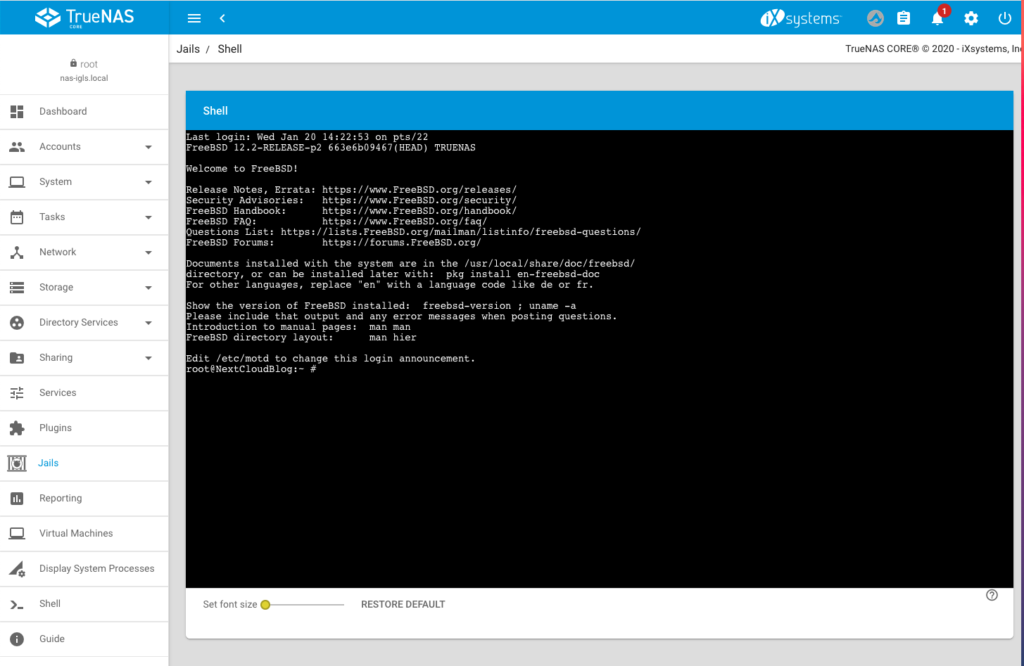
Step 1 – Add the server name to the nginx config
We need to set the server name that certbot can verify it. To do this enter the following command to switch into the config folder of nginx:
cd /usr/local/etc/nginx/conf.d/
Use vim to open the config file:
vim nextcloud.conf
Replace the _ by the server name as displayed in the following screenshot:
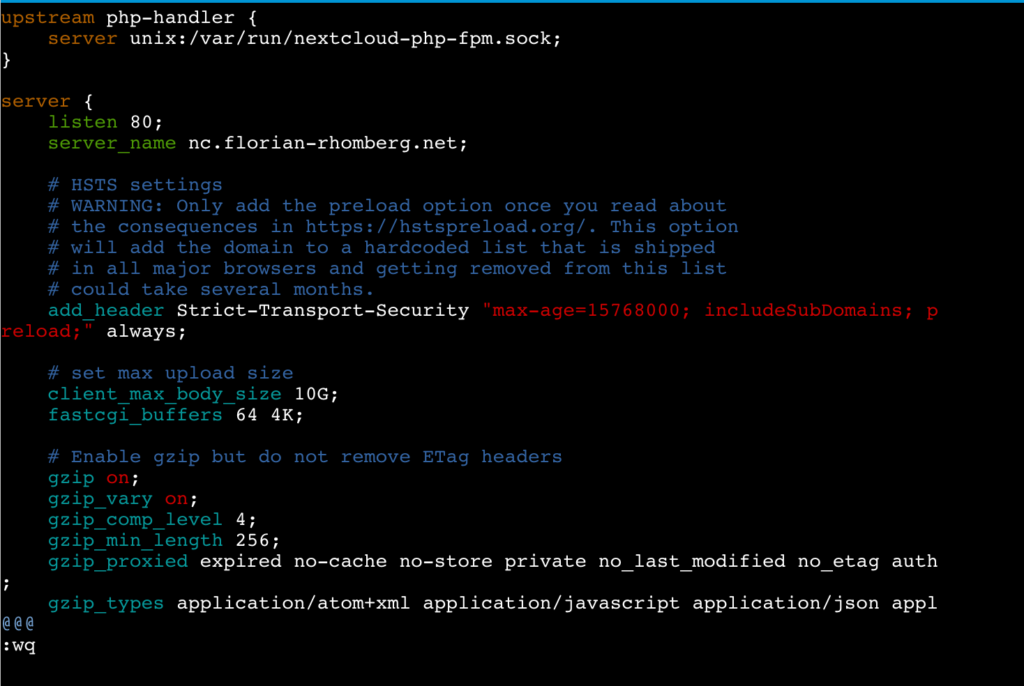
Save the changes and exit vim.
Step 2 – Installing Certbot
The following lines are more or less a copy of the real good tutorial from digitalocean.com describing How To Secure Nginx with Let’s Encrypt on FreeBSD. If have adjusted some commands (in the jail we do not need to use sudo) and skipped the part “Setting Up a Firewall and Allowing HTTPS Access” because we do not need to do this in the jail.
The certbot client is needed to obtain an SSL certificate. To do this we will use FreeBSD’s ports system. Enter the following commands in the command line of the jail:
Fetch a snapshot of the ports tree:
portsnap fetch
Extract the snapshot:
portsnap extract
Navigate to the py-certbot directory:
cd /usr/ports/security/py-certbot
Use the “make” command to download and compile the Certboot source:
make install clean
If you get the following error message (happened to me on TrueNas Core 13):
/!\ ERROR: /!\

Ports Collection support for your FreeBSD version has ended, and no ports are
guaranteed to build on this system. Please upgrade to a supported release.

No support will be provided if you silence this message by defining
ALLOW_UNSUPPORTED_SYSTEM.
you have to make the following command first:
setenv ALLOW_UNSUPPORTED_SYSTEM YES
The reason for this ist, that the jail of the Plugin uses an older version, which is no more supported by portsnap.
During this installation it is possible that some dialogs appear, you can safely confirm them.
Navigate to the py-certbot-nginx directory:
cd /usr/ports/security/py-certbot-nginx
There run the make command to install the certbot plugin for nginx:
make install clean
After a certain time the certbot Let’s Encrypt client is ready to use
Step 3 – Obtaining a SSL Certificate
Remember the requirements I have mentioned before. If they are fullfilled we can now obtain and validate a certificate by using the following command:
certbot --nginx -d nc.florian-rhomberg.net
Replace the domain nc.florian-rhomberg.net by your domain name.
Enter an E-Mail address and press enter:

Accept the terms of service by pressing y:

Accept or not that your E-Mail address will be shared with the EFF:

In the next stepped your are asked if HTTP should redirected to HTTPS, I would suggest to do this. I everything is working the SSL certificate is installed and you will get the following message:
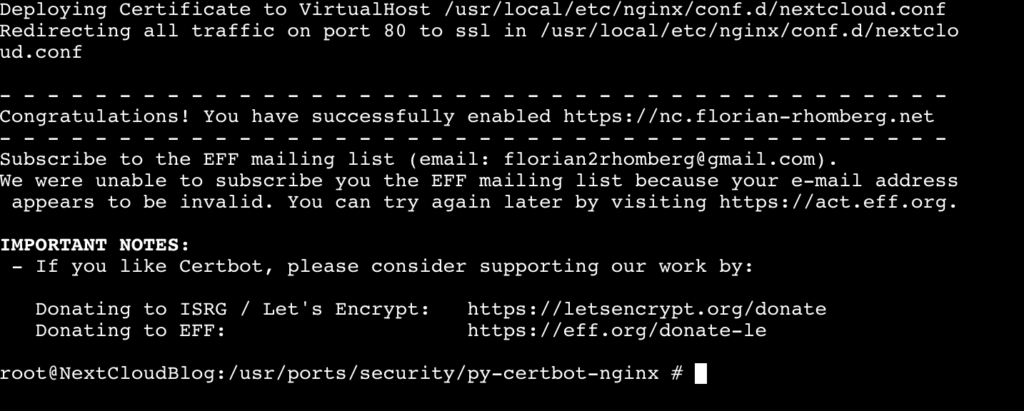
Congratulation your NextCloud instance is now available from the Internet using HTTPS.
Step 4 – Verifying Certbot Auto-Renewal
In the last step we ensure that the Auto-Renewal of the SSL certificate is working.
First make a simulation of the renewal process manually by using the following command:
certbot renew --dry-run
If this command succeed we can define a cron job for Auto-Renewal. For this enter the following command:
crontab -e
Now you can define the cron job for renewal:
0 0,12 * * * /usr/local/bin/certbot renew
This line will tell cron to run the certbot renew command twice every day. It checkss if there is any certificate on the system which is close to expire and will attempt to renew them when necessary.
Congratulation, now your NextCloud instance is reachable from the Internet and is using HTTPS per default.
Any kind of feedback is highly appreciated.




Leave a Reply