Category: Network

  • Are the NAS Systems from UniFi appropriate NAS-Backup solutions?

    Are the NAS Systems from UniFi appropriate NAS-Backup solutions?

    As an MSP I am always looking for improvements for our clients and as well as for our company. Therefore testing new devices and technologies is a daily part of my work.

    Since nearly a decade I have been using Synology (or former QNAP) NAS systems as primary backup storage at my clients, as well as inside the company. They have nearly replaced all tape libraries (in fact I have only two remaining customers who are using a tape library).
    I am are also very happy with our Synolgy NAS, they are typically no brainers, set and forget devices until a hard disc has to be replaced, very reliable and solid.

    But however times moves on and Synology on the one hand did some things in the last years that gained my attention, e.g. vendor lock in for HDD, and on the other hand, the newer Synology NAS are very often over capable for the intended use to provide space for backups and replicate it to another site. For backup tasks I do not need additional software like Synology Drive, or Synology Photo which requires better hardware. On the other hand as an MSP, a central overview about the state of each backup NAS is a must have and even Synology insight exists, I never became really warm with it, some important information are missing, others which are less important for the workload a displayed very prominent. Therefore I am very interested in testing alternatives.

    Since the beginning of my company we heavily used Ubiquiti devices, at the beginning mainly the Access Points, then continuing with the switches and since 3 to 4 years we have been using UniFi Protect and UniFi Access. I like the products, the quality and also the central management for MSPs which is one of the best currently available, in my opinion. Therefore I was very excited when they announced their NAS lineup. Even at the beginning it already looked as a good alternative for our current solution. But I decided to wait a little bit until some features are handed in later, which are quite important for the workload I want to test. With version 4 of the UNAS OS it was time to test it.
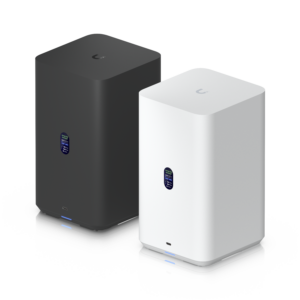
    Therefor I purchased one UNAS2 for testing, my requirements are very clear and very common for a MSP:

    • Easy and simple deployment even in large scale.
    • Central Management which really gives me a compact overview over the most important data.
    • Replication of the NAS to another site (in my case to an S3 storage).
    • Integration into LDAP, AD or Azure.
    • Support of NFS and Samba.
    • Encryption for certain customers.

    Deployment in large scale

    Like all other UniFi products, this is something Ubiquiti knows how to handle, like nearly none of their competitors.

    You plug in the device (you only need one network cable, the NAS is also powered by PoE) and after a short booting time the small display tells you the IP-Adress for further configuration.
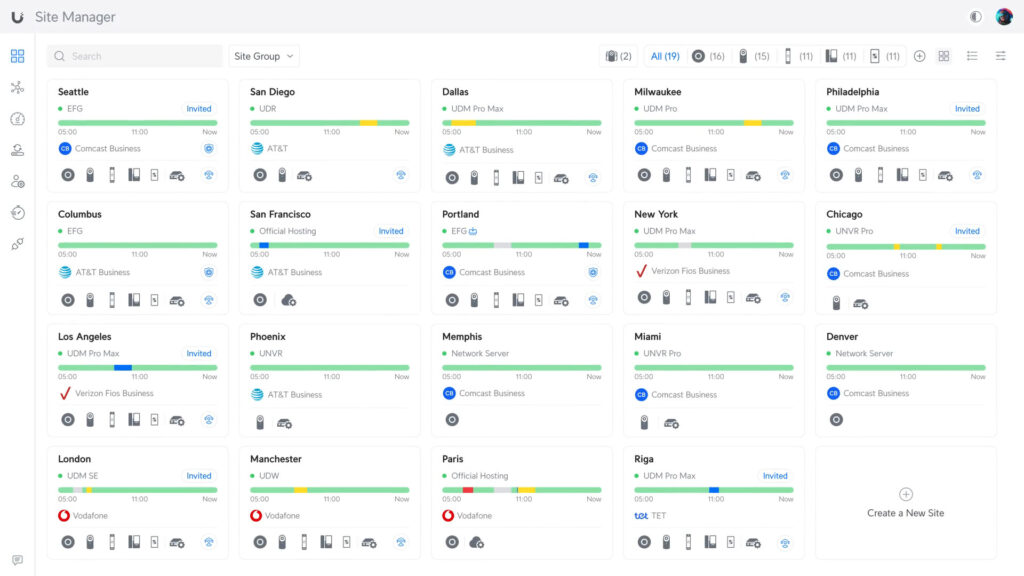
    Even better, if you have a UniFi-Network, then you have only to open the site manager and the NAS is shown and ready to adopt. Simply press the adopt button and after two or three minutes the device is ready to serve.

    The device is shown as own site in the UniFi-Cloud and as a device in your UniFi-Network, like your Switches, AP and telephones.

    The way the NAS is integrated into the UniFi ecosystem is very handy and clearly arranged.

    Central Management

    As already mentioned the UNAS can be managed using the UniFi-Cloud where ist is shown as an own site which can be a little bit confusing, especially if you are also using a UniFi-Gateway which is also managed using the cloud because it is not shown hierarchically.
    On the other hand, the UNAS is running independently from any other UniFi device it can only be added to the whole ecosystem If the user wants it. Therefore this might be the right decision. The NAS also supports fabrics which helps to organize a large scale of UniFi devices and gateways.
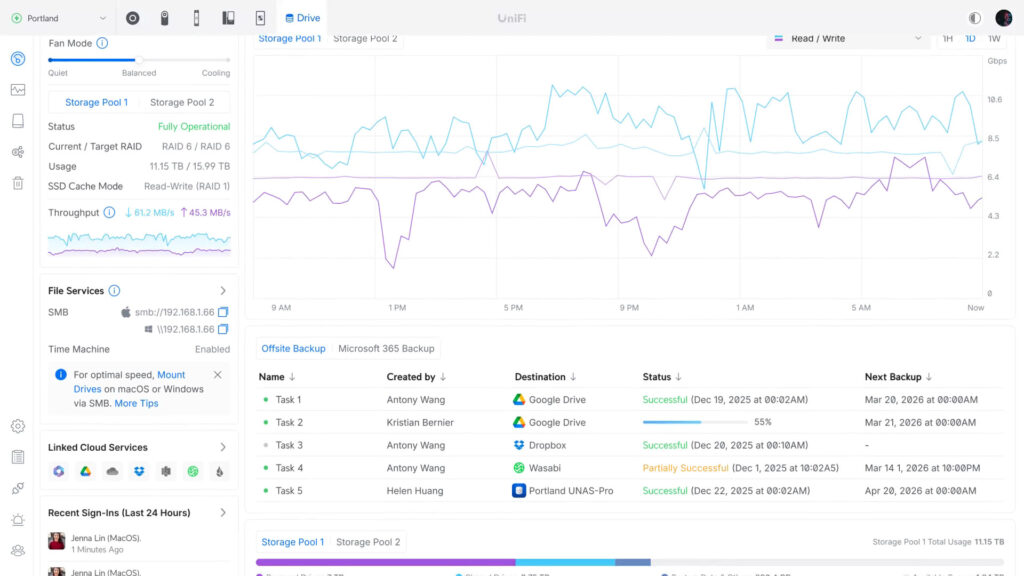
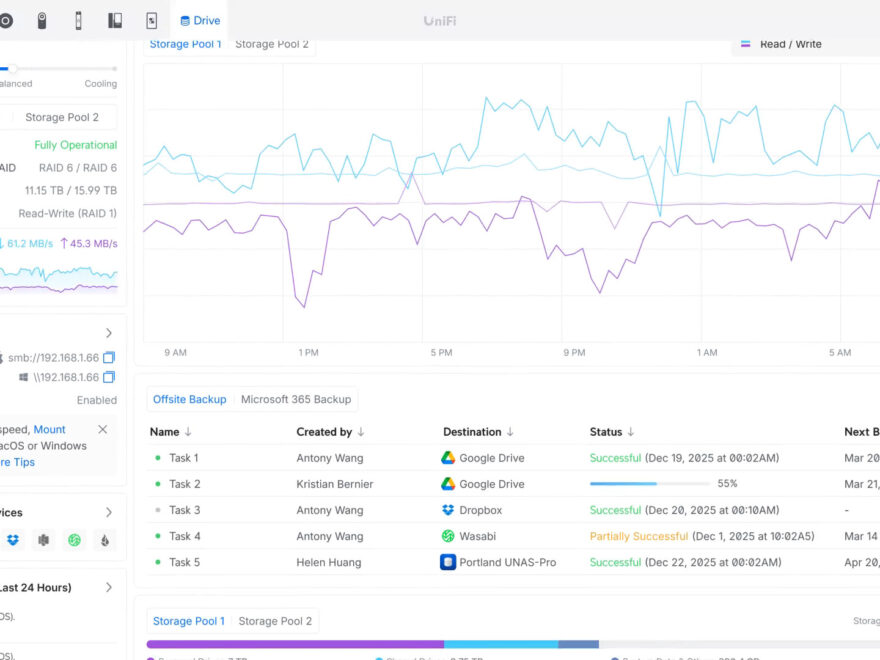
    The UniFi NAS series have an own tab in the Unifi-Cloud, called „Data Protection“ where you get the most important information about all of your UniFi NAS systems:

    • State of each NAS
    • Health Monitor of each NAS
    • Backup Task

    Especially the last bullet point makes the UNAS series already better for an MSP than a lot of the other manufacturers. There you have a unified view for all backup tasks which are configured and about their state. You can switch between the backup of your NAS and the backup state of any cloud backups of this NAS, even for M365.

    Summarized, the UNAS series already has a better „Single Pane of Glass“ than Synology, or QNAP. Especially in combination with the other components of the UniFi ecosystem it’s something an MSP wants and is searching for.

    Replication/Backup features

    I would say this is currently the most weak discipline of the UNAS series.
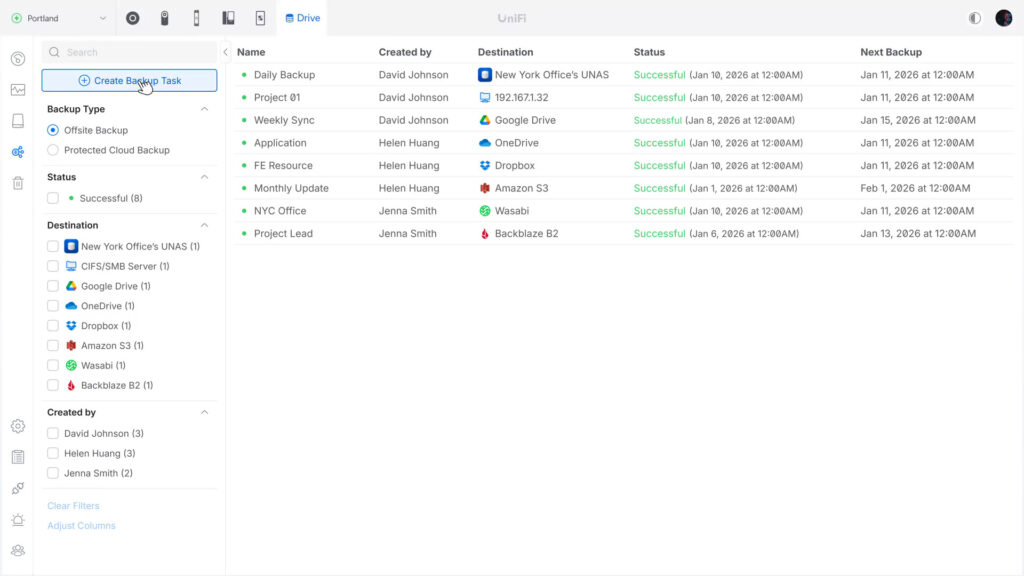
    Currently it only supports three backup methods:

    Off-Site Backup allows the user to backup the complete NAS or parts of the NAS to a Remote NAS, to a CIFS/SMB-Server or to a cloud service. In the first glance this sounds solid, but in detail it shows a lack of important features:

    1. Currently you can only recover a whole backup, from scratch. You have to reset the NAS, during the installation assistant you can choose from a backup. There is no possibility in the current UI to select e.g. a certain file to restore. I know that the UNAS supports snapshots, but recovering certain files from a backup without a complete reset of the UNAS is a basic need.
    2. As a destination for a cloud backup you currently have only the options to backup to Google Drive, OneDrive, Dropbox, Amazon S3, Wasabi and Backblaze B2. There is no possibility to define a custom s3 provider. For me as an MSP this is simple not enough, we use European S3 providers because of legal terms and therefore we would need to define custom S3 providers.
    3. There is no possibility to encrypt the data locally before sending it to the external backup destination.
    4. It is also not possible to set a max data rate for uploading to the cloud. This must be done on the firewall/router.

    Local backup supports backup to an external NAS using Rsync to the UNAS2, or creating a copy of the local console to another Ubiquiti NAS in the network. As already mentioned in the Offsite-Backup, the UI currently does not support any kind of restore tasks.

    Cloud-Backup: Using the Cloud-Backup you can backup your M365 One Drive to the NAS, the support for Exchange, Teams and Sharepoint should follow soon. If this feature arrives, I probably will make my own test.

    Generell spoken, the current backup feature of the UNAS series is very, very rudimentary, nor comparable with the features of Synology, QNAP or UNAS. I hope the next releases will improve this functionality.

    Integration into LDAP, AD or Azure

    The integration of the UNAS into an Active Directory works quite well, in the first try I had certain problems but all of them were solved with an update in August 2026. The integration is very easy, the device is added as a domain member and then synchronizes the AD users. Now you can directly access the NAS from any computer in the network. If the computer is a member of the domain and you have enough rights you can directly access the storage, otherwise you have to enter your domain credentials.
    It also works fabulously with Apple, or Linux devices. There I have nothing to complain.

    You can also use your credentials to access the web file browser of the UNAS and it works seamlessly with your Ubiquiti identity app and access your files on the NAS. There is also a possibility to use the NAS as a backup destination for your iOs (!) photo library. I did not test this.

    Support of NFS and Samba

    The UNAS series supports NFS and Samba and both protocols work really well and the whole NAS is very fast with its 2.5 Gbit port. Especially for this stock price the speed is really great!

    I did three test:
    First I added it using Samba to my Windows PC and put a copy of an old Windows Server VM on the NAS and started it from there, using VmWare Workspace.

    In a second test I used the UNAS as a SR destination for VM on my XPC-NG cluster and ran two virtual machines, one windows server and one Ubuntu server parallel. It worked quite well, even though I did not use SSD drives. I would not run any heavy vm load on this NAS, but as already mentioned for this price the performance is more than well.

    As a third test I used it as a backup destination, again for my XPC-NG cluster, and also in this role the UNAS2 made a really good job. On backup and restore operations the NAS always used nearly the maximum of its 2.5 Gbit connection to transfer data. There were only a few and small drops in the read and write statistics, even when backing up big VMs.

    Conclusion

    The UNAS2 is a very solid and good value NAS for anyone who is focused on a device which is very good in one thing: To store and provide files in a network. It has no advanced features like Docker, VMs, or applications like Synology Drive oder Synology Photo. It is a quite basic NAS with a fast network connection (a lot of more expensive NAS still have only a 1 Gbit network interface), with a really good value.

    For an MSP who is already using Ubiquiti devices the UniFi NAS series is a good choice if they need a device which can be centralized accessed and managed and its main task is to store and provide data.
    In the current state I will use the UNAS2 as a backup NAS for small clients which have virtualized environments and no problems with storing their external backup on AWS S3.

    But I hope that Ubiquiti will soon improve and extends the features of the UniFi NAS series, especially a restore assistant in the UI for partly restore operations is a must have!
  • Configuring Ubiquiti U5G Max on a different WAN Port

    Configuring Ubiquiti U5G Max on a different WAN Port

    In this blog entry I will describe how to configure the U5G Max on a different WAN-Port than the default one, considering advanced feature like port forwarding.

    I am using the following setup:

    • One UDR7 as my home router.
    • One U5G-Max Outdoor, with inserted sim card.
    • I want to use Port 1 on my UDR7 for the U5G-Max because this port supports PoE.
    • The U5G-Max Outdoor is already connected to Port 1 but not adopted.
    • I have local access to the cloud gateway.

    Changing the default WAN interface to Port 1

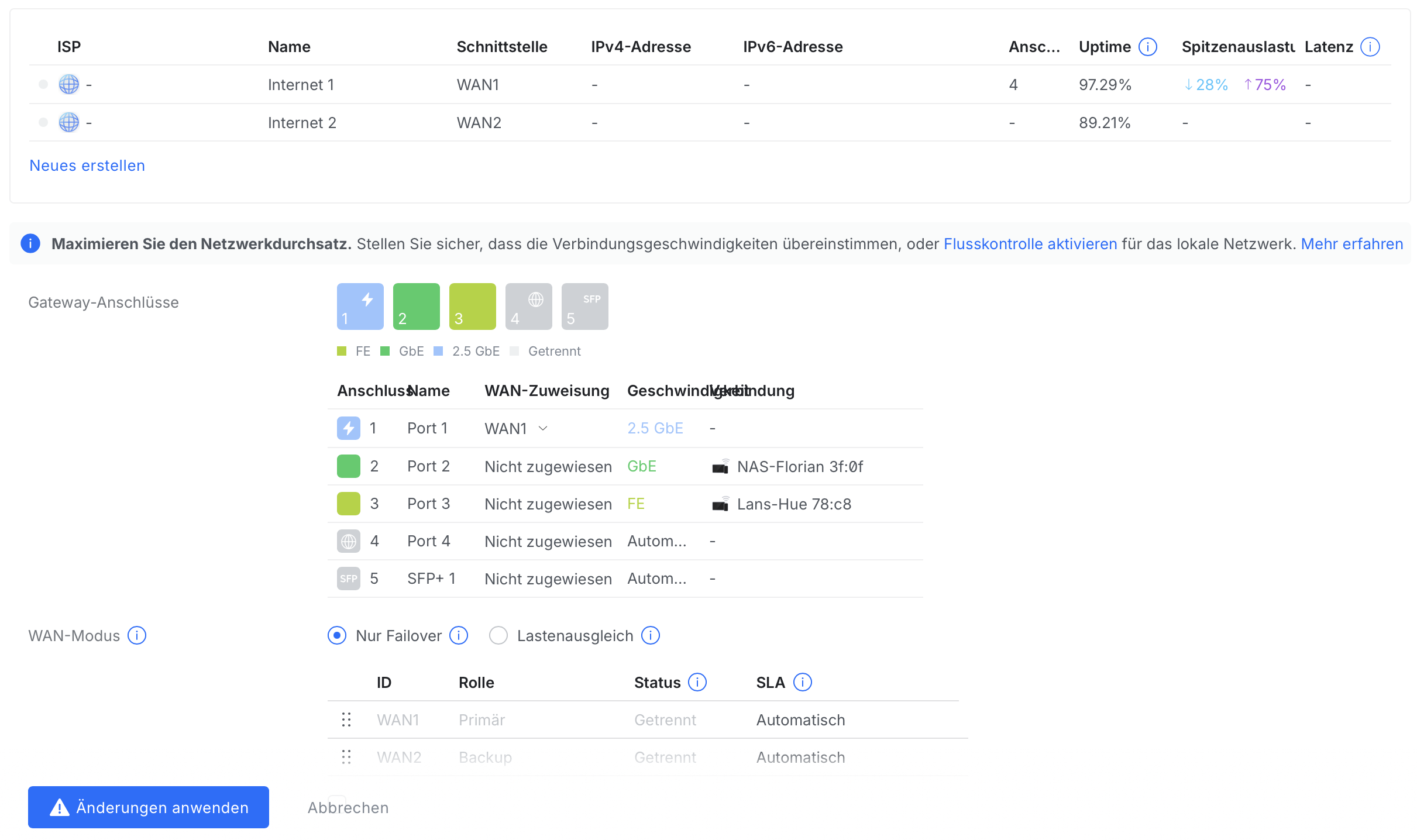
    In the first step we need to change the default port for WAN1 to Port 1 of the UDR7 (this is also the most important step):

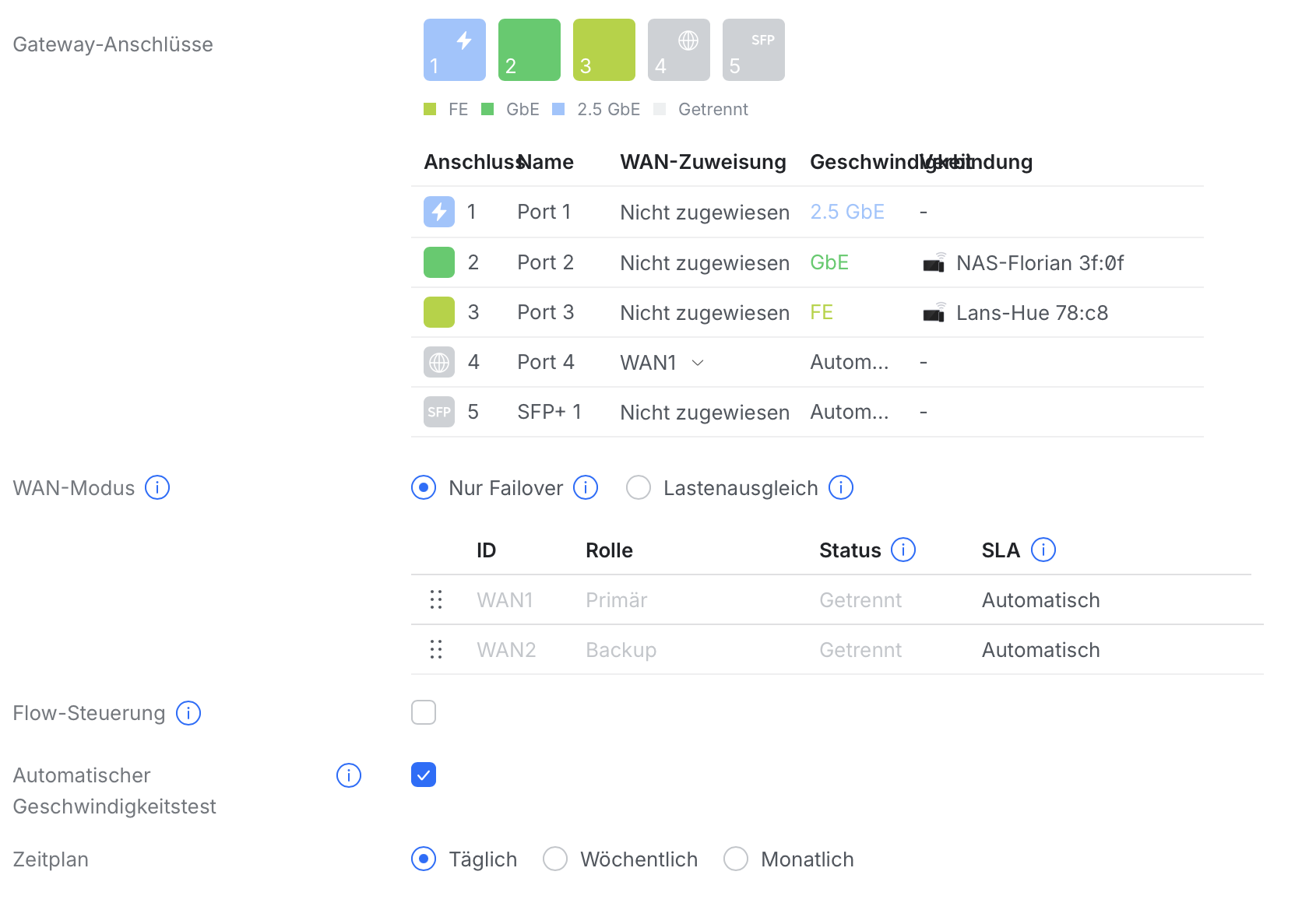
    1. Go to “Settings” -> “Internet”, you will see the following settings:

    2. Assign “Port 1” to “WAN1” and change “Port 4”, which is the default port for WAN to “Unassigned”:

    3. Press “Apply changes” to store the changes.

    In the next step we will adopt the U5G-Max.

    Adopt the U5G-Max

    To adopt the U5G-Max we go to “UniFi-Devices” and press “Click to Adopt” on the U5G-Max which should be shown:

    After a certain time the small dot in front of the device switches to green and now we can check if the port forwarding rules are configured correctly.

    Checking the port forwarding rules

    1. We go to “Settings” and select the small icon to display the “Policy Table”.
    2. Next we select “Port Forwarding” as Policy Type and select the policy rule.
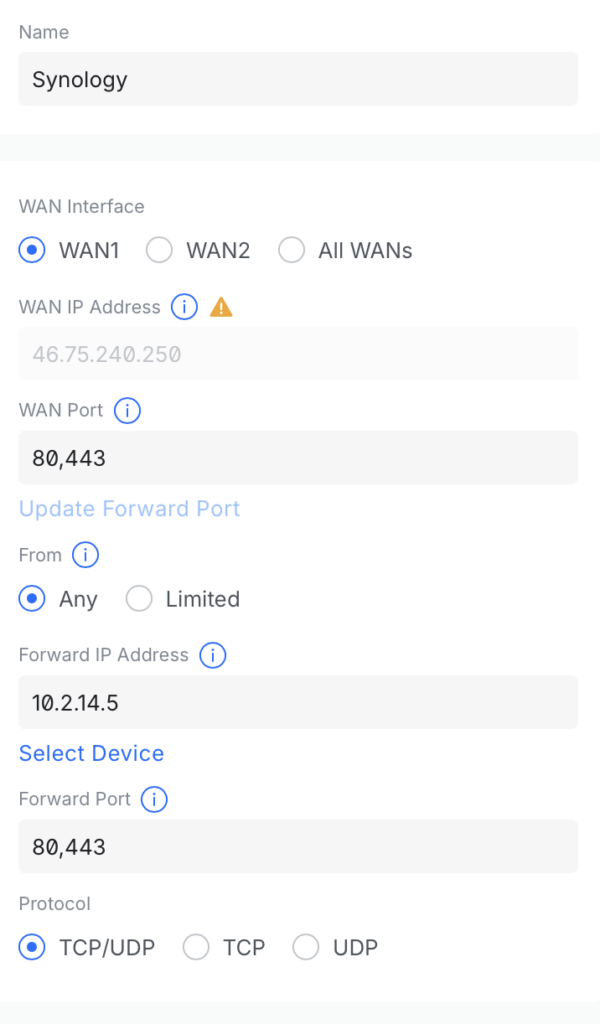
    3. The configuration will open, and there we need to check if the right WAN Interface is selected.
    4. In our case this must be WAN1.
    5. Finally we can check if the right ports are selcted and press “Apply” if we made any changes.

    Now the port forwarding from the Internet using the U5G-Max should work.

    Optional: Change the APN settings to static IP (A1):

    Finally I will change the APN settings to a static IP-Address. This step refers to any customers of the Austrian provider A1 Telekom Austria like me, if you have a business tarif for your 5G Internet and therefore a static IP-address.

    1. We go again to “UniFi Devices” and select the “U5G-Max”.
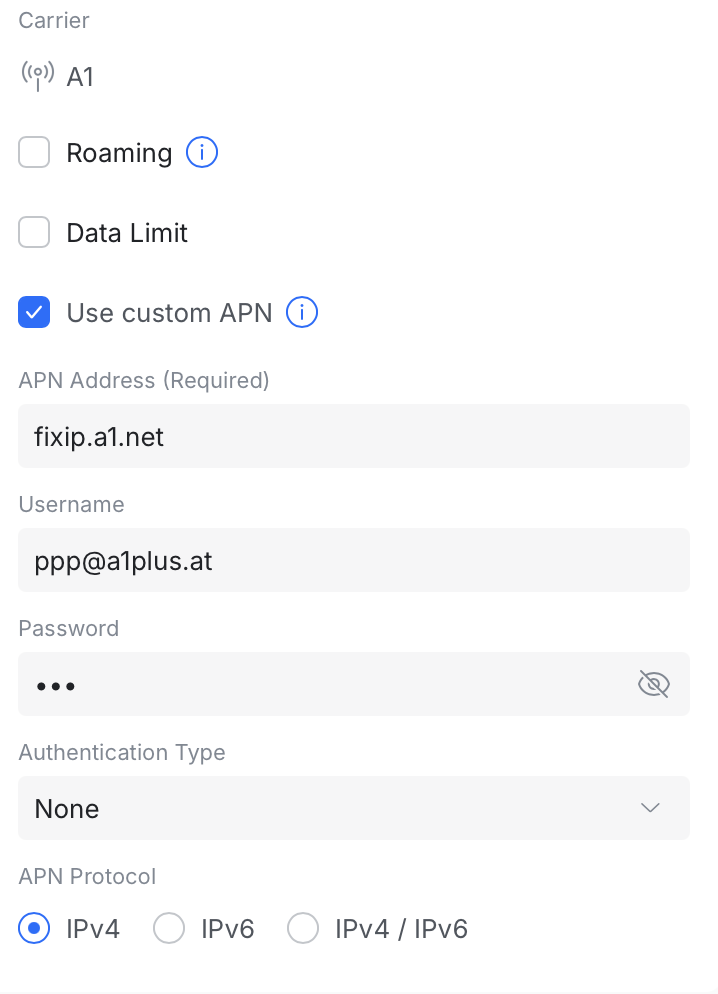
    2. We go to “Settings” and scroll down until we can select “Use custom APN”.
    3. Then we change the “APN Address” to fixip.a1.net
    4. As “Authentication Type” we select “NONE”. All other settings remain as default.
    5. With “Apply Changes” we submit the changes and after a short time the small dot in front of the devices switches again from orange to green.
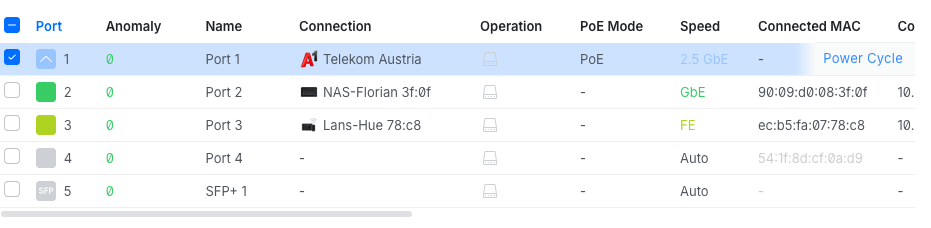
    6. As last step we need to restart the U5G-Max that the fix IP-address is applied. We switch to “Ports”, select “Port 1” and than we press “Power Cycle” which disables for a short time the power supply of the network port. Afterwards the U5G will restart and apply the fix IP-address.

    I hope this step by step guide is helpful and feel free to comment.

  • Network configuration for Thread/Matter

    Network configuration for Thread/Matter

    During my integration of Thread into my home network I got confronted with two problems:

    • The pairing process startet succesfully, the device was found but when reached the configuration mode it took endless time and ended with the result, that the paring process was not successfully.
    • The pairing process and integration was susccessfully but the device lost the connection after a certain time and I was not able to reconnect it.

    After some tries and researches I found the reason in my network configuration which was per default not optimized for a Thread network. There are two important things to know about Thread/Matter:

    • During the pairing process the device connects, using bluetooth. If the bluetooth connection is established the keys of the Thread network are exchanged and then the device connects to the Thread network. If this is sucessfully the configuration and integration is done. But if this connection fails the mobile device stucks in the configuration mode until a timeout is reached.
    • Thread lies heavily on IPv6 and the network behind the border router must fulfill some requirements. Esspecially in business networks these requirements are not fullfilled per default.

    In the following, I will show what must be changed in the UniFi network to get a stable Thread network even with multiple border routers. Finally I will also describe some settings on my Watchgurad UTM for Thread, representing the situation if you have a “business grade network”.

    UniFi Settings for Thread

    On your UniFi system it is important that you check your VLAN settings where the Thread devices should live. In my situation all IoT devices including my Thread devices, have an own VLAN called VLAN6. To adjust the settings in your UniFi controller webinterface go to Settings -> Network -> Select your IoT VLAN or the default one, if you do not have separated into multiple VLANS. After selecting the network a dialog is opened. There, please check if “IGMP-Snooping” is enabled, if not, enable it:

    IGMP stands for Internet Group Management Protocol, an IPv4 technology for multicast. IPv6 uses MLD (Multicast Listener Discovery) to achive the same result. However a lot of devices disable multicast even for IPv6 if IGMP is not enabled.

    After enabling “IGMP-Snooping” on UniFi the pairing process should successfully finish and the Thread network will be stable.

    If you have a business enviroment as described above, the following chapter might be helpful if you have any problems with your Thread/Matter network:

    Configuring Watchguard for Thread/Matters

    As written above, I need to made some changes on my Watchguard, that Thread/Matter works without problems. Some settings are not suggested but if you have problems try if it helps.

    Enable IPv6 support for the VLAN of your IoT/Thread devices:

    These settings should be enough, that your Watchguard works with IPv6 devices:

    • Enable “Send Advertisment”.
    • Be sure that you have “Disable DHCP” for IPv6, otherwise you can get problems with your border routers.

    After storing this settings, test, if the paring process is now working and the Thread network is stable. If not try the follwing additional settings. Disable this setting is not suggested because it weaks your network security:

    In your Watchguard web interface go to Firewall → “Default Packet Handling” and disable “Drop Spoofing Attacks”.

    Again this is not suggested by watchguard, but probably it will solve your problem!
    Now your Thread/Matter pairing should work without any problems and the thread network should be reliable.

    Please feel free to leave any comment.

  • Integrating Aquara M3 as Thread/Border Router into Home Assistant

    Integrating Aquara M3 as Thread/Border Router into Home Assistant

    In this blog entry I will describe the way how to integrate and use the Aquara M3 Hub as Thread/Border Router for Home Assistant. It can be used to integrate third party matter devices like Eve Weather or Ikea TIMMERFLOTTE into HA.

    Disclaimer: I am an IT-professional but not an Home Assistant expert therefore there might be better ways to do this, so please be free to comment it.

    Requirements

    I am using HA 2025.12.5 installed as virtual machine on TrueNAS. Installation was done using this community post.

    I installed the following add ons and integrations in HA which are required:

    • Matter Server (Add-On)
    • Matter (Integration)
    • Thread (Integration)

    Add-Ons does not exist in the docker version of HA!

    All the following steps should/must be made on the HA app on the smartphone:

    Step 1: Configure Aquare Hub

    First step is to configure the Aquara Hub using the Aquara app:

    1. Power on the Aquara Hub (it will talk to you)
    2. Download/Open the Aquaria App and click on “+” and “Add device”.
    3. Now the app searches for devices using bluetooth, ensure that the app has the right to use bluetooth.
    4. After a short time, the aquaria hub should be found.
    5. Just press on the symbol and configure, there are no special steps you need to do.
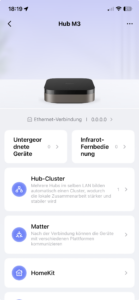
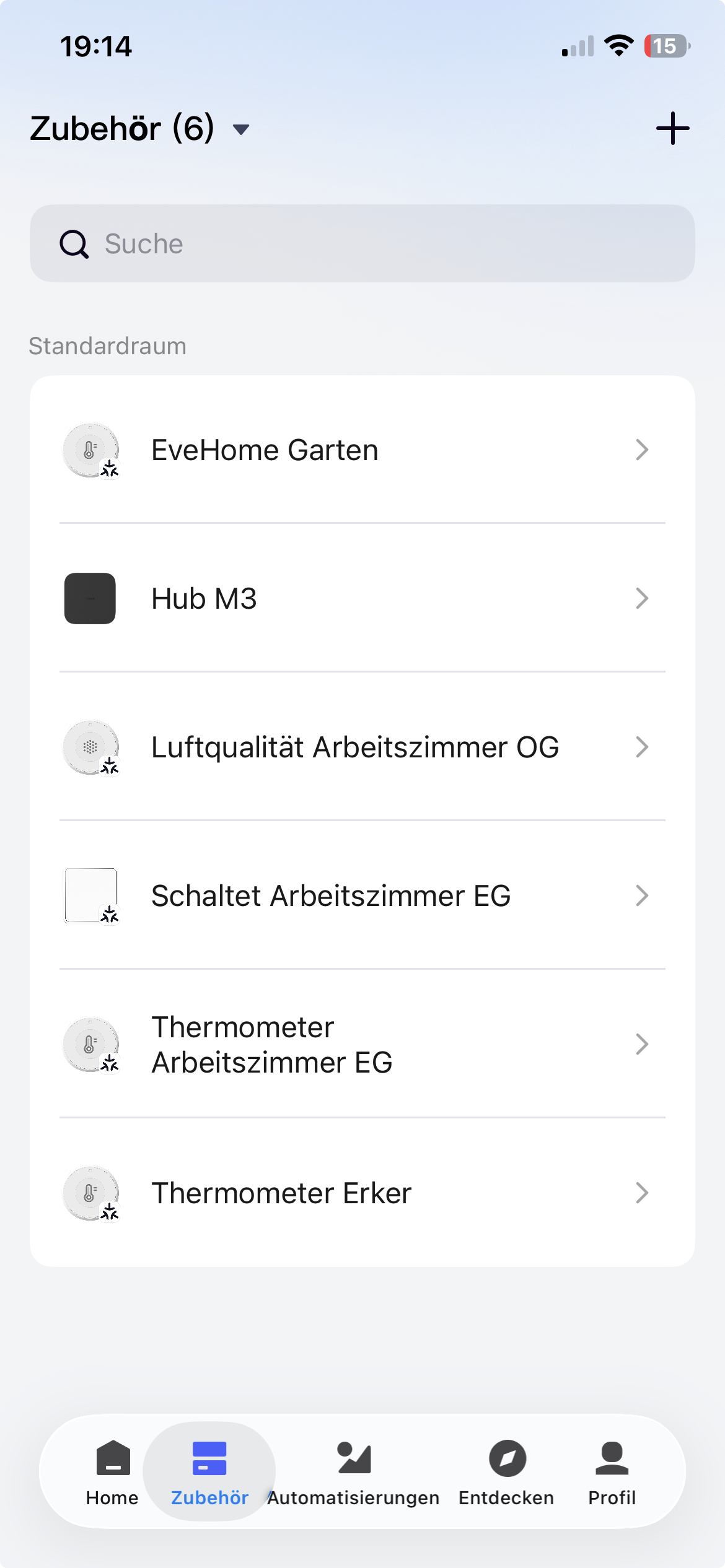
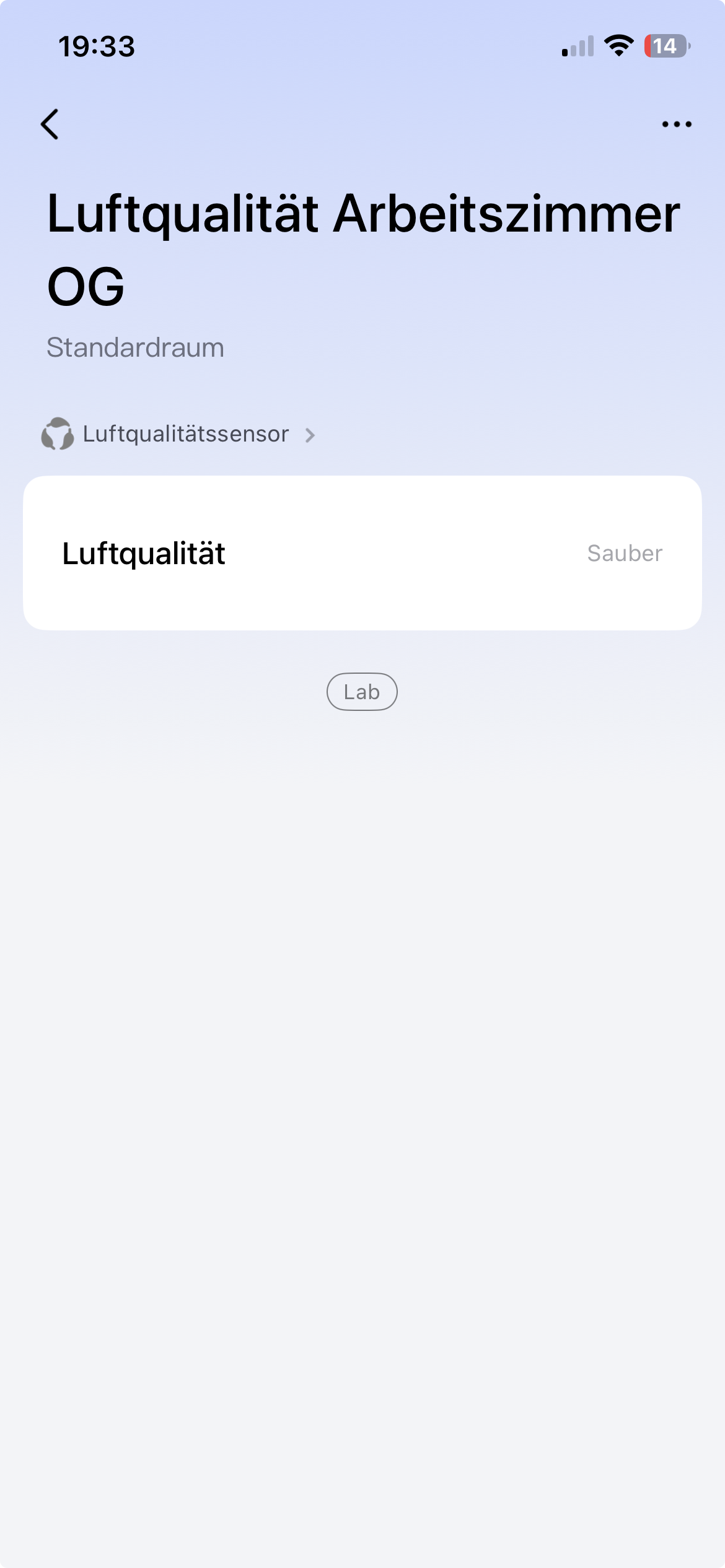
    6. Finally you should see your Aquara Hub and also get the details when pressing on the symbol:

    Now, the first step ist done and the hub is ready to add it to HA.

    Step 2: Integrating Aquara M3 Hub into the Matter server of HA

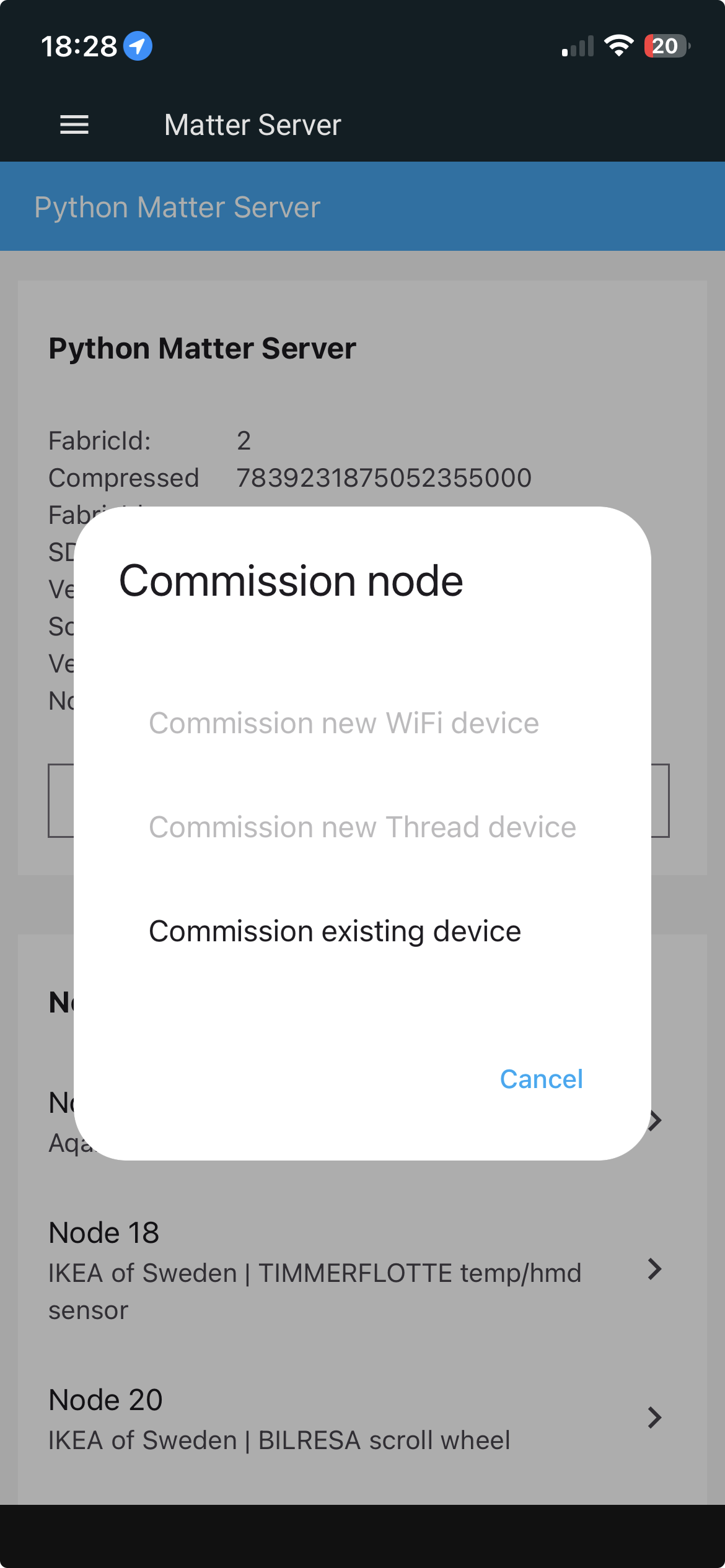
    1. As already mentioned in the requirements, you must have installed the matter server in HA. Now go into the Matter-Server and click on “+ Commission Node” to add a new node and then select “Commission existing device”:
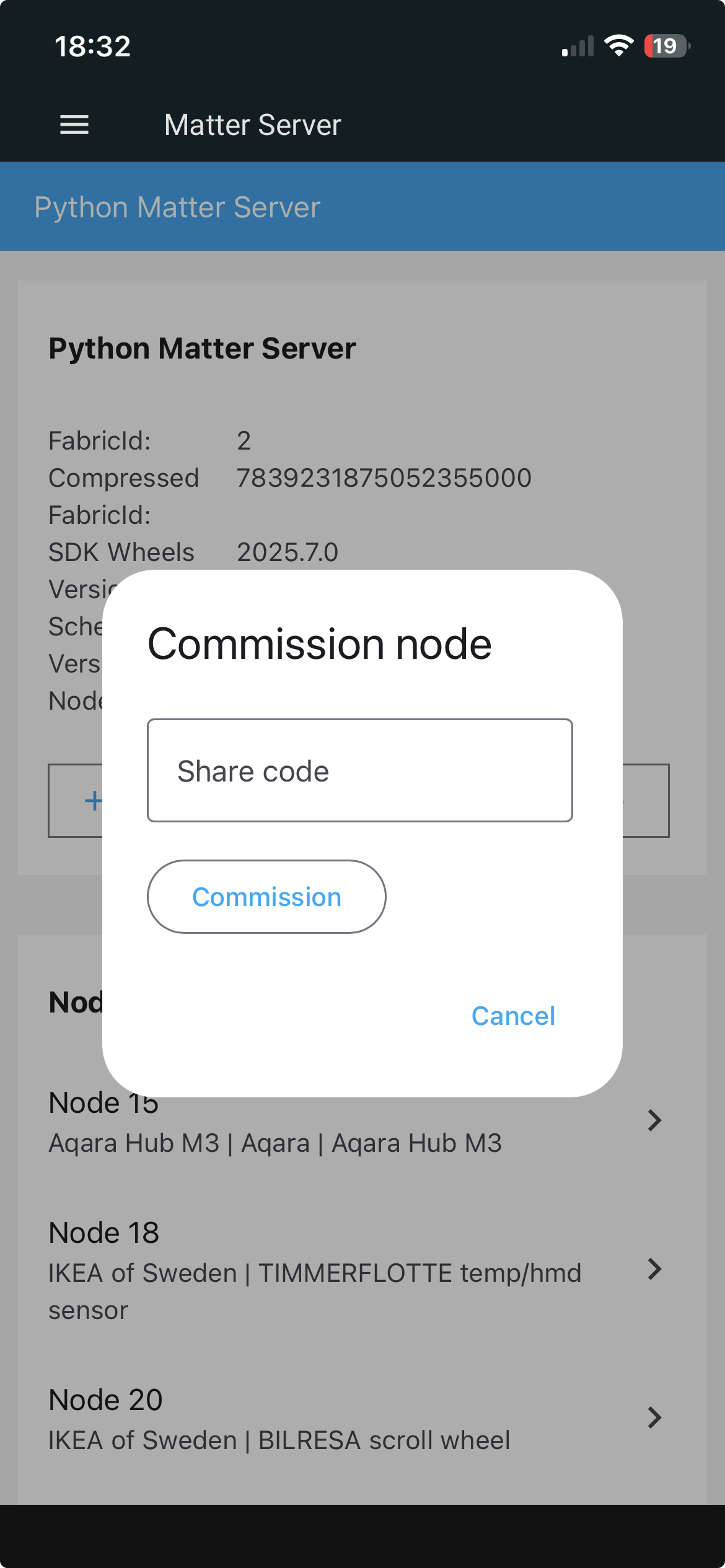
    2. Now you have to enter the share code of the node:
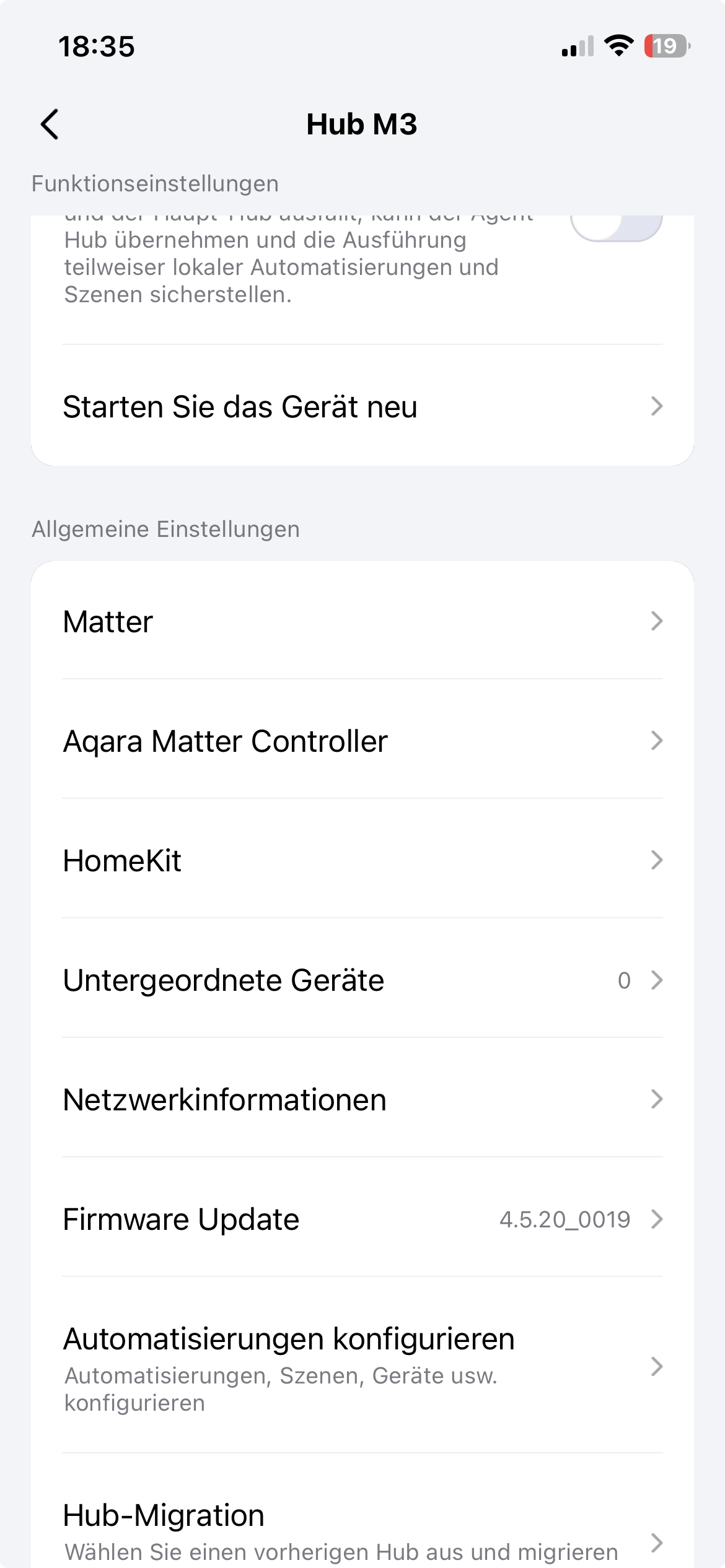
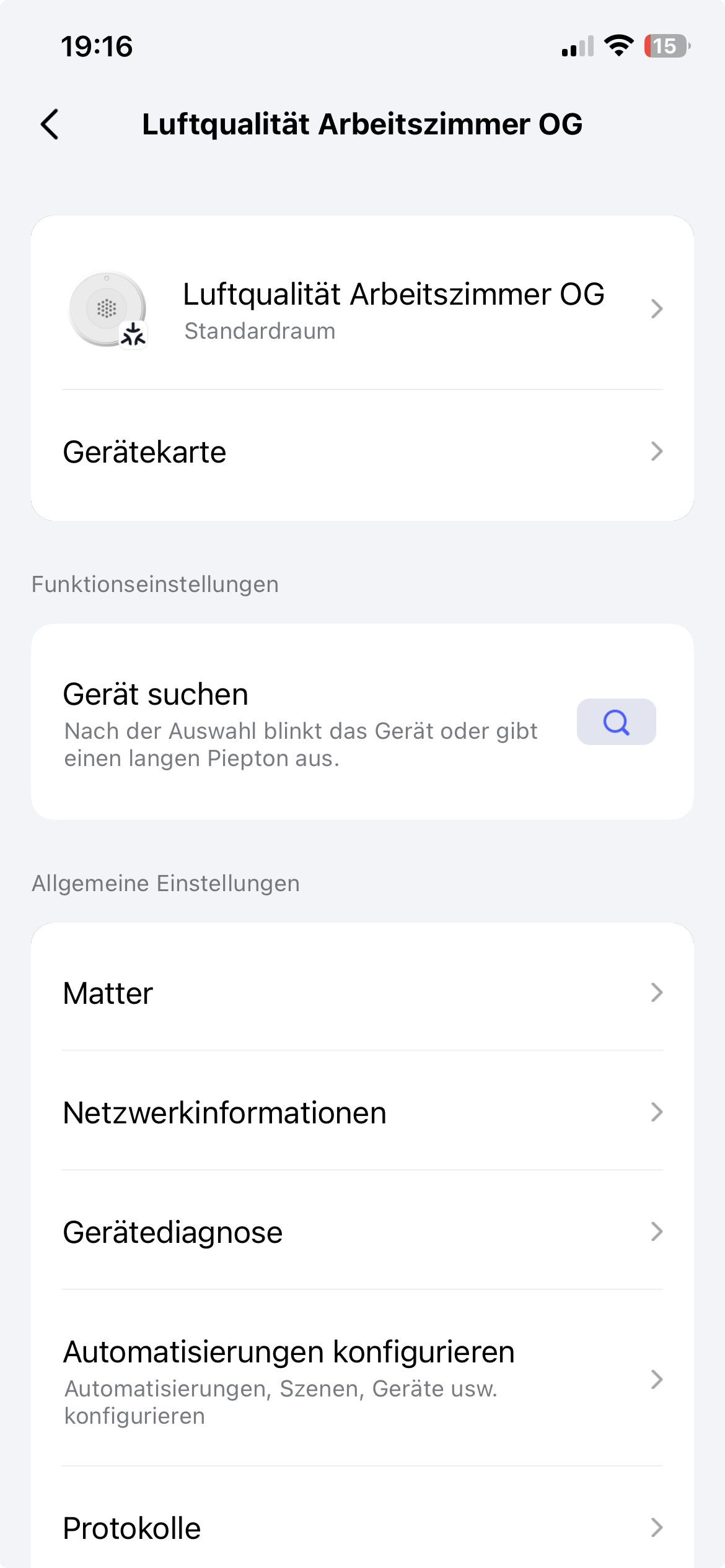
    3. To get the share code open, the aquara app, select the hub, press the three dots in the top right corner, scroll down and select matter:
    4. Select Matter Paring-Code:
    5. Copy the shown code into the field of step 2 in HA.
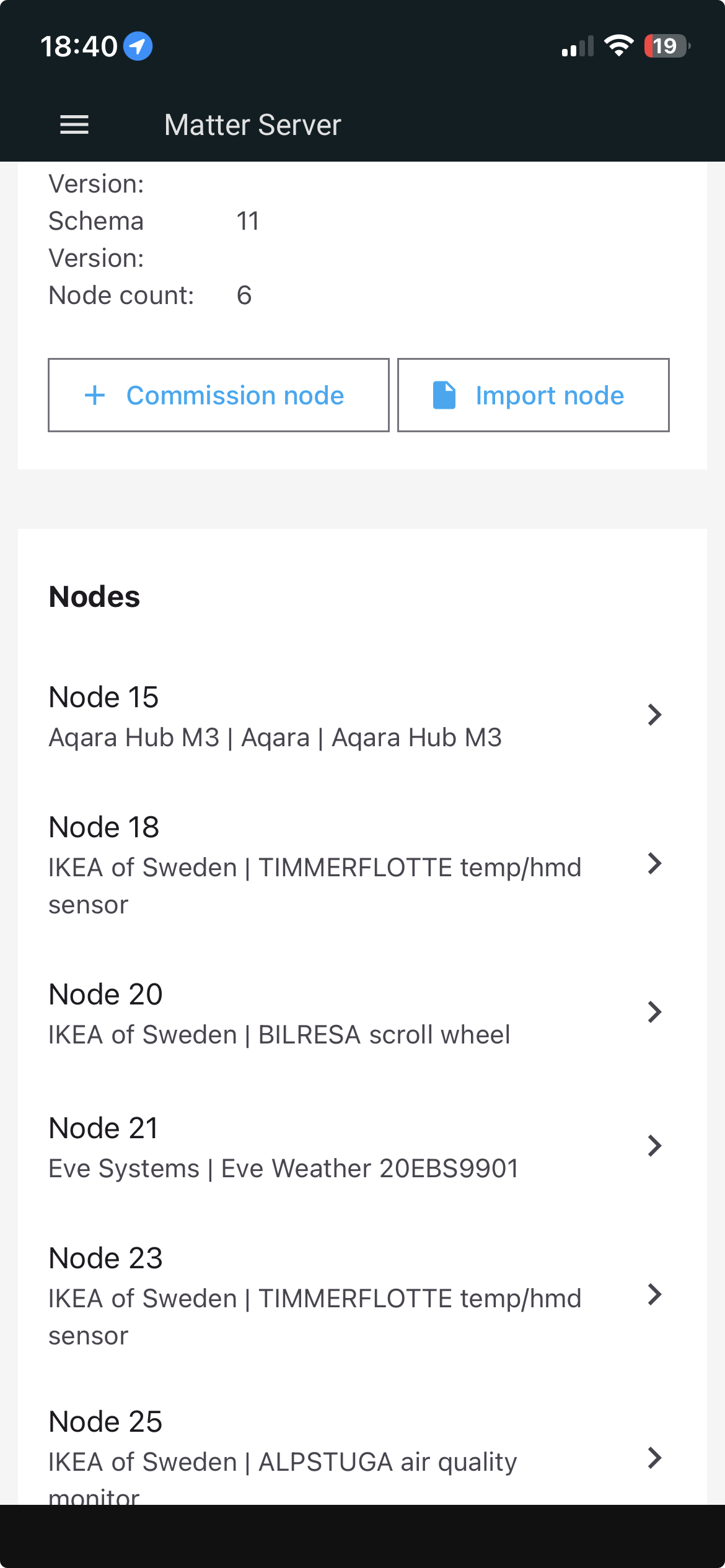
    6. Finally press commission, and after a short time the Aquara M3 Hub is added as node to the matter server:

      As you can see in the screenshot, later on every matter device will be displayed in this view as node, when pressing on the node you can get more details.

    In the next step we have to add the Thread network, created by the Aquara App and select as preferred network for HA.

    Step 3: Adding the Thread network to HA preferred network

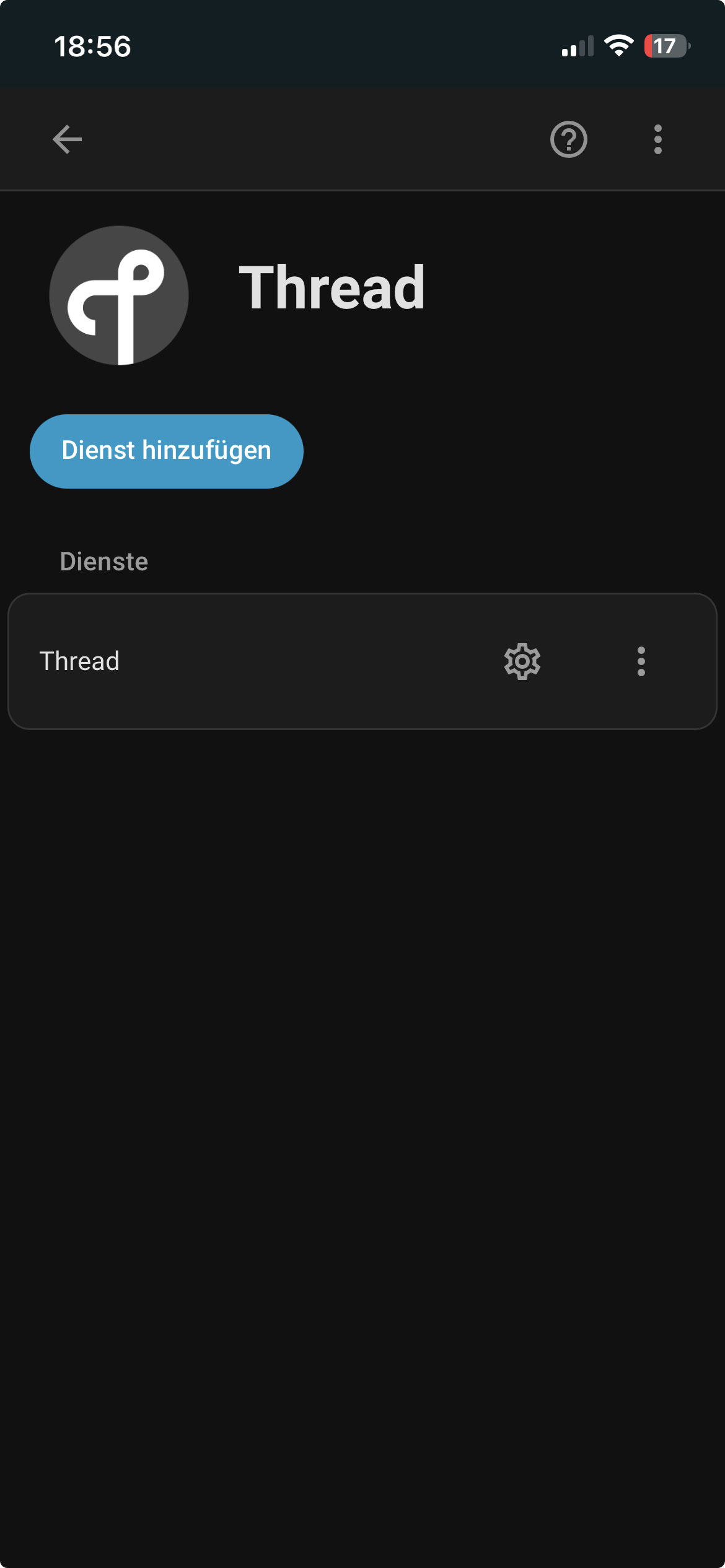
    1. Go to Settings -> Devices & Services -> Select the Thread add-in and press the gear:
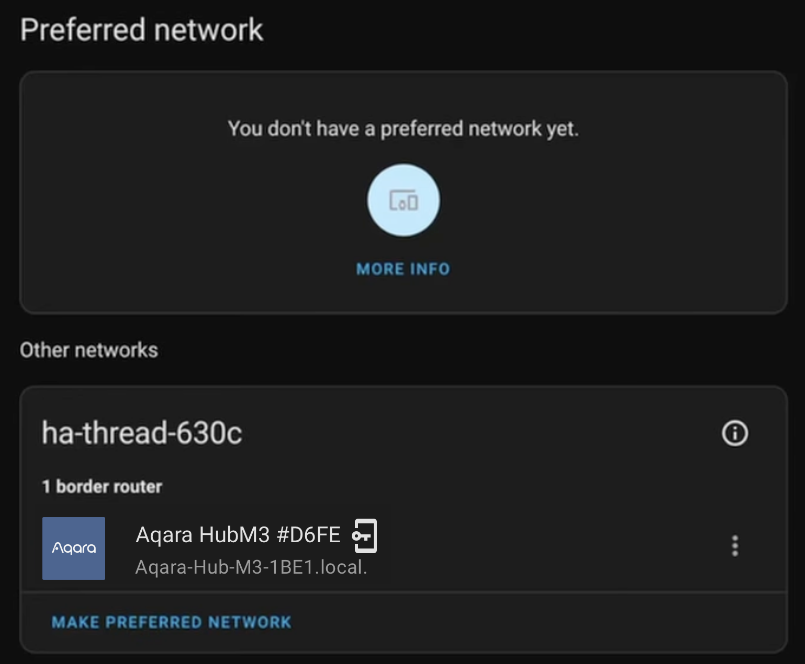
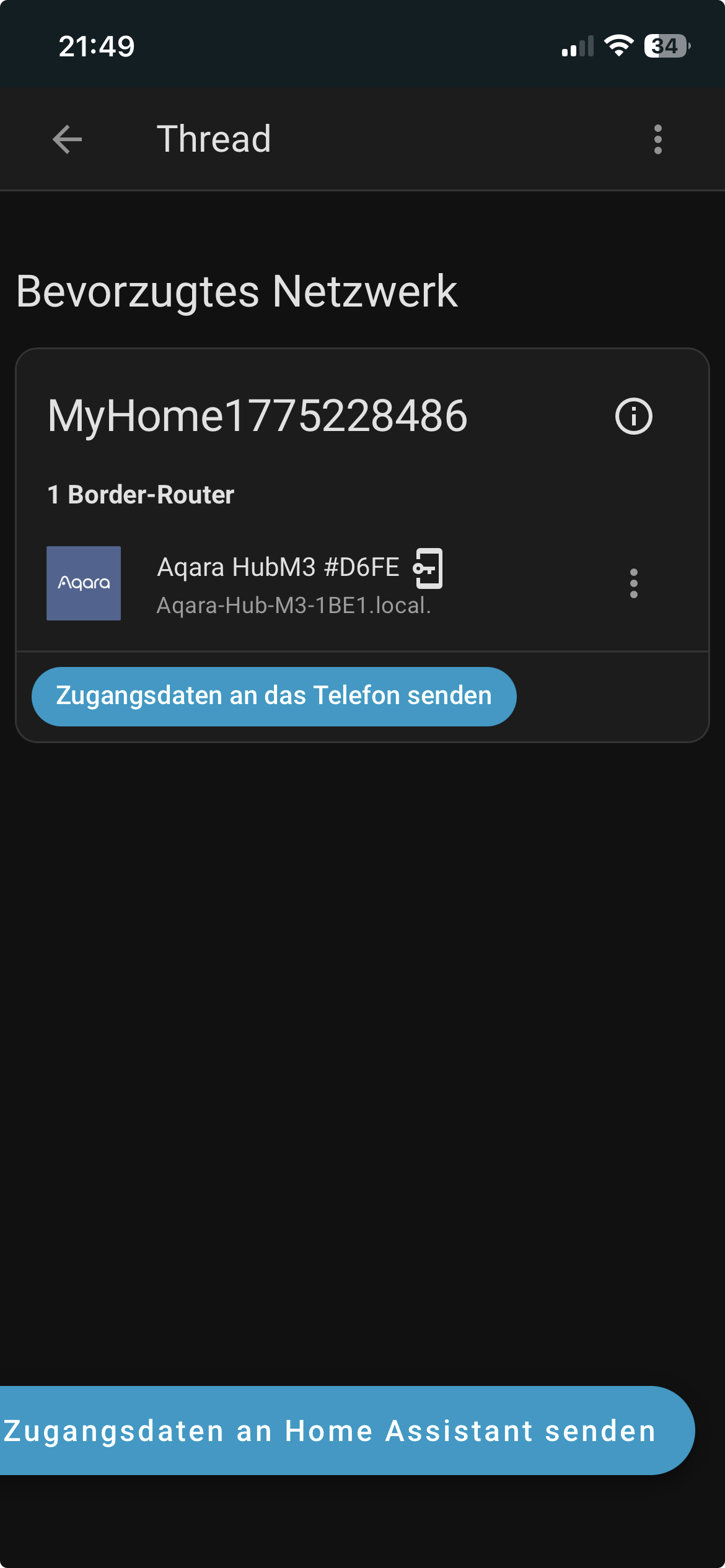
    2. Now you should see the following view, showing the Aquara Hub:
    3. Mark the Aquara Hub and then press the button “Make preferred network”.
    4. After a short time the selected network become the preferred network for HomeAssistant:
    5. In the next step we need to say HA that it should use the login data of this thread network for any pairings.
    6. To do this press the three dots next to the Aquara hub and then select “Für Android & IOS Zugangsdaten nutzen“.
    7. If this was successfully you see the “door/exit” symbol next to the hub in the above screenshot.

    That was it, now the Aquara hub and its thread network is integrated into HA.

    In the final step I will give a short description how to add Matter devices using this hub into HA.

    Step 4: Integrating matter devices into HA

    Currently the suggested way is to integrate the device using the Aquara app and then integrating the device into HA. To do this the following steps are required:

    1. Ensure that the Aquara hub and the matter device you want to pair are in the same room.
    2. Set the matter device into pairing mode.
    3. Open the Aquara app and press the “+” symbol an select “Add Device”
    4. Now the app is searching for pairable devices in reach of the smartphone.
    5. If the device is in pairing mode it should be shown and you can select it.
    6. Follow the instructions in the Aquara app, until the device is connected to the aquara hub. Now we want to integrate it into HA.
    7. Go to “Devices” in the Aquara app and select the device you want to integrate into HA:
    8. Press the three dots in the right corner of the selected device:
    9. Select Matter:
    10. Select Matter-Pairing Code:
    11. Note or copy the pairing code.
    12. Go into the HA app. Go to Settings -> Devices & Services -> Devices -> Add Device -> Select “Add Matter-Device” -> Select “Yes, it is already in use” -> Select “Different Controller” -> Paste or enter the pairing code.
    13. Press “Add Device”

    After a short time the new device should successfully added to HA and can be used.

    Links

    The following links helped me to write this entry and are interesting to dive more into it.

  • Improving my security at home by installing a video surveillance

    Improving my security at home by installing a video surveillance

    After the change to winter time there were several burglaries in my area, therefore I decided, it is time to install a video surveillance.

    This blog will lead you through my process and its integration into my ecosystem at home. It’s more a detailed plan how to realize it and not a step by step guide how to e.g integrate the camera feed into Homekit.

    About the place:

    I am living very close to the forrest with a small garden which cannot be seen very good from the other apparamtents. Because the garden and my terrace is long but narrow and can only be accessed when walking a narrow path.

    For monitoring my garden I decided to use the Ubiquiti G4 Instance . Even the camera is very small and also cheap, it is a very good camera, with a good night view and AI regognization of persons, animals and movements. The camera connects via WiFi with my system an is powered using USB-C.

    I do not want to waste space in my apartment with a lot of IT-stuff, for this I have my company. Therefore my whole IT/Network equipment at home consists of a Synology NAS, a UniFi Dream Machine for network and WLAN and a Hue Bridge for some of my lights in the apartment. All this equipment is located in a small shelve which does not need a lot of space. Therefore I want a single machine which provides Internet access, WiFI and as additional feature a recorder for my camera feed and should be accessible on my smartphone from everywhere. Until today this task is fulfilled by the Dream Machine (UDM). Unfortunatley the Dream Maschine does not support cameras, therefore I replaced it by the successor the Dream Router 7. This device looks like a white hat and supports Internet Access, WLAN and the different UniFi Apps like Network, Protect and Access. It has a slot to expand the internal storage. As additional feature this device has one PoE port which is very nice to use it, as power for my Hue bridge which does not support PoE natively, but there are a lot of adapters available. After making a backup of my UDM I switched it off and replace it by the Dream Router. After importing the backup I additionally installed Unifi Protect and plugged in my G4. The camera is immediately detected by the protect app and few minutes later the whole system is online and everything is ready. It’s really as simple as this!

    With these two components I will do the following security deployment:

    1. The camera will be mounted on the terrace at a position where it is nearly impossible to destroy it before the person can be recognized.
    2. The Dream Router 7 will record the camera feed for a specifique time.
    3. AI recognization is enabled and will detect a person if he/she enters the garden.
    4. Unifi Protect is connected using Homebridge (which is installed on my Synology NAS) with Apple Homekit. See this video which explains how easy it is.
    5. Now I directly integrate the camera feed into the dashboard of Apple Homekit.
    6. Apple Homekit is already configured to notice if someone is at home.
    7. Next I switch into the settings of my home and select camera & doors.
    8. Inside I select the camera on the terrace an enable notifications with the following settings:
      • Time: Any
      • Persons: If no-one is at home
      • A certain movements is detected
      • A person is detected
      • Enable snapshots in the notification.

    Now I will get a notification with a snapshot if a person enters the garden & terrace and no-one is at home.

    With using automations you can configure additional actions for different situations which can be helpful to secure your home.

    This is my basic security setup which works quite well.

  • How to integrate a third party camera into UniFi Protect

    How to integrate a third party camera into UniFi Protect

    With UniFi Protect 5.0 Ubiquiti integrated the support of cameras from third party manufactures. In this blog entry we will integrate a Reolink PTZ camera into UniFi Protect.

    Requirements:

    • Ubiquiti console with installed Protect with at least version 5, in my case I already have 5.1.87.
    • A third party camera in the same subnet as the UniFi console.

    Preparation:

    Connect the camera with your network switch and be ensure that the camera has a valid IP-address and is in the same subnet as the console. If this is not possible, it does not really matters if you know the IP-address.

    When using a Reolink it is necessary to enable RTSP on the camera, otherwise it will not work. To do this, access your camera using the IP-address and your username and password. After reset the reolink uses admin as username without any password.

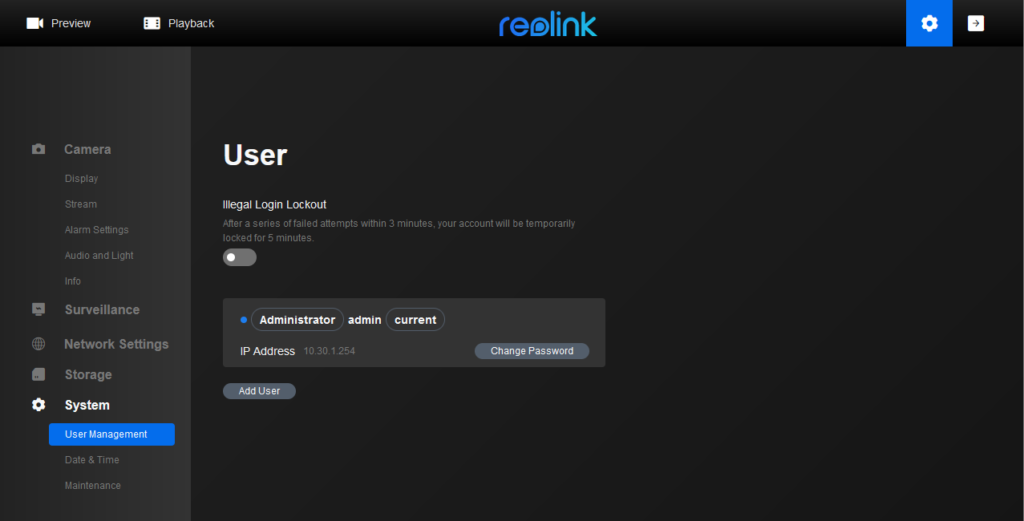
    After you have login, first change the password, Ubiquiti does not work with an empty password. To do this, login into the webinterface of your Reolink Camera go to “Device Settings” -> “System” -> “User Management” and press the “Change Password” button on the admin account.

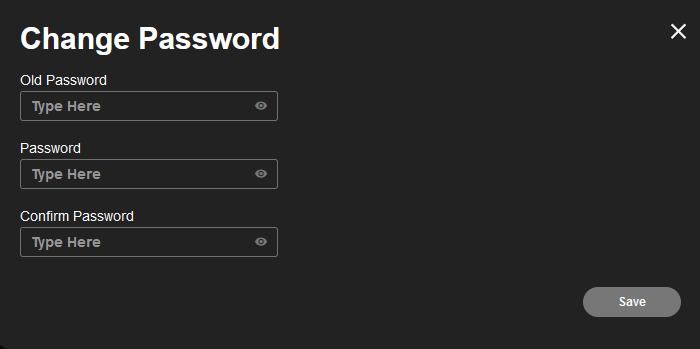
    Enter the current password and then two times the new password:

    After you have entered a valid password, we now enable the ONVIF support on the Reolink device, because per default this is disabled.

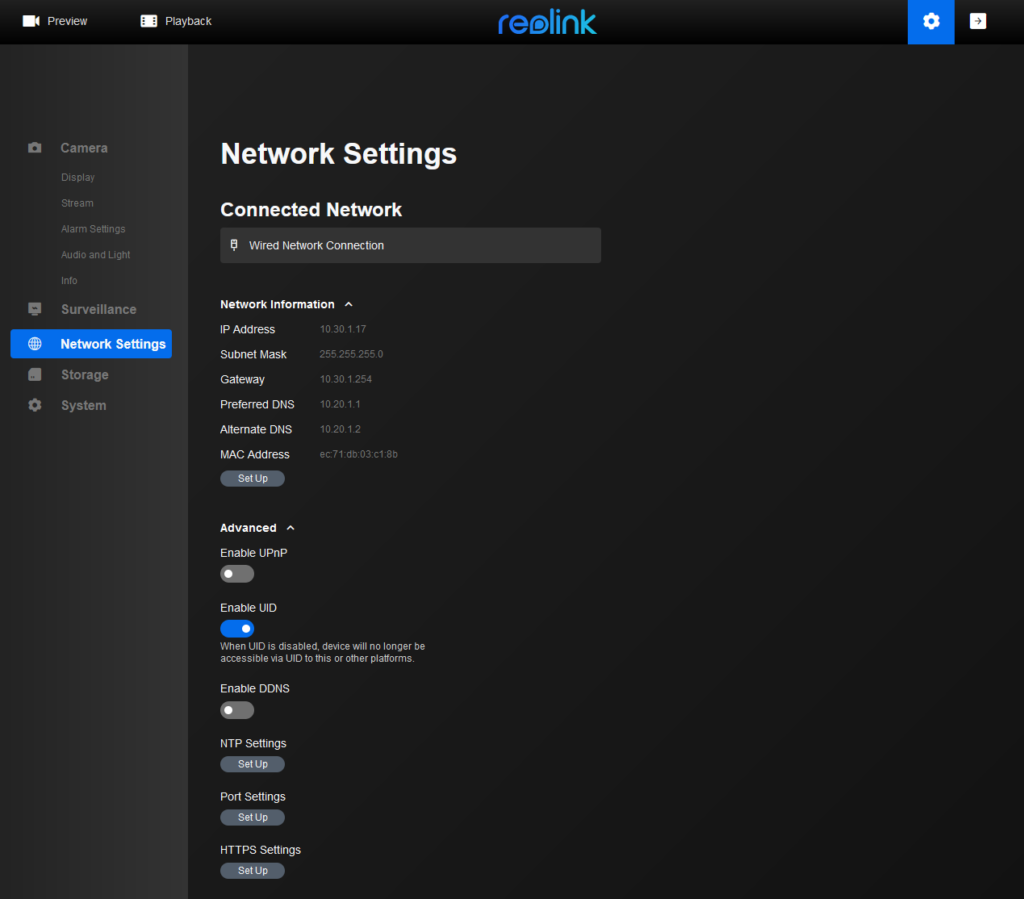
    Switch on the “Device Settings” page to “Network Settings” and open the “Advanced” tabsheet:

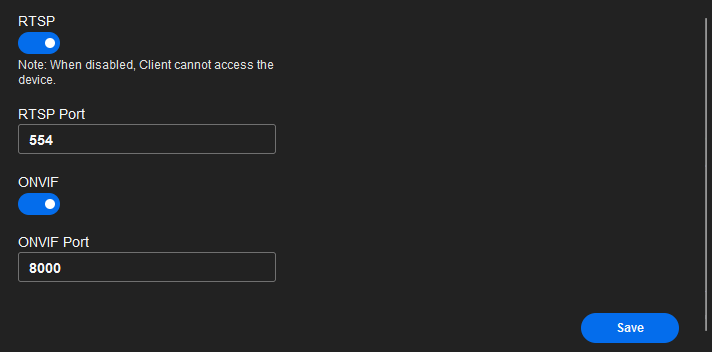
    Now select “Set Up” under “Port Settings”. A dialog window is opened where you need to scroll down to the button until you find the toogles for RTSP and ONVIF, enable both:

    You do not need to change the default ports. Press “Save” and now you are ready to adopt the camera into UniFi Protect.

    Adopting into UniFi Protect:

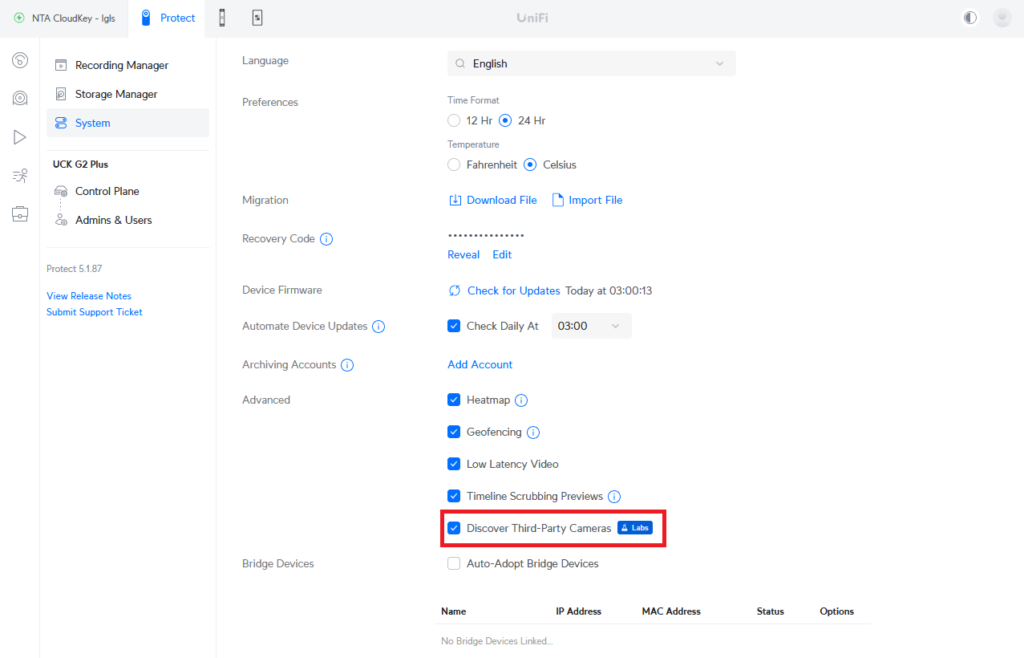
    1. Login to your UniFi Protect web application and go to “Settings” and enable the discovery support for Third-Party Cameras:

    Press “Apply Changes” to store.

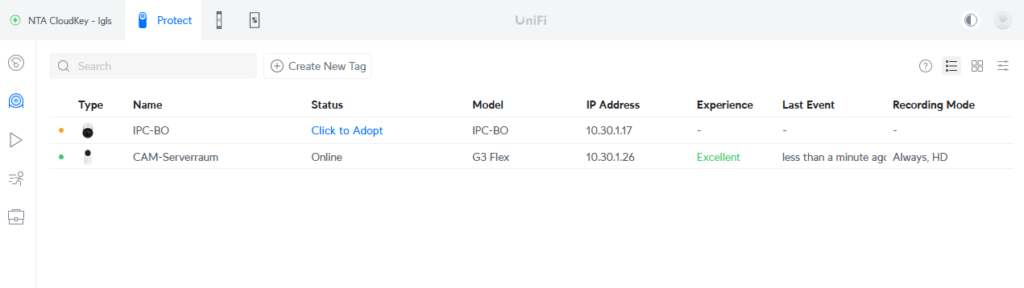
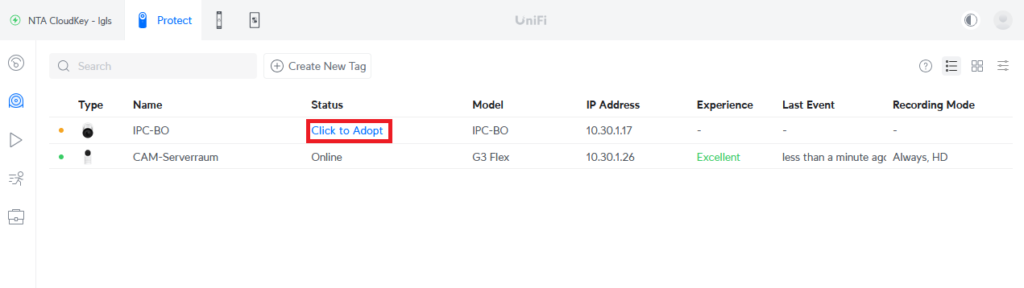
    2. Now switch to “Unifi Devices”. If the Reolink camera is in the same subnet the camera will already be shown and is ready to get adopted:

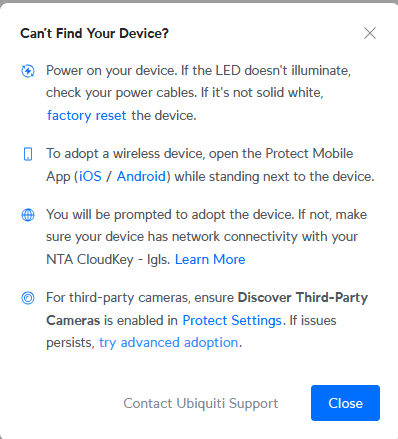
    2a. If the camera is in a different subnet or not shown press the question mark button right on the top. A window is opened where you press “try advanced adoption”:

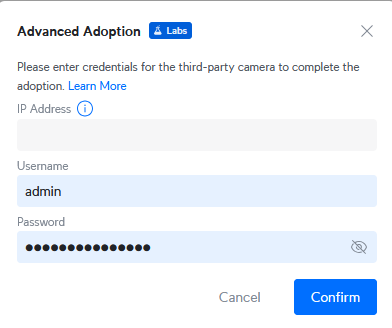
    Now enter the IP-Address, Username and Password of the camera and press “Confirm”:

    2b. In this case this is not necessary, we can directly press “Click to Adopt”:

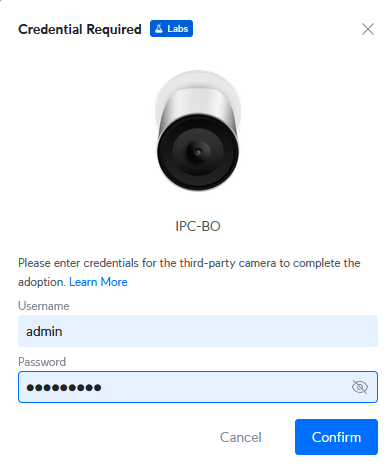
    3. Enter the “Username” and “Password” and press “Confirm”:

    After a short time the camera is adopted and ready to use:

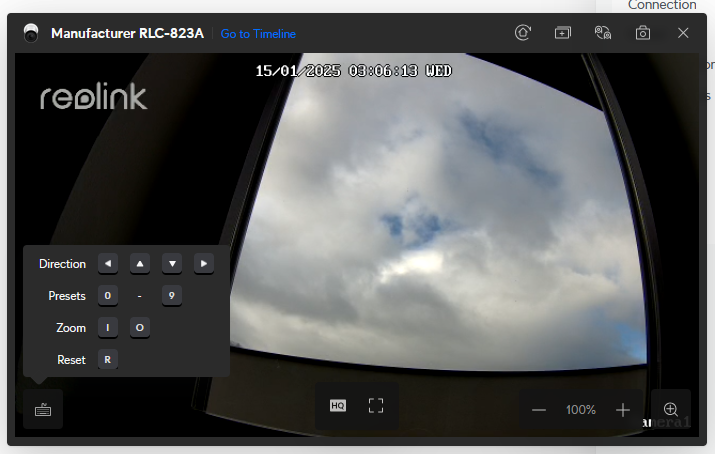
    As you can see in the following screenshot, Protect also supports “native” features of the camera, like the integrated PTZ or zoom function of this Reolink camera:

    Removing the camera:

    Removing the camera is as simple as with other Unifi devices:

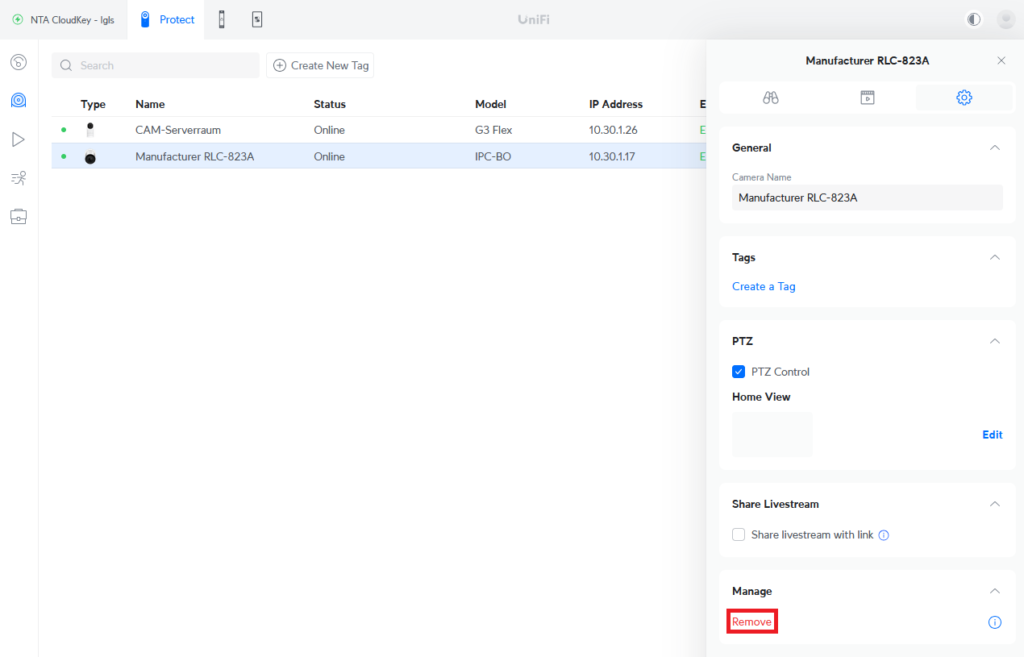
    1. Select the camera go to settings and press “Remove”:

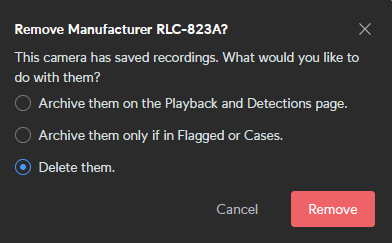
    2. When pressing “Remove” you have to choose what should happen with the recorded videos of the camera. In this case I decide that they should be deleted:

    After pressing remove it will take a short time before the camera is successfully removed:

  • Creating a private cloud using TrueNAS Core and NextCloud (part one)

    Last summer I decided to replace my QNAP NAS by a more comprehensive NAS. I am working a lot with Dell servers, and therefore it was an easy decision for me to use a Dell PowerEdge R340 with currently two 10 TB Seagate Iron Wolf hard discs, and two 16GB microSDHC/SDXC Cards as replacement. I know using such a server as a private NAS might be exaggerated, for some, but I wanted a rack device and more important enough server resources for experimental reasons. As operating system I decided to use TrueNAS Core, formerly FreeNAS.

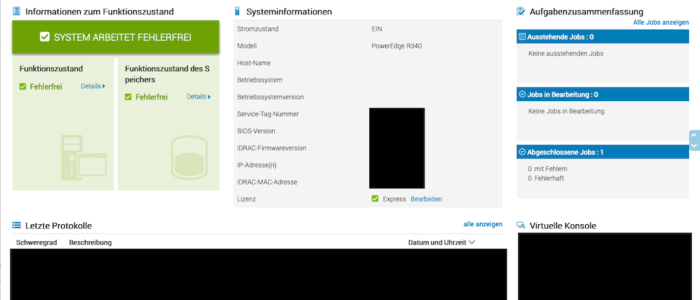
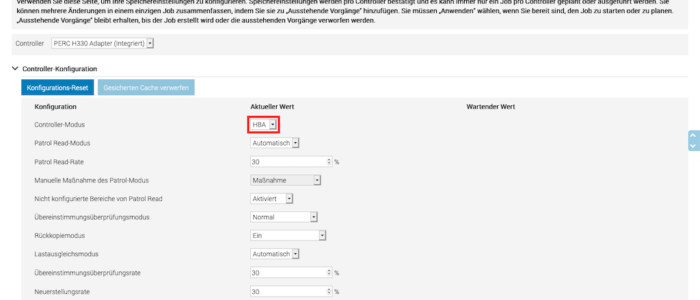
    I configured the PERC Raid Controller in HBA mode using iDRAC, because TrueNas is using ZFS which has an integrated RAID functionality. In fact, using a Hardware RAID with TrueNAS is definitely not suggested! The two screenshots below show, how to switch to HBA mode using iDRAC:

    I installed TrueNAS on one of the two 16GB microSDHC/SDXC Cards. The two 10TB Seagate discs should exclusively be used as storage devices and not partly for the operating system. The second 16GB microSDHC/SDXC Card will later be used to mirror the operating system.

    I performed the installation using the web interface of iDRAC, which is really a comfortable way to do it. iDRAC is an independent administration tool, shipped with all Dell servers and works immediately after the server is plugged in to the power supply. From iDRAC you can control and administrate the complete server. There is also a remote console feature.

    There are a lot of tutorials available in the web how to install TrueNAS therefore I do not want to go into detail and refer to them.

    After installing TrueNAS Core, creating one or more pools and sharing we have a working NAS which we can access, using SMB, AFP etc. Again, I do not want to go into detail and reference to the TrueNAS documentation because scope of this blog is how to create a private cloud using NextCloud and how to access it from anywhere in the world.

    Installing NextCloud

    Now let us start with the installation of NextCloud. TrueNAS provides a certain number of plugins to extends the functionality of the NAS. Each plugin will be installed in his own jail and is therefore independently. Wikipedia defines a jail as a “OS-level virtualization that allows system administrators to partition a FreeBSD-derived computer system into several independent mini-systems called jails, all sharing the same kernel, with very little overhead”. Simply spoken, it’s a FreeBSD container virtualization like Docker. Some plugins are officially maintainanced by iXsystems and there are also a certain number of community plugins available.

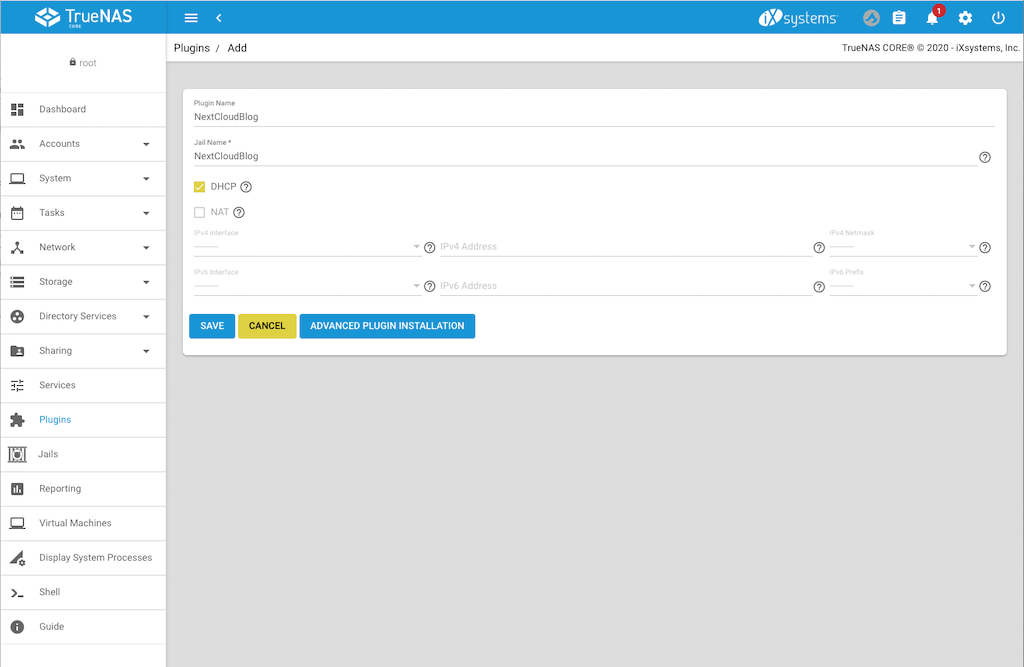
    NextCloud is an official plugin, therefore we simply goes to Plugin int the TrueNAS backend and select NextCloud. At the time when this entry was written the plugin is using NextCloud 20.0.4, instead of 20.0.5. However this is nearly the current version and shows me, that the plugin is actively maintenanced by iXsystem. Select the plugin and press install. A form is opened where you can define the settings. Enter the plugin name and jail name you want. Disable NAT, we will give this jail its own IP-Address. Select the interface on which the NAS ic connected, enter the IP-Addres you want that next cloud is listening and the netmask. Alternatively press DHCP if you want to manage the IP-Address in your router, as I mostly do. The following screenshot shows the settings:

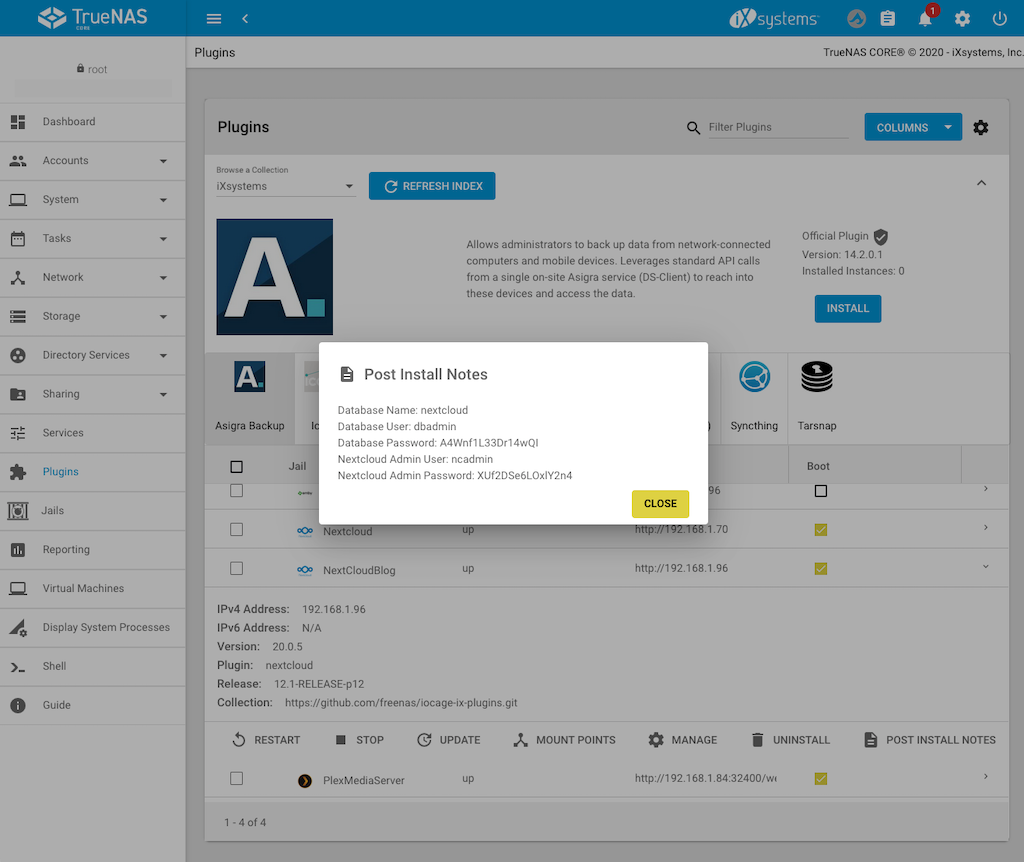
    Press save and installation dialog is displayed and wait until it is finished. Press “Close” to close the dialog which informs you about the successfully installation. Next press “Post Install Notes” to display the username and password for the admin access to NextCloud and copy it or write it down:

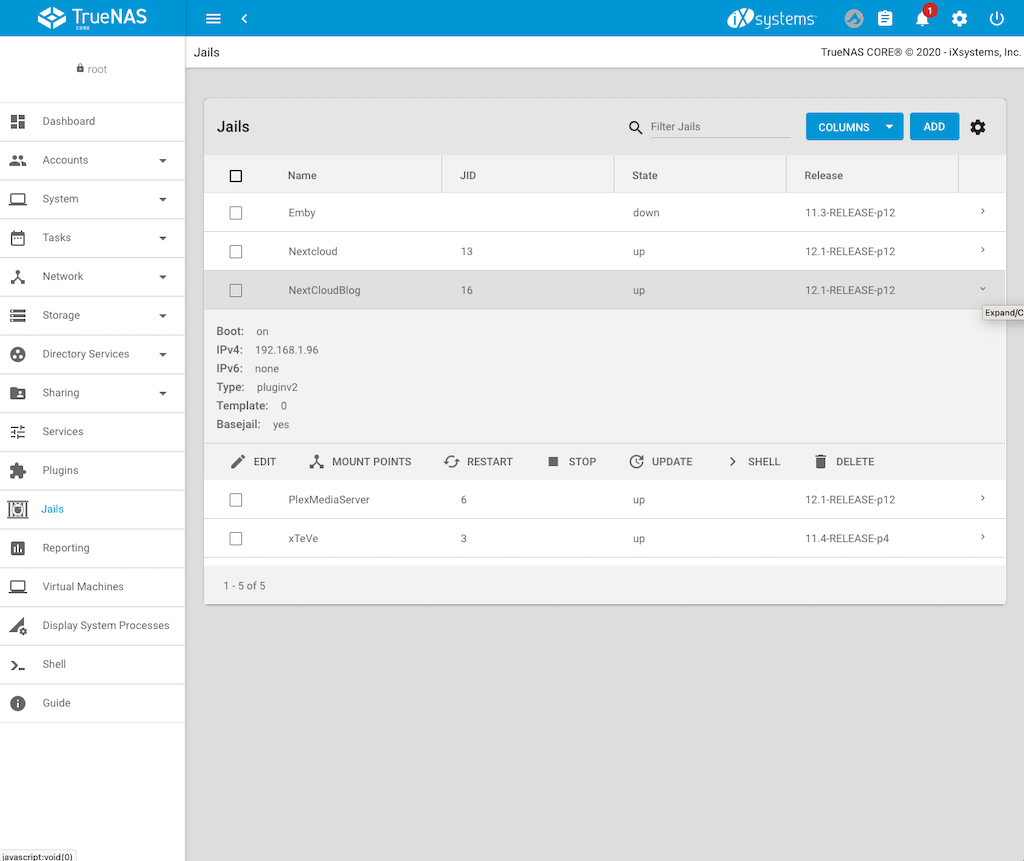
    Now switch to Jails to get the IP-Address of your NextCloud jail and to create mount points:

    Creating the mount points for the jail

    Before we access our NextCloud instance for the first time, we will mount the NAS directories which should be accessible from the jail and therefore from NextCloud. To do this:

    1. Stop the jail
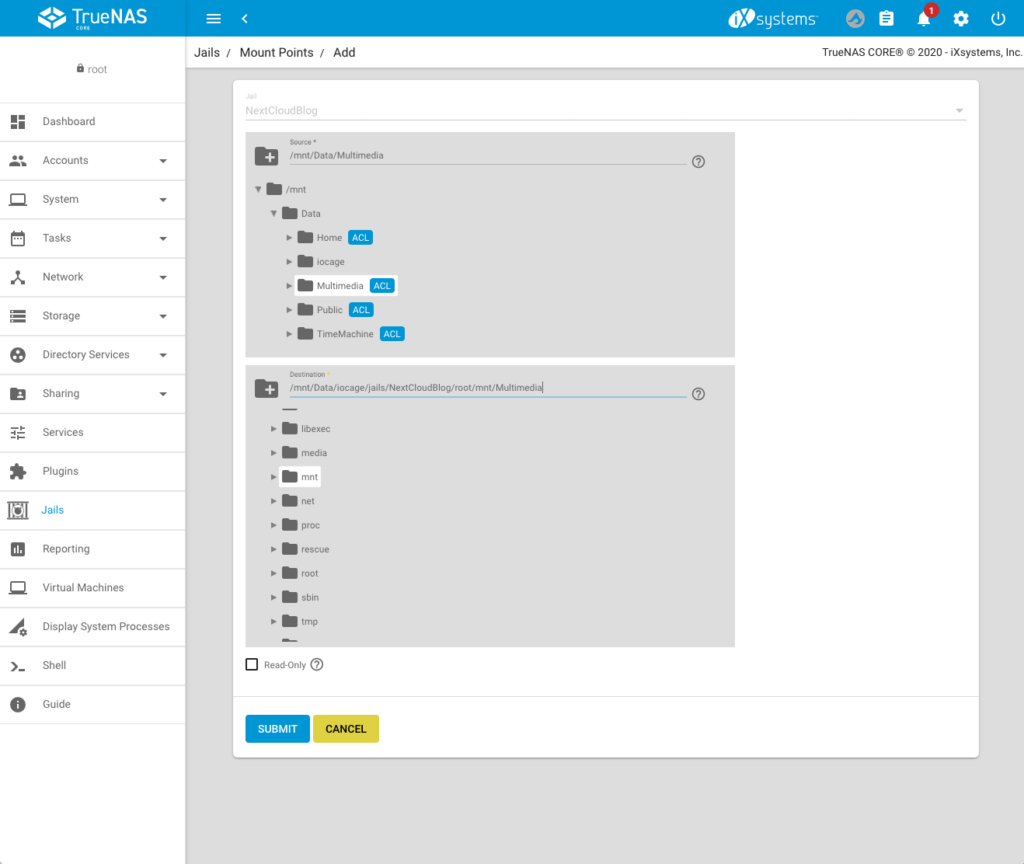
    2. After the jail has stopped press “Mount Points”
    3. Press on “Actions” and select “Add”
    4. On the top, select the directory which should be accessable from the jail (in my case /mnt/Data/Multimedia)
    5. Below select the mounting point in the jail (in my case: /mnt/Data/iocage/jails/NextCloudBlog/root/mnt/Multimedia). You do not have to create the folder in the jail first, you can directly enter the path (the folder Multimedia does not exist in the jail, but it will now be created).

    6. Press “Submit”. You can add additional Mount Points if you want.
    7. Go back to jails and start the jail.

    Add the local network to the trusted domains of NextCloud

    Unfortunately before we can use the NextCloud webinterface we need to add the local network to the trusted domains. To do this:

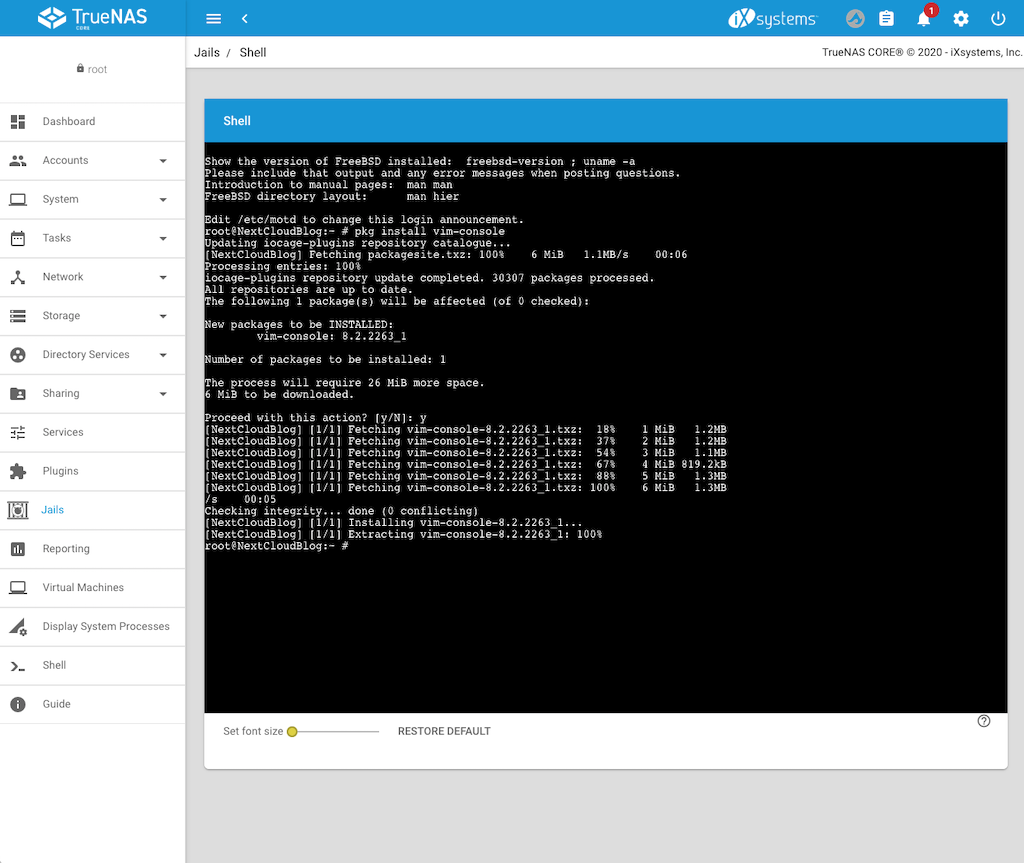
    1. Select the NextCloud jail and press the “Shell button”
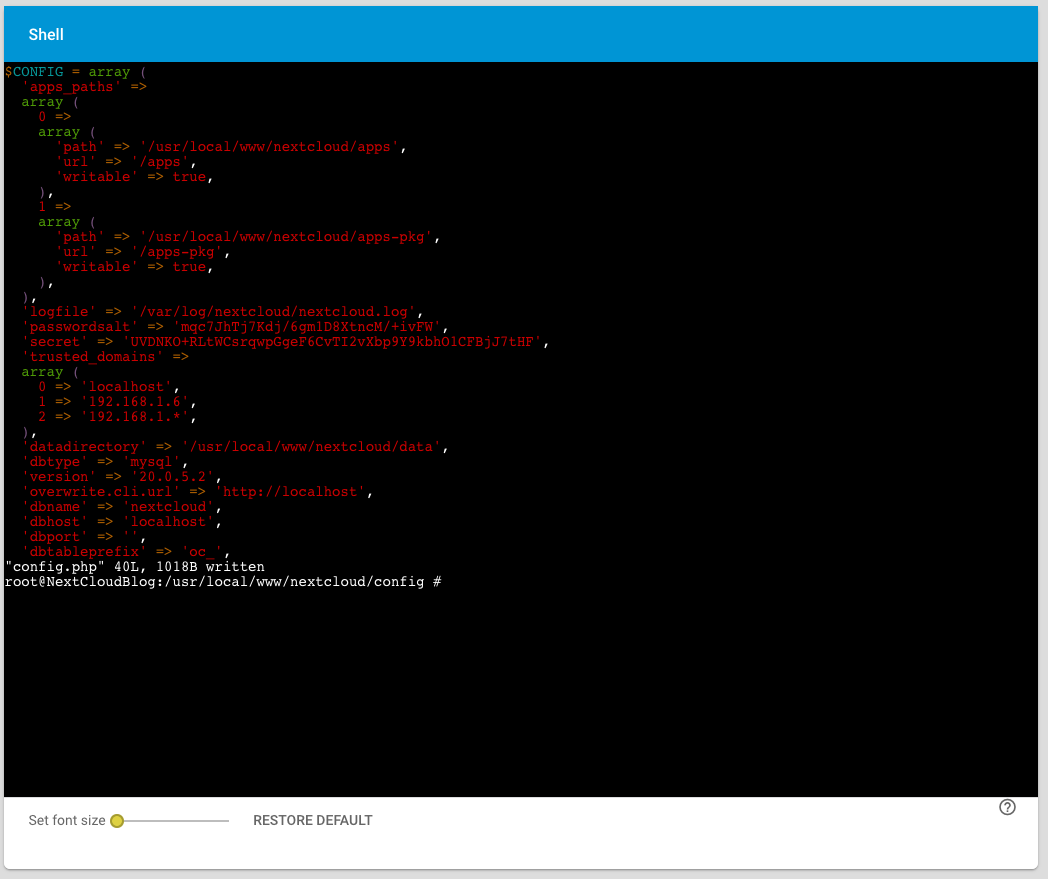
    2. Install the vim editor to directly edit the config.php file by using the following command:
      pkg install vim-console
    3. Go to the config file by the entering the following command:
      cd /usr/local/www/nextcloud/config
    4. Open config.php file to edit:
      vim config.php
    5. Press i to insert and edit the lines
    6. Add the whole home network by adding the following line to the trusted domains:
      2 => '192.168.1.*'
      or whatever your home network IP-Address is.
    7. Press Esc and then enter :wq to store the file and exit vim.

    Accessing NextCloud for the first time

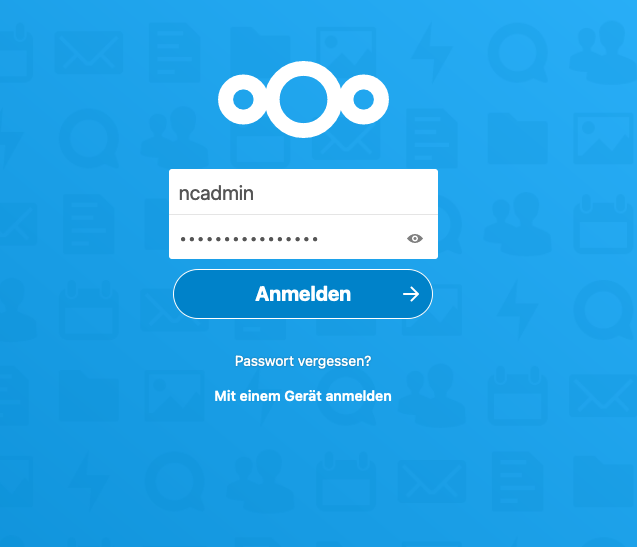
    No we can login to NextCloud for the first time by entering the IP-Address of the Jail:

    I would suggest to change the password of ncadmin or simply create a new admin user. In the next step we will add the Multimedia mounting point to NextCloud.

    Enable External storage to add a local directory to NextCloud

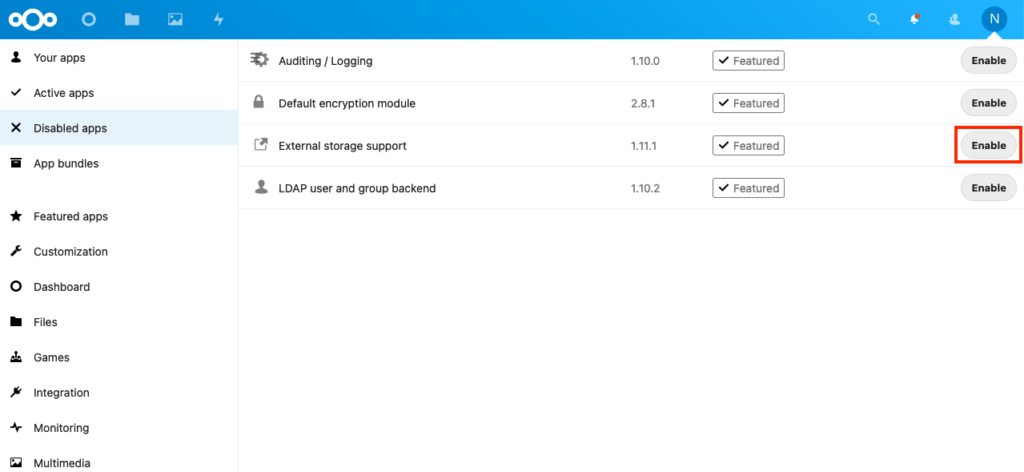
    In the NextCloud backend we switch to apps and then to “Disabled apps”. There we find the “External Storage support” app and enable it:

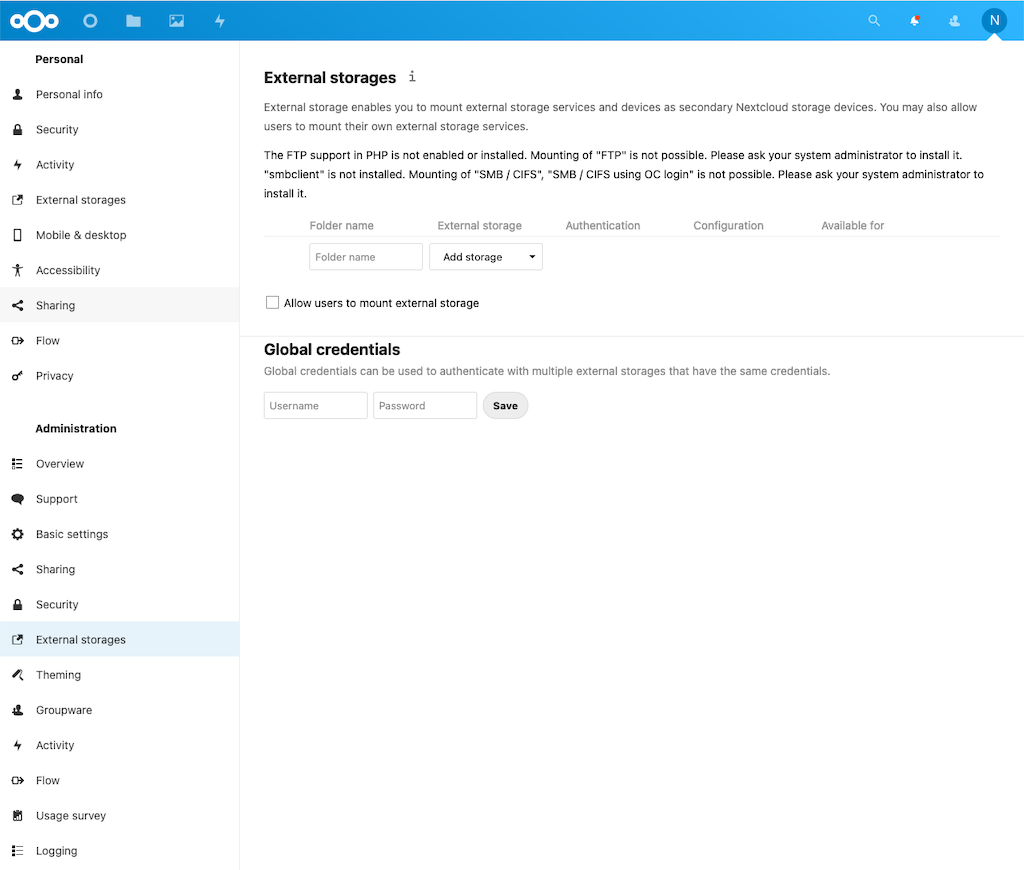
    In the next step we switch to settings and select “External Storages”

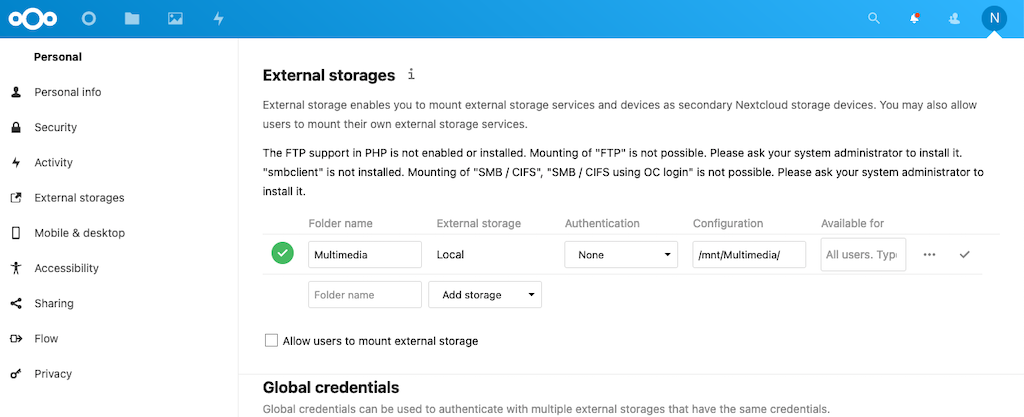
    Now we can enter the “Folder Name”, the type of “External storage” (Local), the “Authentication”, the “Configuration” (meaning mounting point, or location) and who is allowed to access our external storages (“Available for”). Final press the Checkmark to check and store the configuration. Based on this tutorial the external storage configuration looks the following way, the green checkmark confirms that the external storage is accessable:

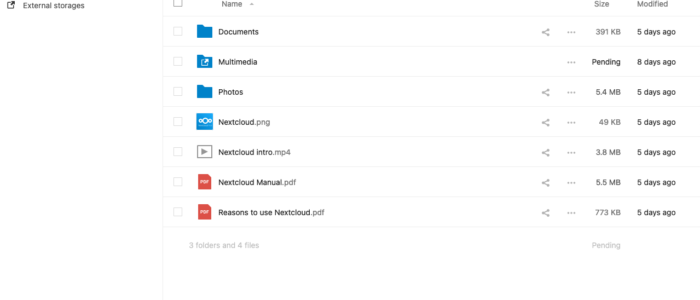
    If you now switch to “Files” you will see a reference to the external storage:

    Congratulation, you are now able to access the external storage using NextCloud! You can now download the NextCloud App on you mobile devices and use it.

    In part two of this tutorial we will secure the NextCloud jail using https with let’s encrypt and allow access from outside the local network.

    Any kind of feedback is highly appreciated.

  • Deploying a mixed WLAN structure with two sites

    Last month I implemented a new WLAN infrastructure at my tennis club in western Austria. In this posting I want to share my experiences and describe some pitfalls which can occur during deployment.

    The task was to provide guest WLAN in the club building consisting of two offices, a public Café, two cloakrooms for men and women distributed on three floors, partly WLAN in the neighboring tennis hall and on the outdoor site consisting of 9 courts, with different sea levels. The outdoor site is divided from the club building by some parking slots and a road.

    The club building is built of armored concrete which results in a poor signal quality over short distances. Fortunately, there are some locations in the building which offers network cables what helped me a lot.

    To build up this WLAN I decided to combine multiple devices and technologies:

    • Ubiquiti UAP-AC-LITE APs for all locations which offers network cables
    • Ubiquiti UAP-AC-M APs for indoor and outdoor locations without network cable
    • 2 Ubiquiti NBE-5AC-16 NanoBeams to create an air link between the club building and a maintenance building on the outdoor site.

    Further one US-16 and two US-8 switch provide the necessary backend services.  An USG-Pro-4 secures the network to the internet and provides a VPN connection for external maintenance. The CloudKey is used to manage the whole network including the authorization for the guest portal and can also be accessed via VPN or CloudAccess.

    The following diagram illustrates the network topology:

    Deployment:

    The deployment and configuration of this installation was done on two days, including some “infrastructure measures” like mounting a small rack for the components and patching some network cables to a patch panel.

    The configuration of the Ubiquiti components mostly works like a charm, only the Mesh-AP caused some configuration troubles, mostly because of a lack in the documentation. At the beginning, I configured all APs by connecting it with network cables to the switch and attaching to fix IP-Addresses. That´s the way I always configure infrastructure components like APs or Switches. Then I tried to establish a wireless uplink from the mesh APs to the wired AP located in the office which didn’t work the Mesh-APs where always marked as “isolated”. After several attempts including firmware updates and downgrades I found an entry (third post) in the Ubiquiti help forum that wireless uplink only works with a dynamic IP-Address. Unfortunately, this was not referenced in the official UBNT documentation.

    Then I configured the two NetBeams to connect the outdoor side of the facility. When doing this, it is important to be patient, because the first time it can take up to one hour until the connection is established.

    Finally, I configured the “Office” WLAN and then I started with the deployment of the Guest portal.

    Guest Portal:

    To simplify the administration and the use of the guest portal, I decided to use a default password, which will be changed from time to time. Because of legal restrictions in Austria, we use a “default” password which will be changed from time to.

    A very useful feature for WLAN scenarios like this one is the support of DPI restrictions introduced with controller version 5.6.x which allows to block certain kind of communication like P2P which can become a problem for the operator of every WLAN.  Even if I know that this only works with unencrypted P2P communication, it is an additional “proof” that the operator tries to prevent abuse.

  • Do not use static IP-Addresses for Ubiquiti Mesh APs which uplinks wirelessly

    Last week I configured a new network consisting of several Ubiquiti Switches and APs, for the tennis club, where I am a member of it. Some of the APs are using wirelessly uplinks because we do not have a complete wired network in the building and outdoor area. To minimize costs, I decided to use the mesh approach to build up the network.

    However, I am used to give static IP-Addresses to APs and other network components. Therefore, I configured all APs with static IP-Addresses and afterwards I was wondering why the APs which have a wireless uplink are not “meshing”.

    After several hours of searching it turned out that the problem was the static IP-Addresses I gave to the APs which uplinks wirelessly. After switching to DHCP it worked.

    Therefore, never give a static IP-Address to an AP which uplinks wirelessly, this currently won´t work!

    Links: