Author: florian

  • Datenmanagement mit Agorum®

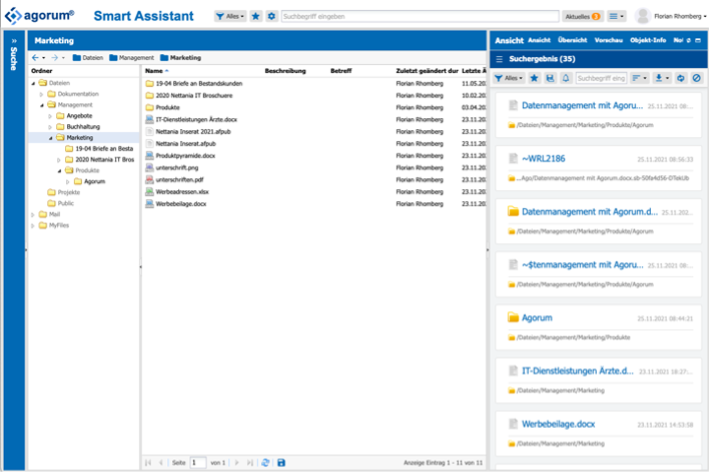
    Agorum, ein DMS (Dokumenten Management System), der gleichnamigen deutschen Firma, ermöglicht Ihnen die effiziente Verwaltung von Dateien, Daten und Dokumenten. 

    Dank Echtzeitindexierung können Dokumente nicht nur nach Dateinamen, sondern auch nach Inhalt durchsucht werden. Frei wählbare Metadaten ermöglichen die Dokumente näher zu definieren.

    Versionierung und eine integrierte Messaging- bzw. Ticketfunktion ermöglicht die Zusammenarbeit an Dokumenten über Distanzen.

    Mithilfe der Webanwendung kann man jederzeit und überall auf seine Dokumente zugreifen. Agorum kann auch per Netzlaufwerk eingebunden werden und vereint damit die Vorteile eines klassischen Fileservers mit jenen eines webbasierten DMS.

    Neben Dokumentenverwaltung bietet Agorum auch zahlreiche weitere Funktionen an, wie Adressbücher, Vorlagen, Wikis, den eingangs erwähnten Messenger bzw. Ticket Dienst, die die alltägliche Arbeit erleichtern.

    Agorum verfügt über einen integrierten Mailserver, über den man auch per IMAP oder POP3 zugreifen kann. Damit zählt Agorum zu jenen DMS bei denen auch E-Mails vollständig in den DMS Prozess integriert sind. 

    Mithilfe des kostenlosen „Agorum Core Basic Archive Plugin“ kann man „virtuelle Akten“ erstellen. „Virtuelle Akten“ sind im Prinzip vorgegeben Ordner und Dateistrukturen, die man mit zusätzlichen Metadaten beschreiben kann und so z.B. eine Vorlage für eine Projektstruktur definieren kann, die man mit einem Klick erstellen kann.

    Teil dieses Plugin ist eine virtuelle Ablage in die man Dokumente per Drag & Drop hineinziehen kann (oder per Netzlaufwerk kopieren) um sie später beschlagworten und den „Akten“ zuzuordnen.

    Ebenso kann damit eine revisionssichere Speicherung der Daten nach den gesetzlichen Vorschriften in der EU erfolgen.Agorum wird in zwei Varianten angeboten: Agorum Core kann als Open Source Variante, kostenlos genutzt werden. Agorum Core Pro ist kostenpflichtig und erweitert die Anwendung um zusätzliche Funktionen, wie u.a. OCR, integrierter Workflow Editor, File Sharing und universelle Dokumentenvorschau.

    Mein Fazit

    Agorum ist ein fortschrittliches und umfangreiches DMS, mit dem man alle Geschäftsprozesse und Workflows abbilden kann.

    Der Zugriff per Netzlaufwerk erweitert den Funktionsumfang erheblich und macht es auch für Umsteiger sehr interessant. Leider kann man im Windows Explorer nicht auf Vorgängerversionen eines Dokuments zugreifen, dies funktioniert nur über das Webinterface.

    Die Speicherung und Darstellung von E-Mails ist vorbildlich. Für all jene die eine DMS Lösung suchen, in der man den E-Mail-Verkehr nahtlos integrieren kann, sei Agorum ans Herz gelegt.

    Das „Agorum Core Basic Archive“ hat sich tatsächlich zu einem meiner Lieblingsfeature entwickelt, auch wenn es aufs erste unspektakulär klingt. Ich habe mir eine Vorlage für meine Kundenakten erstellt, in denen ich neben Systemdaten, auch der E-Mailverkehr, Aufträge, Rechnungen, etc. speichere. Während meiner Testphase hat sich das in Kombination mit der Zentralablage als äußert hilfreich und komfortabel erwiesen. Gerade die Speicherung der gesamten Kundenkommunikation konnte ich so sehr komfortabel durchführen. Gerade im Bereich des Projektmanagement, in dem es unzählige E-Mails gibt, spielt diese Lösung ihre Stärke aus.

    Die „Zentralablage“ ist auch ein gelungenes Feature. Hier kann man z.B. aufs schnelle ein Dokument erstellen, welches man erst später einem spezifischen Projekt zuordnet, da man gerade anderweitig beschäftigt ist. Man muss also nicht das Projekt wechseln.

    Was mir nicht so gut gefällt, ist die Weboberfläche, da diese wenig anpassbar ist, etwas „altmodisch“ wirkt und nicht überall die Benutzerfreundlichkeit anderer DMS Lösungen aufweist. Allen voran Ansichten für verschiedene Datentypen fehlen, so wäre z.B. eine Galeriefunktion für Fotos sehr sinnvoll.

    Ein weiterer Minuspunkt, ist die Agorum App für Smartphone und Tablet, diese ist funktionell, wirkt aber auch wie aus einer anderen Zeit.

    Das Lizenzmodell von Agorum, abseits der kostenlosen Open Source Version, ist leider, wie bei fast allen DMS Anbietern, nicht auf KMUs zugeschnitten. Die monatlichen Lizenzkosten setzen sich aus der Anzahl der Benutzer und der Datenvolumen zusammen. Hier ist es so, dass das Datenvolumen überproportional den Preis beeinflusst.

    Aus meiner Sicht ist daher für KMUs, die ein größeres Datenvolumen haben, nur die kostenlose Open Source Variante interessant. Das einzige fehlende Feature, welches aus meiner Sicht schmerzt, ist die Freigabe von Daten oder Verzeichnissen über das Internet.

    Sollten Sie Interesse an Agorum haben, oder an einer anderen Lösung für Datenmangement, dann können Sie mich gerne jederzeit kontaktieren. Meine Firma ist in diesem Bereich tätig, wir bieten Ihnen in diesem Bereich individuelle Beratung, Umsetzung und Betreuung aus einer Hand an. 

  • Replicate iocage between two TrueNAS devices

    One of the great features of the ZFS filesystem is the snapshot function. With this, you can easily and efficiently backup the current state of the filesystem. Let us assume you have a fileserver and accidentally a user deletes some important folders. With the snapshot functionality you can rollback this modification quicker than with every backup.

    These feature can also be used to easily replicate your Storage to another device to ensure data safety and high availability. In difference to a traditional backup the snapshot makes a 1:1 replication of your ZFS filesystem. In case of a disaster you can simple map your network shares to the second storage and it works. Traditional backups are usually not directly accessible by the client. However, ZFS replication is in my opinion not a replacement for a traditional backup. Therefore we make both in our company: Every hour a new snapshot is created on our main storage and replicated to a failover second storage. Every night both storage devices backup to a S3 instance.

    In this blog entry I will give a brief introduction how to replicate the iocage dataset (which contains the jails) to a second (backup) TrueNAS device with the possibility in case of an emergency to start the jails on the backup device. This time I will use the admin interface.

    In this scenario I have two TrueNAS devices:

    • The first (main) device
    • The second (backup) device

    1. Create a periodic snapshot task on your first (main) TrueNas storage device

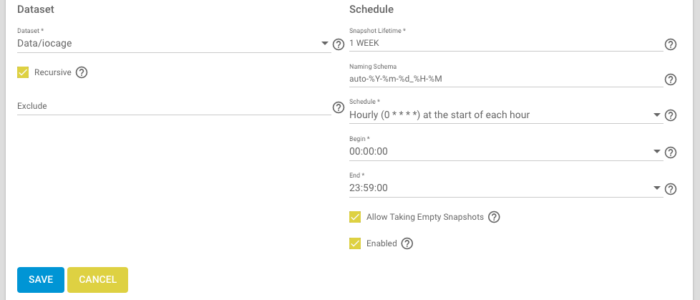
    Login into the admin interface of your TrueNAS device ans select “Tasks” and than “Periodic Snapshot Tasks”. Press add and create a new task:

    • As dataset select your pool and than the iocage dataset, in my case: Data/iocage
    • Check “Recursive”
    • “Snapshot Lifetime”: You are free to select a Snapshot Lifetime. This defines how many days or weeks you can rollback your data. In this example I selected 1 WEEK
    • “Naming Schema”: This can be left with the default settings.
    • “Schedule”: Defines how often a snapshot is created. In my case I want to create a snapshot every hour. Depends on your needs and also storage capacity, every day, every week or every month can be the right choice. Also a custom value is possible.
    • “Begin” and “End” is adjusted based on the selected Schedule.
    • Enable “Allow Taking empty Snapshots”
    • Enable “Enabled”
    • Finally press save

    2. Create a SSH connection to your second (backup) device

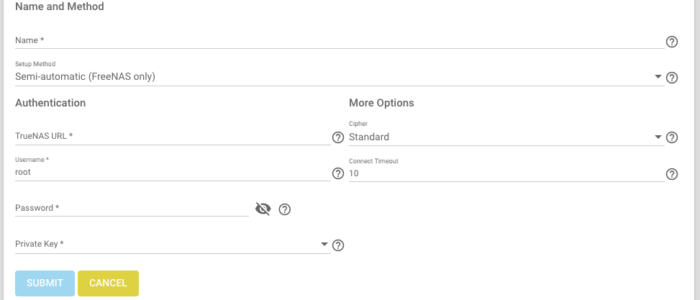
    In this step we will create a SSH connection to the second (backup) TrueNAS device. This is necessary for replication. Select “System” and than “SSH Connections” on the first (main) device:

    • Press “Add”
    • Enter a “Name” for the SSH connections, I use the name of the other device, in my case “LittleAlice-1”
    • “Setup Method”: Select “Semi-automatic (FreeNAS only)”
    • “TrueNAS URL”: This can be the hostname or the IP of the second storage.
    • “Username”: the username to login on the other device, e.g. root
    • “Password”: The password the user on the other device.
    • “Private Key”: Select “Generate New”, than the two devices exchange automatically there keys.
    • “More option”: Leave the default settings
    • Press “Submit”

    Now the SSH-Connections is configured.

    3. Create the iocage replication task between the two TrueNAS devices

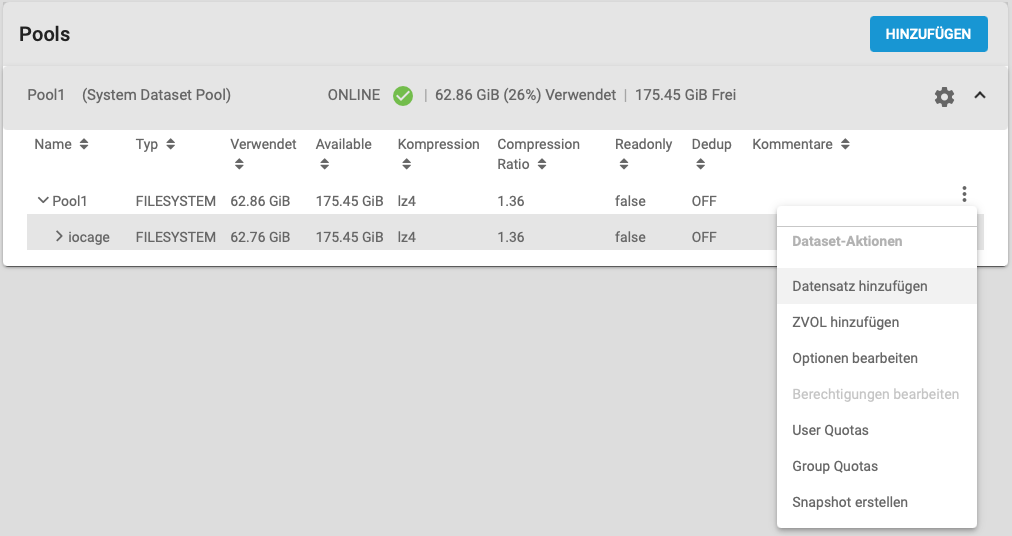
    First, login to the second (backup) TrueNAS device and create the “iocage” dataset manually:

    • Select “Storage” and than “Pools”
    • If not already done create a new Pool. I will not go into detail how to do this.
    • In the Pool create a new dataset called “iocage”, leave the default options.
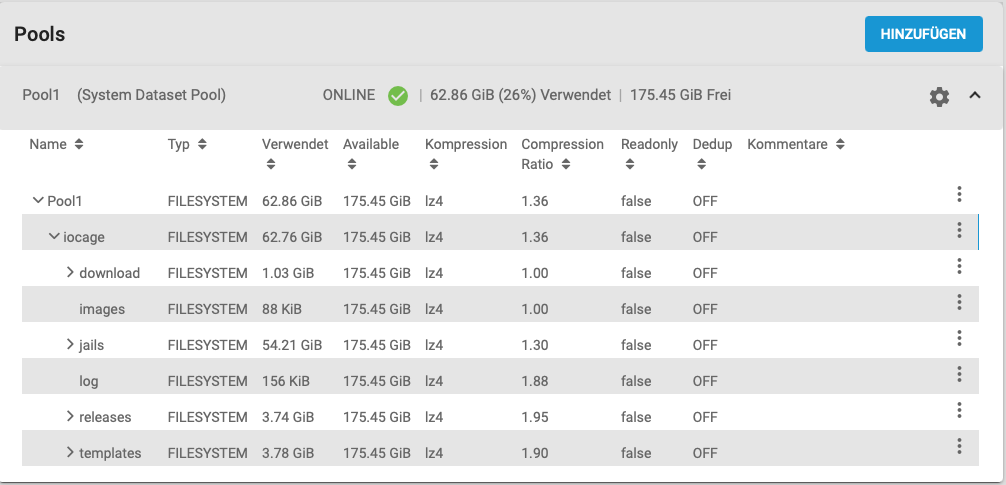
    • Finally the Pool list should look the following way:

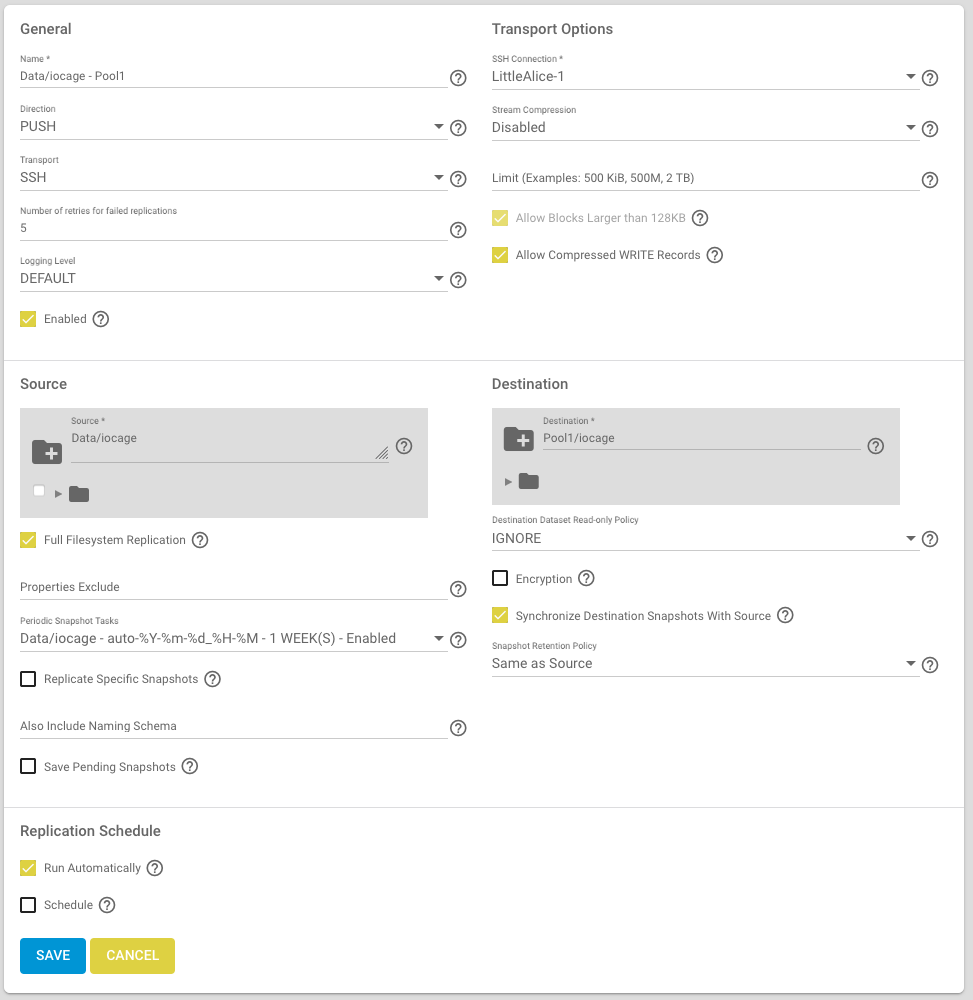
    No you can go back the the first (main) TrueNAS device and select “Tasks” and “Replication Tasks”:

    • Press “Add”
    • Press “Advanced Replication Creation”
    • Give the Replication Task a name under “Name”, in my case Data/iocage – Pool1
    • “Direction”: PUSH
    • “Transport”: SSH
    • “Number of retries for failed replications”: 5
    • “Loggin Level”: DEFAULT
    • “Enabled”: Checked
    • “Source”: Select the iocage dataset
    • “Full Filesystem Replication”: Checked
    • “Periodic Snapshot Task”: Select the one we created in step 1.
    • “Replicate Specific Snapshots”: unchecked
    • “Save pending Snapshots”: unchecked
    • “Run automatically”: If checked this task is always executed after the “Periodic Snapshot Task” form step 1 has been executed. You can also define your own Schedule or run manually.
    • “SSH-Connection”: Select the SSH connection we created in step 2
    • “Stream Compression”: I have unchecked this, because I replicate to a device in the local network, which has enough throughput.
    • “Limit”: Leave the default value
    • “Allow Block Larger than 128KB”: Leave the default setting
    • “Allow Compressed WRITE Record”: Leave the default setting
    • “Destination”: Select the iocage dataset on the second TrueNAS device. This only works if the SSH connections could be created successfully.
    • “Destination Dataset Read-Only Policy”: I selected IGNORE because I am sure that on the second device there will be no changes to the iocage dataset, excepted in an emergency case. The advantage of this approach is that you do not have to disable the readonly mode on the second device in case of an emergency. But this approach can lead to inconsistent data and in worst case, you loose data. Therefore be very carefully! If you are not sure select SET.
    • “Encryption”: If you want to transfer the data encrypted check this option.
    • “Synchronize Destination Snapshots With Source”: checked
    • “Snapshot Retention Policy”: Same as Source
    • Finally press “Save” and you will come back to the overview.

    Now you can wait until the replication starts automatically, or you start the replication task manually by selecting the created replication task and press run. Depending of the size of the iocage dataset the replication can take a while.

    But if everything works after a while you should be able to see the replicated iocage on the second (backup) device:

    4. Checking the replication on the second device

    After a while login to the backup device an than select “Storage” and than “Pools”. Now you should see the replicated iocage dataset:

    Congratulation you have successfully created a periodic snapshot task and a replication to another device. Feel free to post any comments.

  • TrueNAS/FreeBSD NextCloud jail enable HEIC support

    Next Cloud uses ImageMagick to create, display and manipulate images in the web frontend. Unfortunately the NextCloud Plugin has been created without ImageMagick support for HEIC. Therefore we need to make our own ImageMagick package with enabled HEIC support and replace it by the original one. This can be done using ports:

    The FreeBSD Ports and Packages Collection offers a simple way for users and administrators to install applications. Instead to the pkg approach, with Ports no precompiled and configured packages are downloaded and installed on your FreeBSD system. You download the source code and create your own package based on your needs.

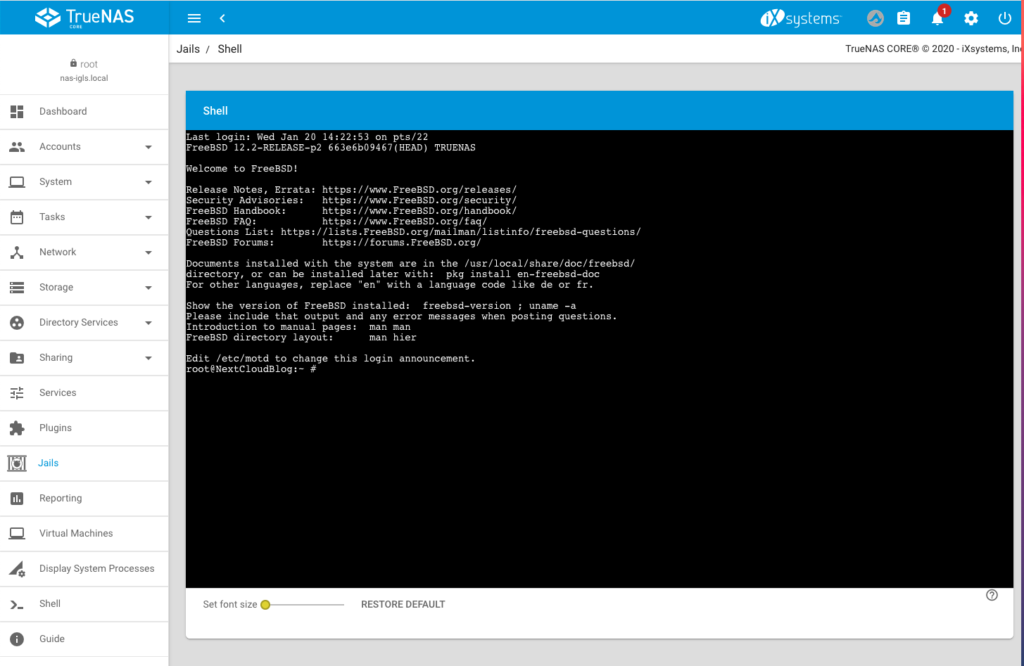
    To start, login to the console of your NextCloud jail:

    Step 1: Install required PKG packages:

    When I tried to make my own package in my jail I got several errors because required dependencies needed by make where not installed or could not successfully compiled. Instead of searching for the reason I decided to go the easy way and installed some dependencies, using PKG:

    pkg install dialog4ports
    pkg install gobject-introspection
    pkg install gdk-pixbuf2
    pkg install libheif

    Step 2: Download ports and build your own ImageMagick package:

    Fetch a snapshot of Ports:

    portsnap fetch

    Extract the snap

    portsnap extract

    Go into the ImageMagick ports source folder:

    cd /usr/ports/graphics/ImageMagick7-nox11

    Configure the new package:

    make config

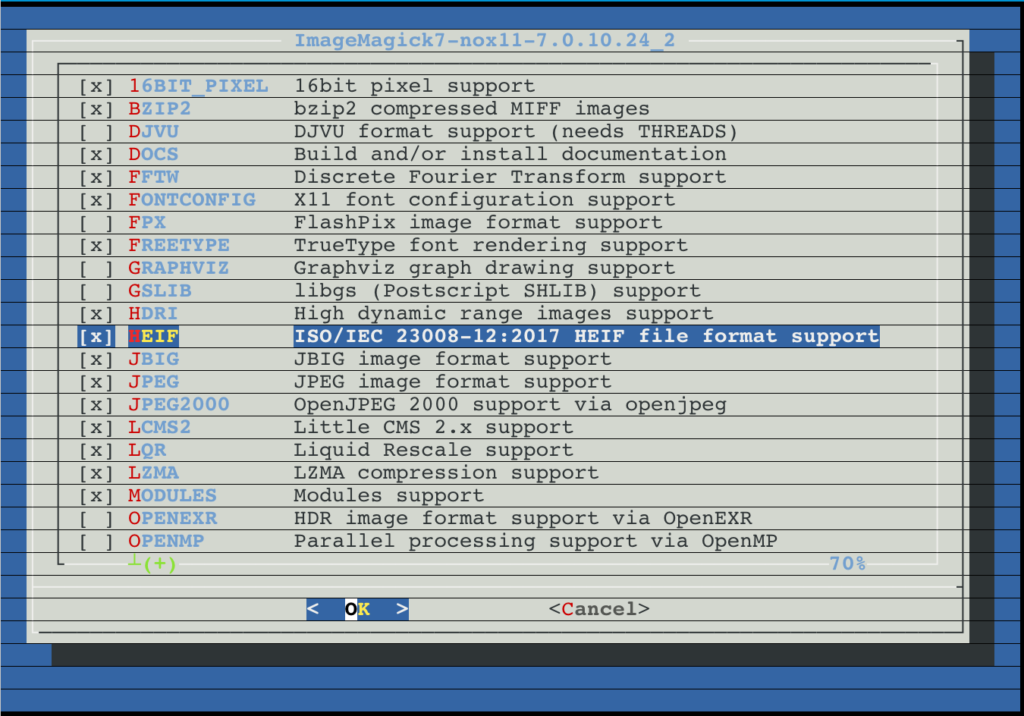
    Enable HEIF (this is the same as HEIC) in the window (and other image formats you want that ImageMagick should support):

    Press OK/Enter to confirm.

    Make&build the package:

    make -DBATCH -DALLOW_UNSUPPORTED_SYSTEM

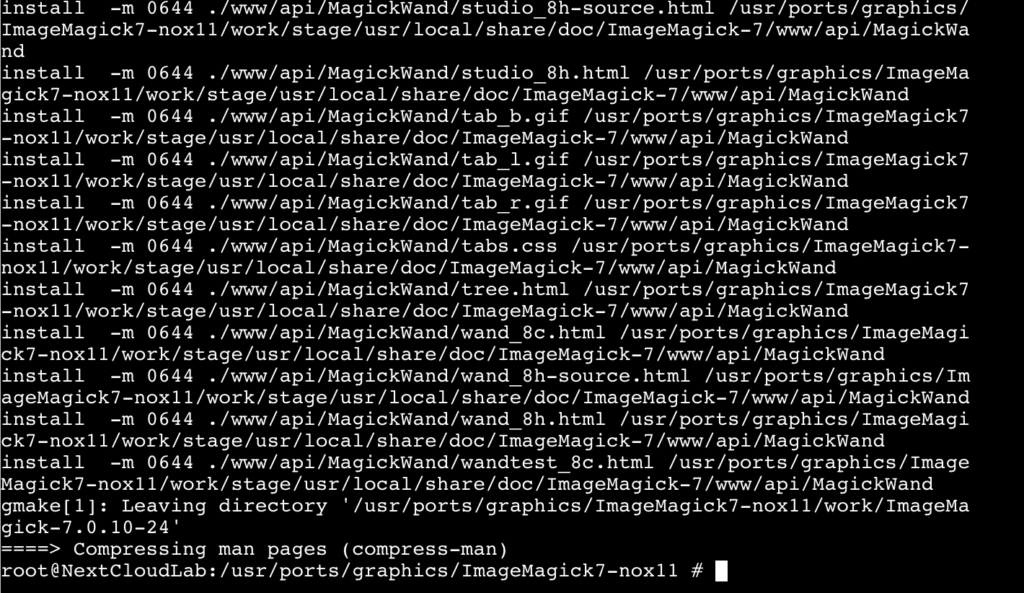
    I need to add the -DALLOW_UNSUPPORTED_SYSTEM flag because I have an older jail version which is no longer natively supported by Ports. I you have a newer jail version you can skip this flag. Now the system ist building/compiling the ImageMagick package. Dependent on your system resources, this can take a while.

    If make could successfully finished (like the above image), enter the following command to replace the current ImageMagick Version by our compiled one:

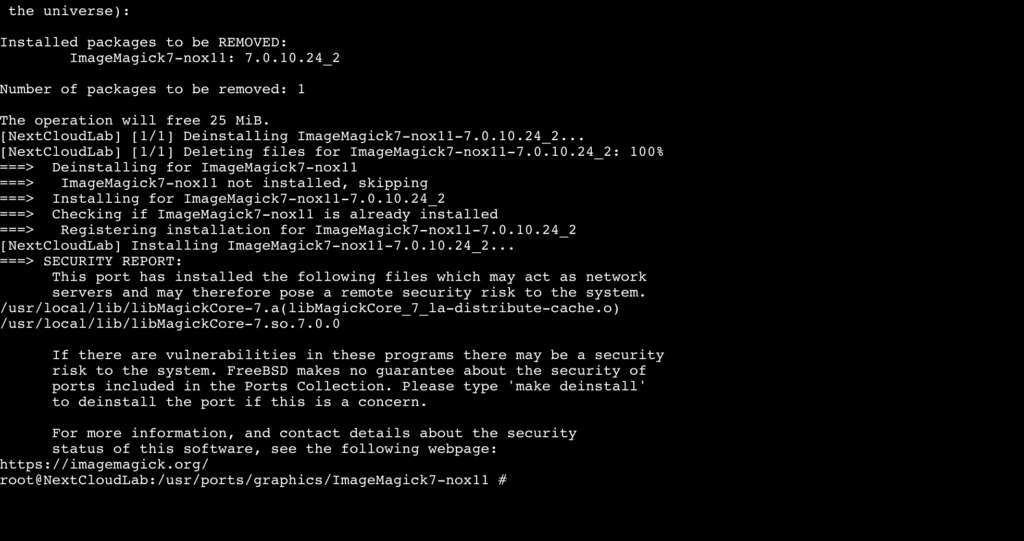
    make deinstall reinstall

    Now lock the ImageMagick package:

    pkg lock ImageMagick7-nox11

    Confirm the lock by pressing y

    Autoremove all leftovers of the original ImageMagick package:

    pkg autoremove

    Again confirm with y

    Check if HEIC/HEIF is now enabled by using the following command:

    convert -list format | grep HEIC

    You should get the following return:

    Congratulations, you have successfully compiled your own ImageMagick package with enabled HEIC/HEIF. After a short time you should be able to see thumbnails of HEIC/HEIF images in your NextCloud instance.

    Optional: Release the lock:

    pkg unlock ImageMagick7-nox11

    Warning: if you update your jail with an unlocked ImageMagick it is possible that the changes will be overwritten.

    This tutorial bases on the following discussion in the TrueNAS Forum:

  • Securing NextCloud jail using https and let’s encrypt (part two)

    In part one of this tutorial we installed TrueNAS and created a NextCloud jail which makes the NAS content available using a web browser or the NextCloud app locally. In part two we will secure our NextCloud instance using https and make it reachable from the Internet.

    To do this we need the following requirements:

    1. A domain name which can be resolved from the Internet: Select oder register a domain name and make a DNS record pointing to the public IP-Address of your internet connection. I you have a dynamic IP-Address, you can use Dynamic DNS providers like NoIP to register a domain name.
    2. NAT and/or Port Forwarding for 80 and 443 on your Firewall and/or Router to the NextCloud IP-address: Configure your firewall for NAT or Port Forwarding that your TrueNAS server is reachable from outside using port 80 and 443.
      Because there is a huge variety of devices I cannot not go into detail. If you are unsure check the documentation of your Modem/Router/Firewall for NAT and Port Forwarding.

    After we have prepared the requirements we will start securing our NextCloud instance with Let’s Encrypt. To do this, login to the backend of your TrueNAs server select the NextCloud jail and enter the command line:

    Step 1 – Add the server name to the nginx config

    We need to set the server name that certbot can verify it. To do this enter the following command to switch into the config folder of nginx:

    cd /usr/local/etc/nginx/conf.d/

    Use vim to open the config file:

    vim nextcloud.conf

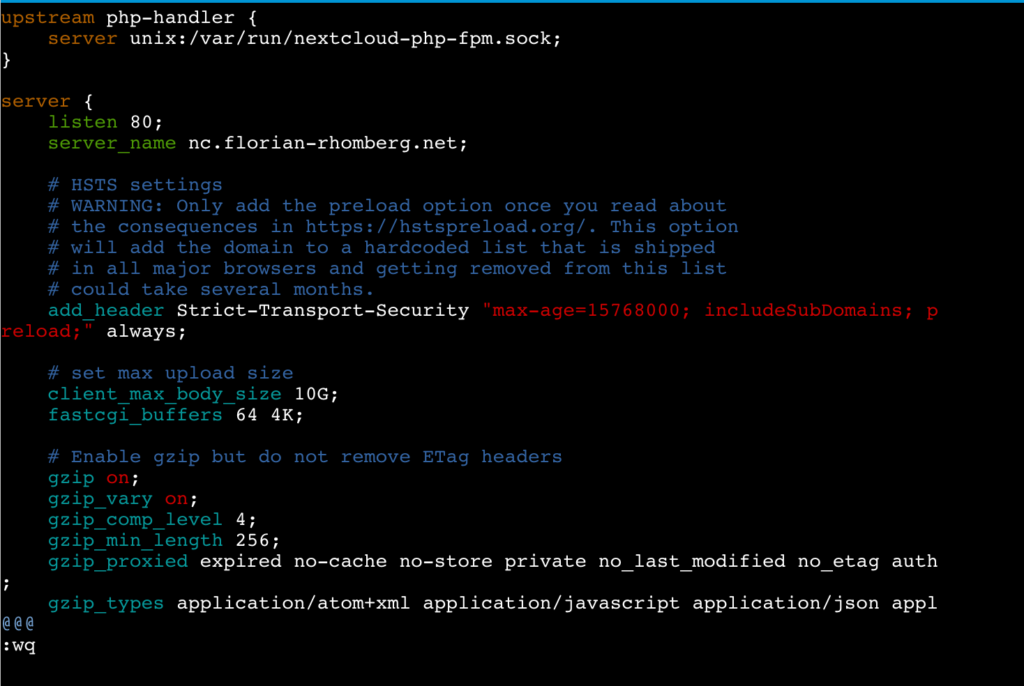
    Replace the _ by the server name as displayed in the following screenshot:

    Save the changes and exit vim.

    Step 2 – Installing Certbot

    The following lines are more or less a copy of the real good tutorial from digitalocean.com describing How To Secure Nginx with Let’s Encrypt on FreeBSD. If have adjusted some commands (in the jail we do not need to use sudo) and skipped the part “Setting Up a Firewall and Allowing HTTPS Access” because we do not need to do this in the jail.

    The certbot client is needed to obtain an SSL certificate. To do this we will use FreeBSD’s ports system. Enter the following commands in the command line of the jail:

    Fetch a snapshot of the ports tree:

    portsnap fetch

    Extract the snapshot:

    portsnap extract

    Navigate to the py-certbot directory:

    cd /usr/ports/security/py-certbot

    Use the “make” command to download and compile the Certboot source:

    make install clean

    If you get the following error message (happened to me on TrueNas Core 13):

    /!\ ERROR: /!\
    
    Ports Collection support for your FreeBSD version has ended, and no ports are
    guaranteed to build on this system. Please upgrade to a supported release.
    
    No support will be provided if you silence this message by defining
    ALLOW_UNSUPPORTED_SYSTEM.

    you have to make the following command first:

    setenv ALLOW_UNSUPPORTED_SYSTEM YES

    The reason for this ist, that the jail of the Plugin uses an older version, which is no more supported by portsnap.

    During this installation it is possible that some dialogs appear, you can safely confirm them.

    Navigate to the py-certbot-nginx directory:

    cd /usr/ports/security/py-certbot-nginx

    There run the make command to install the certbot plugin for nginx:

    make install clean

    After a certain time the certbot Let’s Encrypt client is ready to use

    Step 3 – Obtaining a SSL Certificate

    Remember the requirements I have mentioned before. If they are fullfilled we can now obtain and validate a certificate by using the following command:

    certbot --nginx -d nc.florian-rhomberg.net

    Replace the domain nc.florian-rhomberg.net by your domain name.

    Enter an E-Mail address and press enter:

    Accept the terms of service by pressing y:

    Accept or not that your E-Mail address will be shared with the EFF:

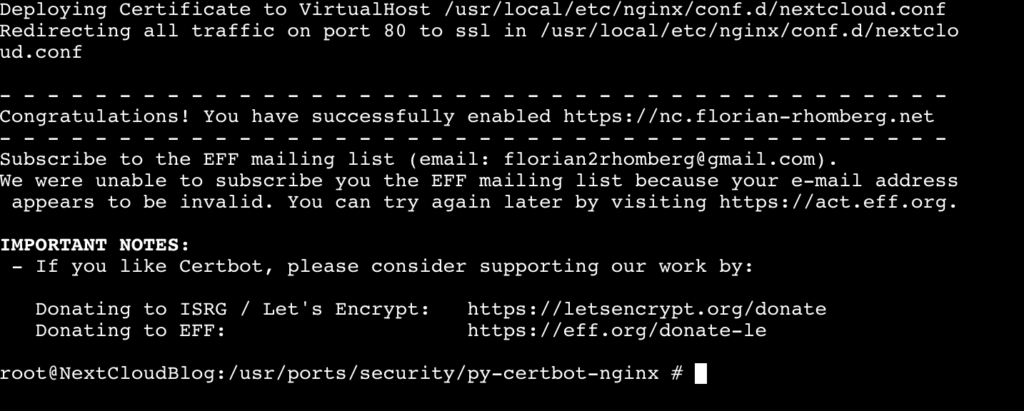
    In the next stepped your are asked if HTTP should redirected to HTTPS, I would suggest to do this. I everything is working the SSL certificate is installed and you will get the following message:

    Congratulation your NextCloud instance is now available from the Internet using HTTPS.

    Step 4 – Verifying Certbot Auto-Renewal

    In the last step we ensure that the Auto-Renewal of the SSL certificate is working.

    First make a simulation of the renewal process manually by using the following command:

    certbot renew --dry-run

    If this command succeed we can define a cron job for Auto-Renewal. For this enter the following command:

    crontab -e

    Now you can define the cron job for renewal:

    0 0,12 * * * /usr/local/bin/certbot renew

    This line will tell cron to run the certbot renew command twice every day. It checkss if there is any certificate on the system which is close to expire and will attempt to renew them when necessary.

    Congratulation, now your NextCloud instance is reachable from the Internet and is using HTTPS per default.

    Any kind of feedback is highly appreciated.

  • Creating a private cloud using TrueNAS Core and NextCloud (part one)

    Last summer I decided to replace my QNAP NAS by a more comprehensive NAS. I am working a lot with Dell servers, and therefore it was an easy decision for me to use a Dell PowerEdge R340 with currently two 10 TB Seagate Iron Wolf hard discs, and two 16GB microSDHC/SDXC Cards as replacement. I know using such a server as a private NAS might be exaggerated, for some, but I wanted a rack device and more important enough server resources for experimental reasons. As operating system I decided to use TrueNAS Core, formerly FreeNAS.

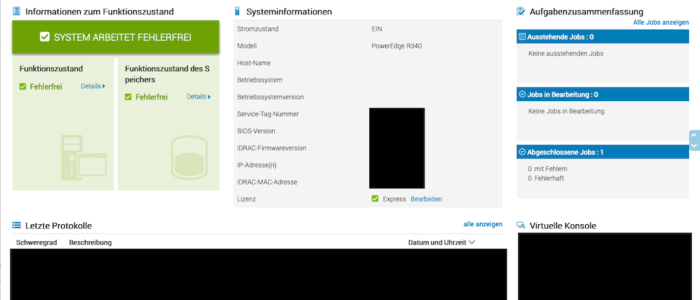
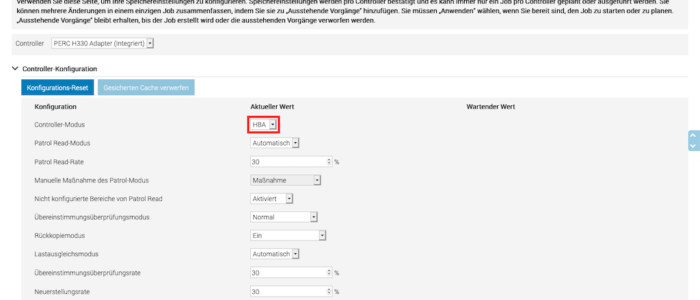
    I configured the PERC Raid Controller in HBA mode using iDRAC, because TrueNas is using ZFS which has an integrated RAID functionality. In fact, using a Hardware RAID with TrueNAS is definitely not suggested! The two screenshots below show, how to switch to HBA mode using iDRAC:

    I installed TrueNAS on one of the two 16GB microSDHC/SDXC Cards. The two 10TB Seagate discs should exclusively be used as storage devices and not partly for the operating system. The second 16GB microSDHC/SDXC Card will later be used to mirror the operating system.

    I performed the installation using the web interface of iDRAC, which is really a comfortable way to do it. iDRAC is an independent administration tool, shipped with all Dell servers and works immediately after the server is plugged in to the power supply. From iDRAC you can control and administrate the complete server. There is also a remote console feature.

    There are a lot of tutorials available in the web how to install TrueNAS therefore I do not want to go into detail and refer to them.

    After installing TrueNAS Core, creating one or more pools and sharing we have a working NAS which we can access, using SMB, AFP etc. Again, I do not want to go into detail and reference to the TrueNAS documentation because scope of this blog is how to create a private cloud using NextCloud and how to access it from anywhere in the world.

    Installing NextCloud

    Now let us start with the installation of NextCloud. TrueNAS provides a certain number of plugins to extends the functionality of the NAS. Each plugin will be installed in his own jail and is therefore independently. Wikipedia defines a jail as a “OS-level virtualization that allows system administrators to partition a FreeBSD-derived computer system into several independent mini-systems called jails, all sharing the same kernel, with very little overhead”. Simply spoken, it’s a FreeBSD container virtualization like Docker. Some plugins are officially maintainanced by iXsystems and there are also a certain number of community plugins available.

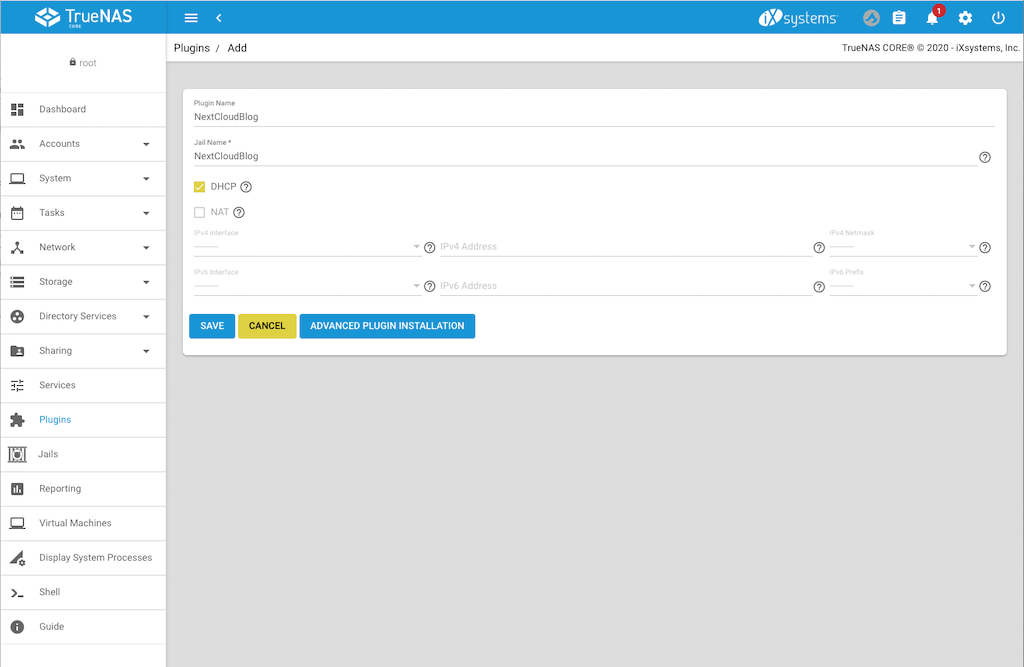
    NextCloud is an official plugin, therefore we simply goes to Plugin int the TrueNAS backend and select NextCloud. At the time when this entry was written the plugin is using NextCloud 20.0.4, instead of 20.0.5. However this is nearly the current version and shows me, that the plugin is actively maintenanced by iXsystem. Select the plugin and press install. A form is opened where you can define the settings. Enter the plugin name and jail name you want. Disable NAT, we will give this jail its own IP-Address. Select the interface on which the NAS ic connected, enter the IP-Addres you want that next cloud is listening and the netmask. Alternatively press DHCP if you want to manage the IP-Address in your router, as I mostly do. The following screenshot shows the settings:

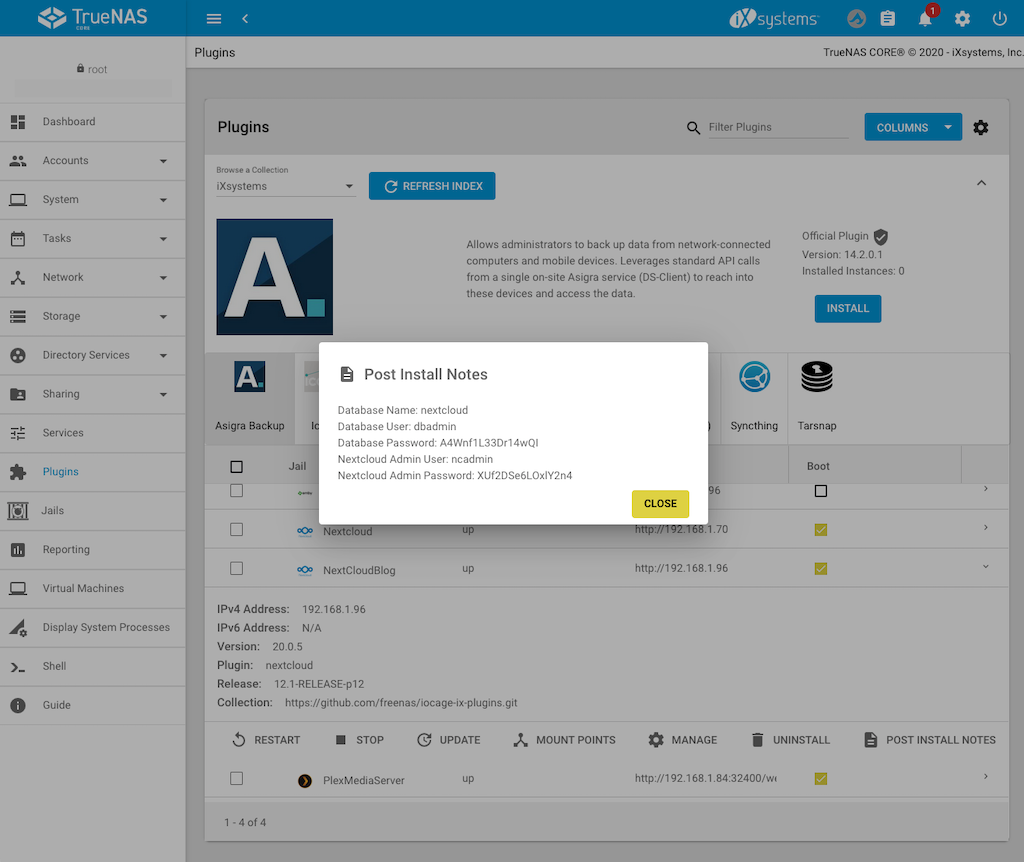
    Press save and installation dialog is displayed and wait until it is finished. Press “Close” to close the dialog which informs you about the successfully installation. Next press “Post Install Notes” to display the username and password for the admin access to NextCloud and copy it or write it down:

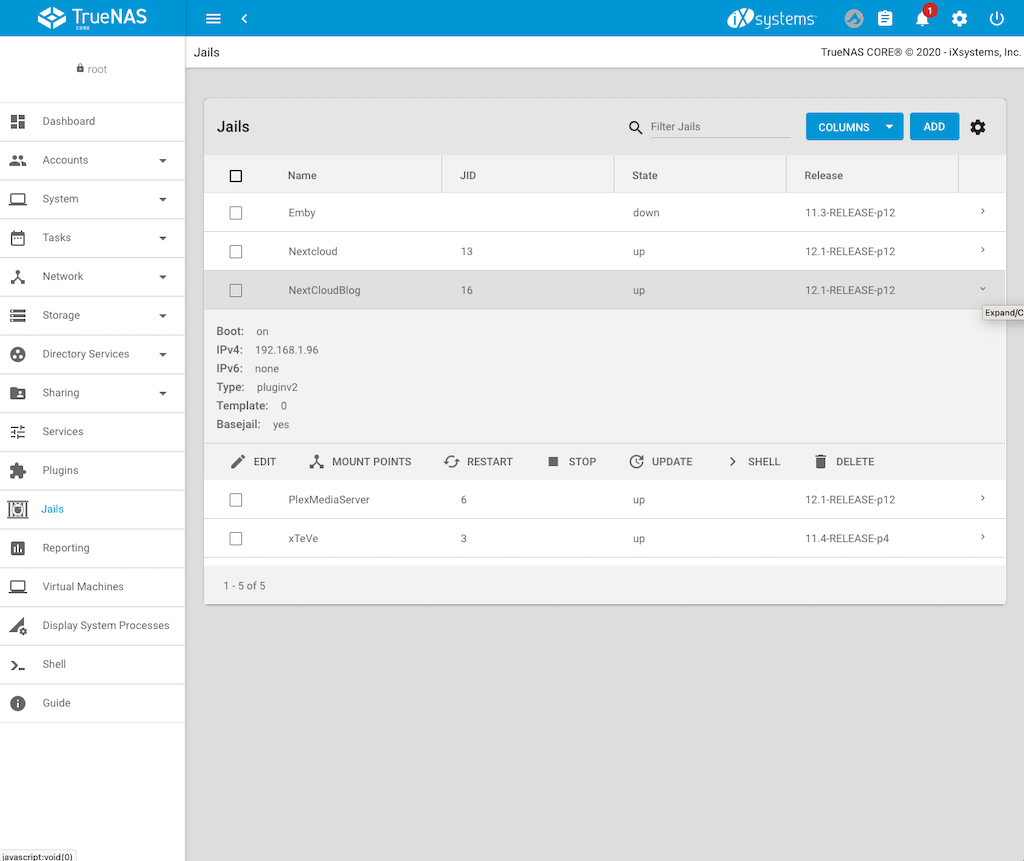
    Now switch to Jails to get the IP-Address of your NextCloud jail and to create mount points:

    Creating the mount points for the jail

    Before we access our NextCloud instance for the first time, we will mount the NAS directories which should be accessible from the jail and therefore from NextCloud. To do this:

    1. Stop the jail
    2. After the jail has stopped press “Mount Points”
    3. Press on “Actions” and select “Add”
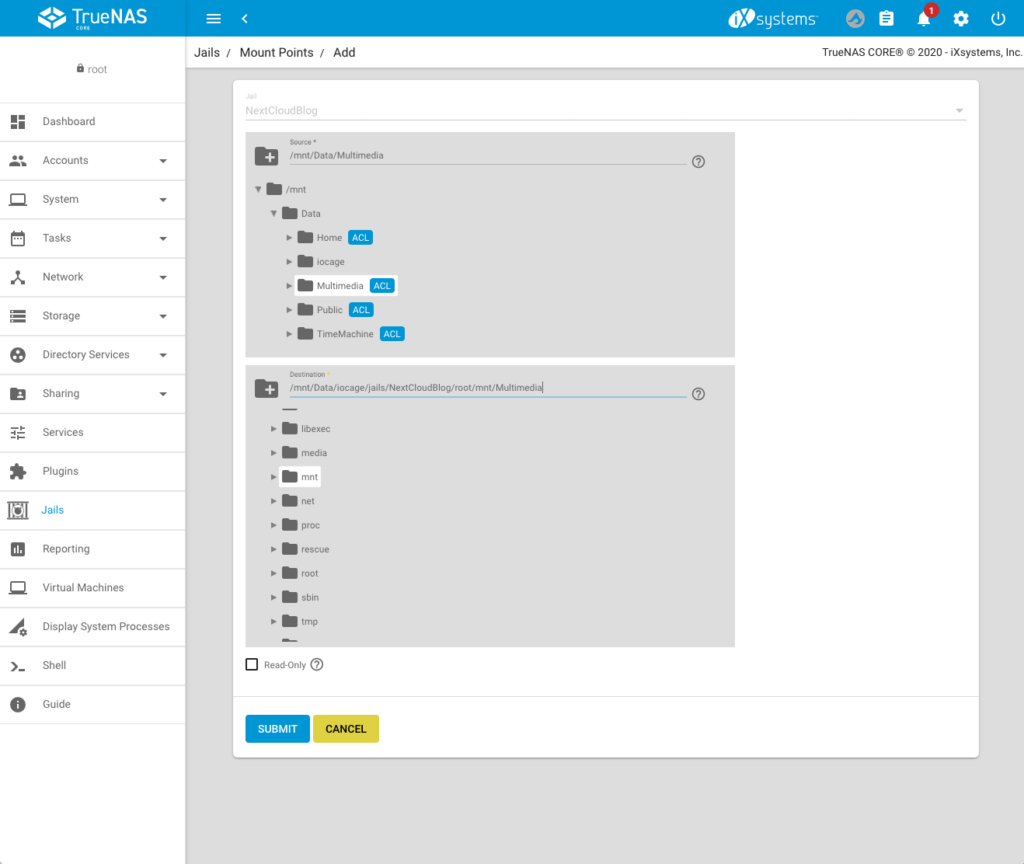
    4. On the top, select the directory which should be accessable from the jail (in my case /mnt/Data/Multimedia)
    5. Below select the mounting point in the jail (in my case: /mnt/Data/iocage/jails/NextCloudBlog/root/mnt/Multimedia). You do not have to create the folder in the jail first, you can directly enter the path (the folder Multimedia does not exist in the jail, but it will now be created).

    6. Press “Submit”. You can add additional Mount Points if you want.
    7. Go back to jails and start the jail.

    Add the local network to the trusted domains of NextCloud

    Unfortunately before we can use the NextCloud webinterface we need to add the local network to the trusted domains. To do this:

    1. Select the NextCloud jail and press the “Shell button”
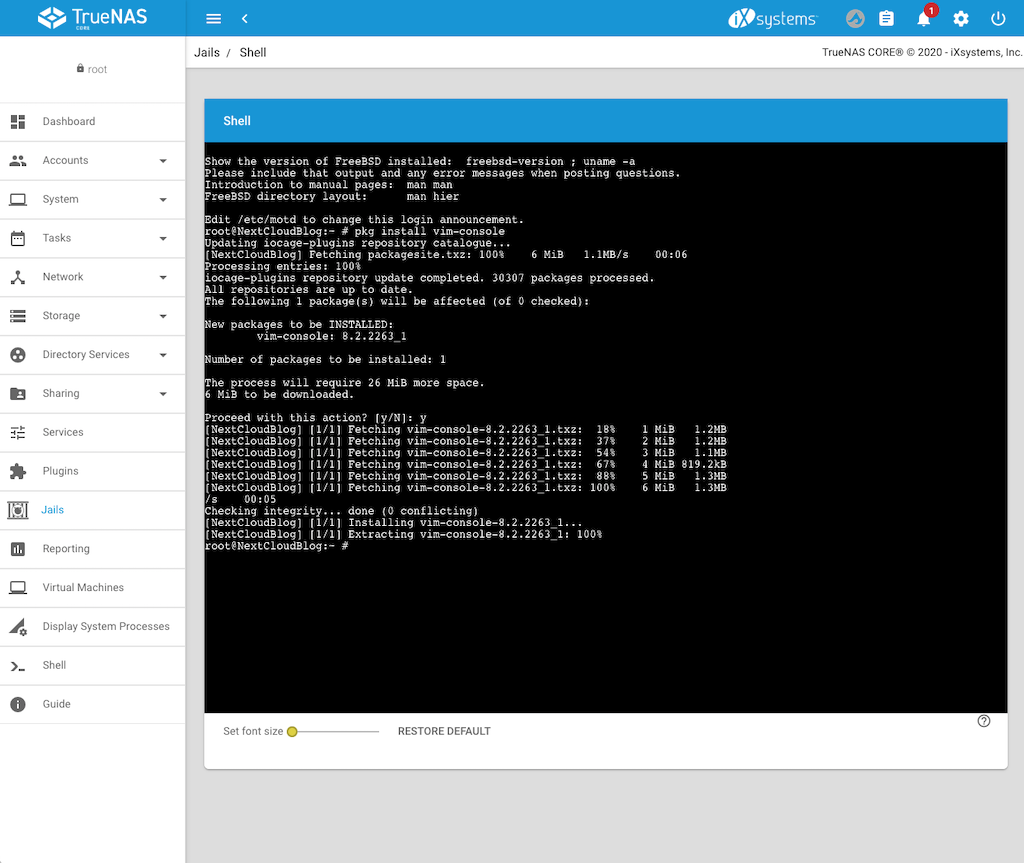
    2. Install the vim editor to directly edit the config.php file by using the following command:
      pkg install vim-console
    3. Go to the config file by the entering the following command:
      cd /usr/local/www/nextcloud/config
    4. Open config.php file to edit:
      vim config.php
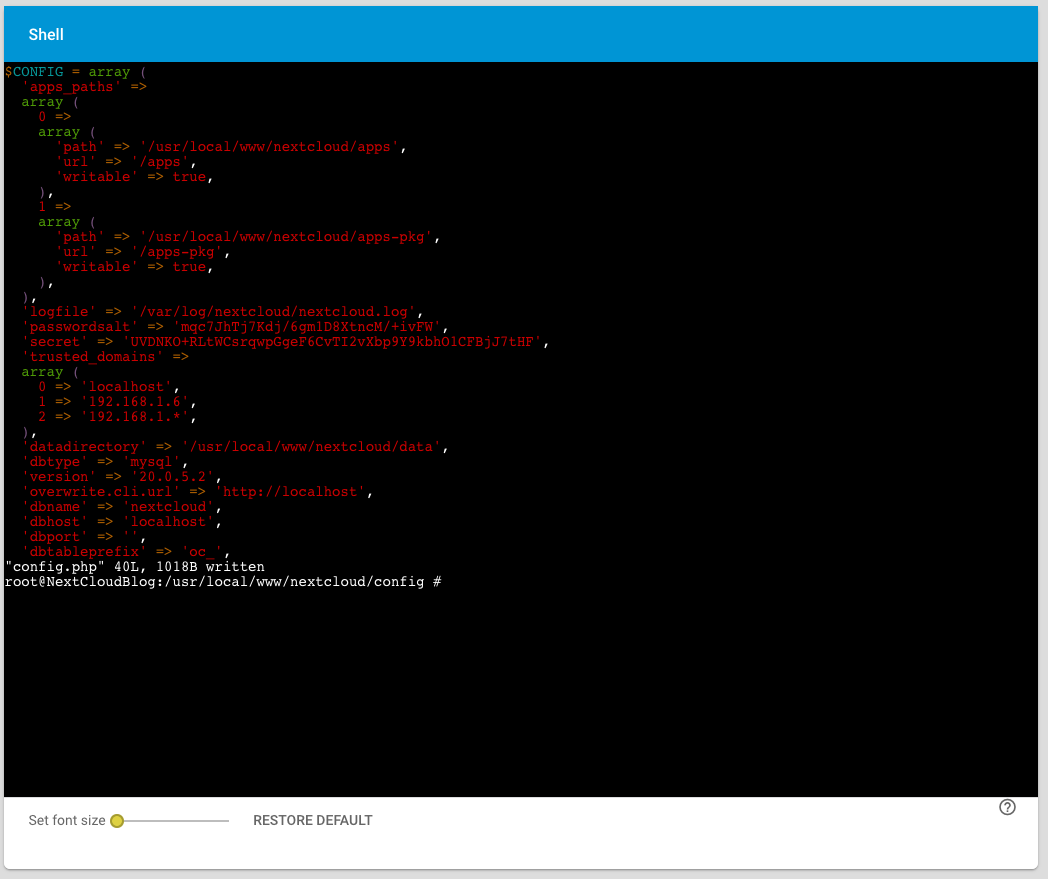
    5. Press i to insert and edit the lines
    6. Add the whole home network by adding the following line to the trusted domains:
      2 => '192.168.1.*'
      or whatever your home network IP-Address is.
    7. Press Esc and then enter :wq to store the file and exit vim.

    Accessing NextCloud for the first time

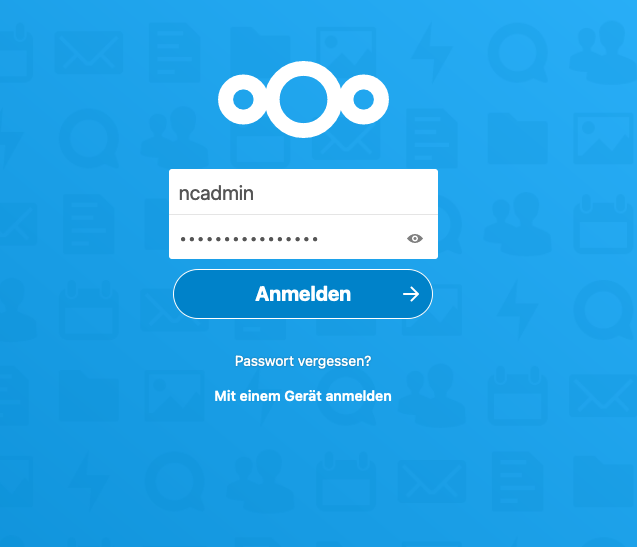
    No we can login to NextCloud for the first time by entering the IP-Address of the Jail:

    I would suggest to change the password of ncadmin or simply create a new admin user. In the next step we will add the Multimedia mounting point to NextCloud.

    Enable External storage to add a local directory to NextCloud

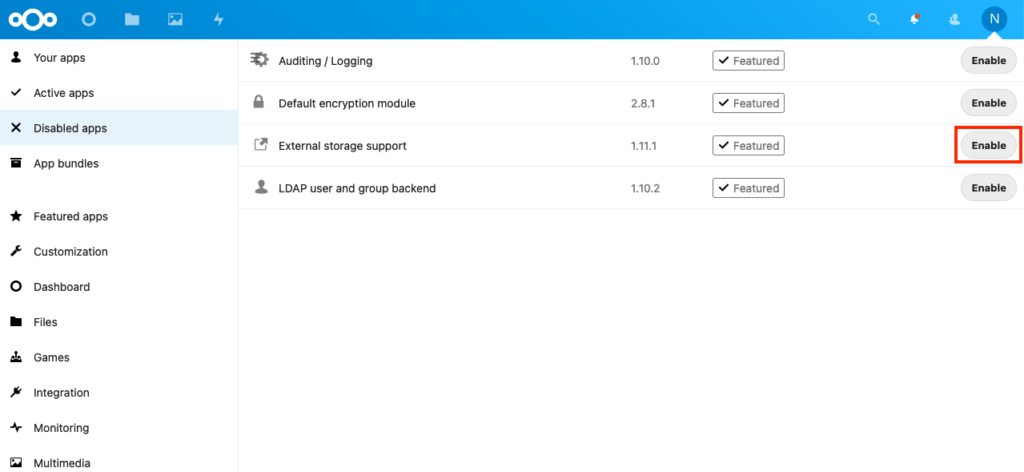
    In the NextCloud backend we switch to apps and then to “Disabled apps”. There we find the “External Storage support” app and enable it:

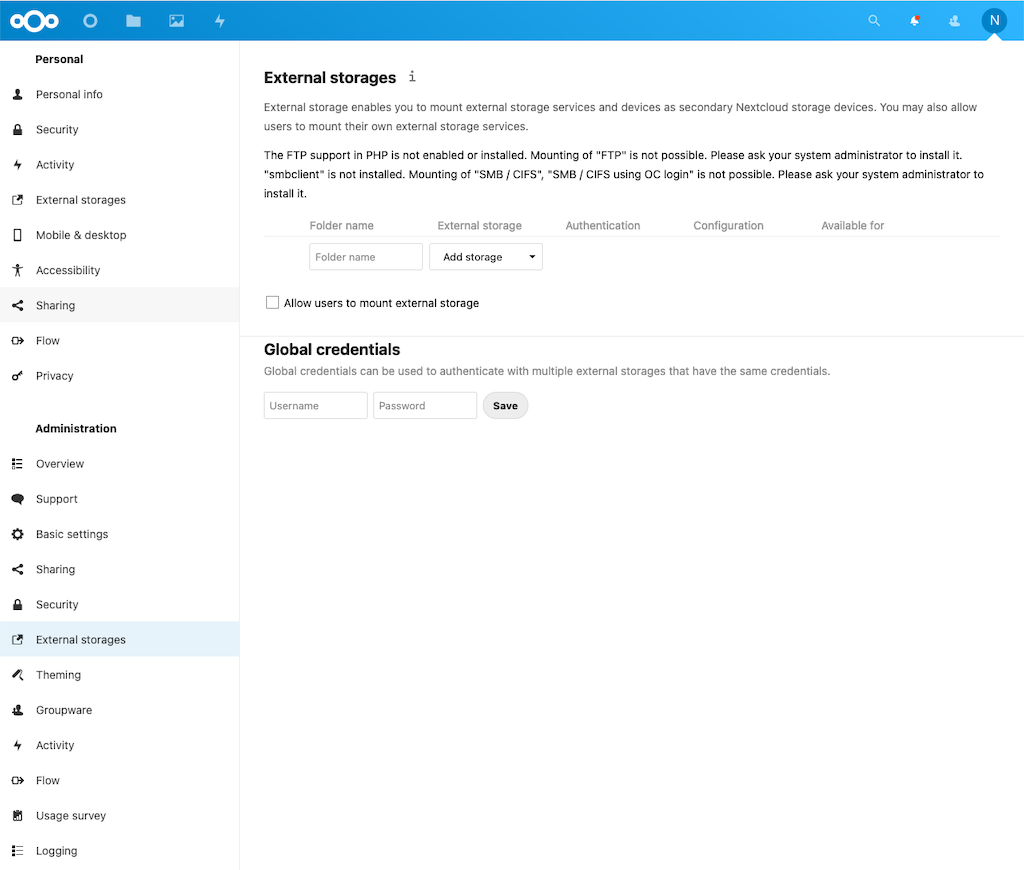
    In the next step we switch to settings and select “External Storages”

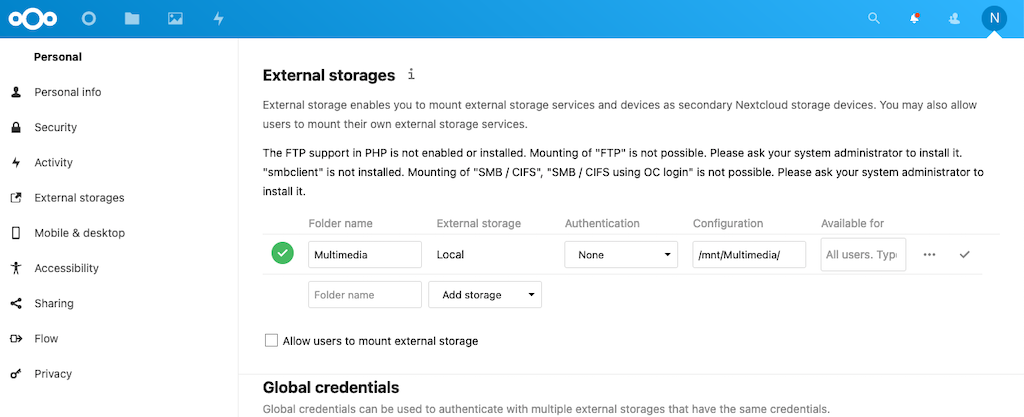
    Now we can enter the “Folder Name”, the type of “External storage” (Local), the “Authentication”, the “Configuration” (meaning mounting point, or location) and who is allowed to access our external storages (“Available for”). Final press the Checkmark to check and store the configuration. Based on this tutorial the external storage configuration looks the following way, the green checkmark confirms that the external storage is accessable:

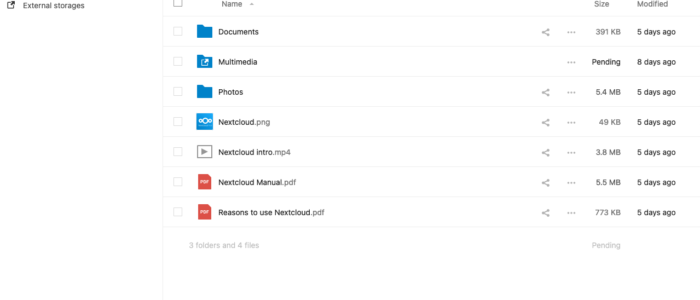
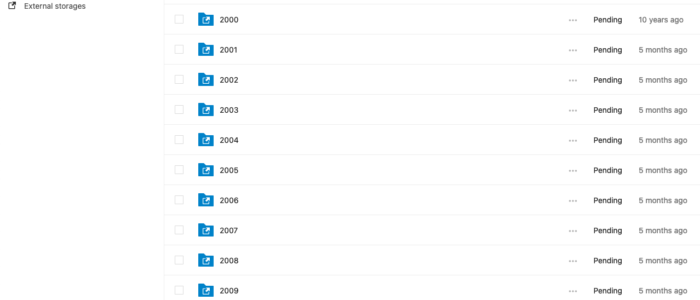
    If you now switch to “Files” you will see a reference to the external storage:

    Congratulation, you are now able to access the external storage using NextCloud! You can now download the NextCloud App on you mobile devices and use it.

    In part two of this tutorial we will secure the NextCloud jail using https with let’s encrypt and allow access from outside the local network.

    Any kind of feedback is highly appreciated.

  • How To: Installing Alfresco 6 on Ubuntu Server

    This posting will descibe the installation process of Alfresco 6 on an Ubuntu Server.

    The following prequeries are required:

    • Working Ubuntu server (18.04.3 LTS) with access to the internet
    • SSH or Terminal access to Ubuntu

    On another version of Ubuntu the installation process will be similiar.

    We will use the following locations:

    • Installation path Alfresco 6: /usr/local/alfresco
    • Data path where alfresco should store the repository content: /mnt/data/alfresco-data/

    1. Install the requirements

    Alfresco requires the following software on the destination system:

    • Java JDK (we use OpenJDK)
    • PostgreSQL Server & Client (for managing the database)
    • ImageMagick
    • LibreOffice
    • FFmpeg

    Installing Java JDK

    sudo apt-get install openjdk-11-jre
    sudo apt-get install openjdk-11-jdk

    Installing PostgreSQL

    sudo apt-get install postgresql 

    Installing the client:

    sudo apt-get install postgresql-client

    Set admin password for Postgresql:

    sudo -u postgres psql 

    Set the password:

    \password postgres

    Display the data-directory:

    SHOW data_directory;

    Quit the client:

    \q 

    Create alfresco db user:

    sudo -u postgres createuser -P -d alfresco

    Enter the password twice.

    Create alfresco database:

    sudo -u postgres createdb -O alfresco alfresco

    Installing ImageMagick

    sudo apt-get install imagemagick imagemagick-doc

    Installing LibreOffice

    sudo apt-get install libreoffice libreoffice-l10n-de libreoffice-help-de

    Installing FFmpeg

    sudo apt-get install ffmpeg

    2. Download and extract Tomcat

    • Create an folder where Alfresco and tomcat should be installed, e.g.: /usr/local/alfresco/ (This is also the ‘root’ or ‘base’ folder of the alfresco instance)
    • Create an folder where the content of alfresco should be stored, e.g.: /data/alfresco/
    • Download an extract tomcat: https://docs.alfresco.com/community/tasks/alf-tomcat-install.html 

    3. Download and extract the alfresco system

    4. Configure Alfresco

    • Follow this guide to install Alfresco (Step 7 of installing tomcat application server can be skipped beacuse we do not use mutual TLS): https://docs.alfresco.com/community/tasks/alf-tomcat-install.html
    • Install Alfrsco search services without mutual TLS: https://docs.alfresco.com/search-community/tasks/solr-install-withoutSSL.html
    • Define the location for storing solr content in alfresco-search-services/solrhome/conf/shared.properties:
      #solr content store location
      solr.content.dir=/mnt/data/alfresco-data/alf_data/solr/contentstore
    • Start solr:
      ./solr/bin/solr start -a "-Dcreate.alfresco.defaults=alfresco,archive“
    • To execute the apply_amps.sh script it is necessary to set the $JAVA_HOME variable:
      export JAVA_HOME=/usr/lib/jvm/java-11-openjdk-amd64
    • Configure alfresco-global.properties, use this file as template and modify it. Finally copy it to: usr/local/alfresco/tomcat/shared/classes/
    • Install/Deploy the amp files using the following command:
      sh ./bin/apply_amps.sh
    • Check if you have the appropriate folder structure in the root folder of alfresco:
      |– alf_data
      |– alfresco-pdf-renderer
      |– alfresco-search-services
      |– amps
      |– amps_share
      |– bin
      |– licenses
      |– modules
              |– platform
              |– share
      |– tomcat

    5. Test alfresco

    • Test if solr is running: http://localhost:8983
    • Start Tomcat by executing the following command from the tomcate directory: ./bin/startup.sh
    • Open http://localhost:8080 and login (Default: admin/admin)
    • Tail with tail -f ./logs/catalina.out the log files of tomcat
    • With ps -ef | grep tomcat you can see if an instance of tomcat is running
    • With kill PID you can kill tomcat
    • Share and alfresco are creating its own log files, called alfresco.log and share.log
    • Configure the storage path of the log files of alfresco: https://blyx.com/2014/02/18/alfresco-tip-logs/

    6. Put an apache server in front of alfresco

    1.  Install apache:
      sudo apt-get install apache2
    2. After installing Apache2, the commands below can be used to stop, start and enable Apache2 service to automatically start up everytime the server starts:
      sudo systemctl stop apache2.service
      sudo systemctl start apache2.service
      sudo systemctl enable apache2.service
    3. Enable Apache2 Proxy Modules:
      sudo a2enmod proxy
      sudo a2enmod proxy_http
    4. Restart Apache:
      sudo systemctl restart apache2.service
    5. Create a new site configuration in /etc/apache2/sites-available/ with the name alfresco.conf
    6. Put the following configuration into the file:
      <VirtualHost *:80>
      ServerName alfresco.mydomain.com
      ServerAlias alfresco
      ServerAdmin webmaster@example.com
      ErrorLog ${APACHE_LOG_DIR}/error.log
      CustomLog ${APACHE_LOG_DIR}/access.log combinedProxyRequests Off
      <Proxy *>
      Order deny,allow
      Allow from all
      </Proxy>

      ProxyPass / http://127.0.0.1:8080/
      ProxyPassReverse / http://127.0.0.1:8080/<Location />
      Order allow,deny
      Allow from all
      </Location>
      </VirtualHost>
    7. Save the file.
    8. Enable the configuration and restart apache2.service:
      sudo a2ensite alfresco.conf
      sudo systemctl restart apache2.service
    9. With a2dissite and the conf file you can remove a site configuration
    10. Now alfresco is reachable form apache on port 80.
    11. Change the url and the port in alfresco-global.properties
    12. Add the following settings to the tomcat connector in server.xml (/usr/local/alfresco/tomat/conf/):
      proxyName="files.nettania.net" proxyPort="443"
    13. Restart tomcat

    7. Install SSL Certificate and reconfigure apache to use https

    1.  Install modul ssl:
      sudo a2enmod ssl
    2. Restart apache service:
      sudo service apache2 restart
    3. Create a csr request and get the crt and the key from your SSL Provider (You can use the csr generator from your SSL provider)
    4. Put/Copy the crt and key file to (this is the default storage location for certifcates):
      /etc/ssl/certs/
    5. Configure the virtual host to support ssl. Change the content of /etc/apache2/sites-available/alfresco.conf to:
      <VirtualHost *:443>
      SSLEngine on
      SSLCertificateFile /etc/ssl/certs/alfresco_nettania_net.crt
      SSLCertificateKeyFile /etc/ssl/certs/alfresco.nettania.net.keyServerName alfresco.nettania.net
      ServerAlias alfresco
      ServerAdmin Administrator@mydomain.com
      ErrorLog ${APACHE_LOG_DIR}/error.log
      CustomLog ${APACHE_LOG_DIR}/access.log combinedProxyRequests Off
      <Proxy *>
      Order deny,allow
      Allow from all
      </Proxy>ProxyPass / http://127.0.0.1:8080/
      ProxyPassReverse / http://127.0.0.1:8080/<Location />
      Order allow,deny
      Allow from all
      </Location>
      </VirtualHost>
    6. Change the connector in tomcat´s server.xml to the following configuration:
      <Connector port="8080" protocol="HTTP/1.1"
      connectionTimeout="20000"
      proxyName="alfresco.mydomain.com"
      proxyPort="443"
      scheme="https"
      secure="true" />
      With this configuration you can prevent the following problems:
      • Possible CSRF attack noted when asserting referer header
      • The browser informs that some content might be not secure
    7. Restart Apache and tomcat and test the configuration

    Links

  • Implementing a QR servlet in java

    In this posting I want to implement a sample application which creates a QR-Code (for any URL) and displays as PNG image in the browser.

    As in previous postings I will use Eclipse and integrate the QR-Code in a simple Vaadin 8 application, because it simplifies the workflow. But the code will work with any kind of UI framework.

    To create the QR-Code I decided to use the net.glxn.QRGen framework.

    Okay let us directley start into the object representation of a QR-Code:

    QRCode:

    package at.nettania.dev.sample.qrcodeapp.core;
    
    import java.io.ByteArrayOutputStream;
    import java.io.Serializable;
    
    import net.glxn.qrgen.image.ImageType;
    
    /**
     * Implementation of QRCode. Use this class to create an arbitrary {@link QRCode} object.
     * Use {@link QRCodeUtil} to display the QRCode as PNG image in the browser.
     * This object is not persistent and will be created on the fly.
     * 
     * @author florian
     *
     */
    public class QRCode implements Serializable {
      
      /**
       * 
       */
      private static final long serialVersionUID = 6368834871126835904L;
      
      private String name;
      private String qrCodeValue;
      private int width;
      private int height;
      
      /**
       * Use this constructor to create an empty {@link QRCode} with the dimensions 250x250 and name qrcode
       */
      public QRCode() {
        this.name = "qrcode";
        this.width = 100;
        this.height = 100;
      }
      
      /**
       * Use this constructor to create a {@link QRCode} with the given value and the given name,
       * which is used as filename if displayed in the browser in combination with {@link QRUtil}
       * @param name
       * @param qrCodeValue
       */
      public QRCode(String name, String qrCodeValue) {
        this.name = name;
        this.qrCodeValue = qrCodeValue;
        this.width = 250;
        this.height = 250;
      }
      
      /**
       * @return the name
       */
      public String getName() {
        return name;
      }
    
      /**
       * @param name the name to set
       */
      public void setName(String name) {
        this.name = name;
      }
    
      /**
       * @return the qrCodeValue
       */
      public String getQrCodeValue() {
        return qrCodeValue;
      }
    
      /**
       * @param qrCodeValue the qrCodeContent to set
       */
      public void setQrCodeValue(String qrCodeValue) {
        this.qrCodeValue = qrCodeValue;
      }
    
      /**
       * @return the width
       */
      public int getWidth() {
        return width;
      }
    
      /**
       * @param width the width to set
       */
      public void setWidth(int width) {
        this.width = width;
      }
    
      /**
       * @return the height
       */
      public int getHeight() {
        return height;
      }
    
      /**
       * @param height the height to set
       */
      public void setHeight(int height) {
        this.height = height;
      }
    
      /**
     * Return the QRCode as byte array in UTF-8 and as PNG image
     * @return
     */
     public byte[] getQRCode() {
        ByteArrayOutputStream stream = net.glxn.qrgen.QRCode.from(qrCodeValue).withSize(width, height).withCharset("UTF-8").to(ImageType.PNG).stream();
        return stream.toByteArray();
     }
    }

    This is a quiet simple class and only used to simplify the method arguments for the QRCodeUtil class. The qrCodeValue string will contain the text form which the QRCode should be generated. The name string is only used as filename for the image. with the two int values for width and height I set the dimension of the QRCode. This could also be merged into one integer, because a QRCode should usually be quadratic. Of course, creating an own QRCode object might be oversized for this example, but I personally always like to work with objects instead of methods with multiple parameters.

    The key method of this class and also from the whole application is the last public byte[] getQRCode() method. In this method, we use the QRGen framework to create an QRCode and return it as png UTF-8 byte array. Later we will use this method in the servlet class to create a BufferedImage.

    Our next class will be a static utility class providing methods to quickly create an QRCode.

    QRCodeUtil:

    package at.nettania.dev.sample.qrcodeapp.core;
    
    import java.io.UnsupportedEncodingException;
    import java.net.URLEncoder;
    
    import org.apache.commons.logging.Log;
    import org.apache.commons.logging.LogFactory;
    
    /**
     * This class implements static utility methods for {@link QRCode}
     * 
     * @author florian
     *
     */
    public class QRCodeUtil {
      
      private static Log log = LogFactory.getLog(QRCodeUtil.class);
      
      public static String getQrCodeUrl(String url, String qrCodeContent) {
        QRCode code = new QRCode();
        code.setName("myqrcode");
        code.setQrCodeValue(qrCodeContent);
        code.setHeight(250);
        code.setWidth(250);
        
        return getQRCodeUrl(url, code);
      }
    
      /**
       * Returns the URL to display this {@link QRCode} in the browser
       * @param qrcode
       * @return
       */
      public static String getQRCodeUrl(String url, QRCode qrcode) {
        String uurl = "";
        try {
          uurl = url+"qrcode/{filename}.png?code={qrcode}&dimension={width}x{height}";
          uurl = uurl.replace("{filename}", qrcode.getName());
          uurl = uurl.replace("{qrcode}", URLEncoder.encode(qrcode.getQrCodeValue(), "UTF-8"));
          uurl = uurl.replace("{width}", qrcode.getWidth()+"");
          uurl = uurl.replace("{height}", qrcode.getHeight()+"");
          log.debug("URL: "+uurl);
        } catch (UnsupportedEncodingException e) {
          log.error("Unexpected error occured.", e);
        }
        
        return uurl;
      }
    }

    This class provides two methods which creates a QRCode and returns the URL to its image representation. The getQrCodeUrl(String url, String qrCodeContent) method requires the base URL of the application and a String with the content for the QRCode. With this information the method creates a QRCode object and calls the second getQRCodeUrl(String url, QRCode qrcode) method of this class.

    Let us go a little bit into detail of the getQRCodeUrl(String url, QRCode qrcode) method, where we assemble the URL. In line 37 we define the url pattern for the servlet, consisting of the application url, the servlet extension (qrcode), the filename an file type (.png) as well as the GET parameters for the servlet. code: The String which should be displayed as QRCode, and the dimension: Defines the width and height of the created QRCode (separated by x).

    The next code lines only replaces the defined placeholders with data. Line 39 should be considered where we encode the QR-Code to UTF-8, which is important to avoid encoding problems.

    Finally, we return the created URL as String.

    QRCodeServlet:

    This class is a simple servlet which creates form a ByteArray an image.

    package at.nettania.dev.sample.qrcodeapp.web;
    
    import java.awt.image.BufferedImage;
    import java.io.ByteArrayInputStream;
    import java.io.IOException;
    
    import javax.imageio.ImageIO;
    import javax.servlet.annotation.WebServlet;
    import javax.servlet.http.HttpServlet;
    import javax.servlet.http.HttpServletRequest;
    import javax.servlet.http.HttpServletResponse;
    
    import org.apache.commons.logging.Log;
    import org.apache.commons.logging.LogFactory;
    
    import at.nettania.dev.sample.qrcodeapp.core.QRCode;
    
    /**
     * This class implements a servlet to display a QRCode
     * 
     * @author florian
     *
     */
    @WebServlet(urlPatterns = "/qrcode/*", name = "QRCodeServlet", asyncSupported = true)
    public class QRCodeServlet extends HttpServlet {
    
      /**
       * 
       */
      private static final long serialVersionUID = -6031742898289759780L;
      private static Log log = LogFactory.getLog(QRCodeServlet.class);
      
      public void doGet(HttpServletRequest req, HttpServletResponse res) throws IOException {
        int width = 250;
        int height = 250;
        
        String filename = req.getPathInfo();
        String code = req.getParameter("code");
        String dimension = req.getParameter("dimension");
        if(dimension != null && dimension.matches("\\d+x\\d+")) {
          width = Integer.parseInt(dimension.split("x")[0]);
          height = Integer.parseInt(dimension.split("x")[1]);
        }
        
        
        if(code == null) {
          log.debug("Code parameter is missing.");
          res.sendError(HttpServletResponse.SC_BAD_REQUEST);
        } else {
          log.debug("Creating QRCode for filename "+filename);
          
          QRCode qrCode = new QRCode();
          qrCode.setWidth(width);
          qrCode.setHeight(height);
          qrCode.setQrCodeValue(code);
          qrCode.setName(filename);
          
          
          ByteArrayInputStream in = new ByteArrayInputStream(qrCode.getQRCode()); // The input Stream
          BufferedImage image = ImageIO.read(in);
          getImage(image, qrCode.getName(), qrCode.getFiletype(), res);
        }
      }
      
      private static void getImage(BufferedImage image, String filename, String type, HttpServletResponse res){
        try {
          String formatName = "JPEG";
          if(filename.contains(".")) {
            String[] split = filename.split("\\.");
            formatName = split[split.length-1];
          }
          
          log.debug("Filename: "+filename);
          log.debug("Type of image: "+formatName);
          
          // As default type we use RGB, because if the JPEG is of type CMYK a bug in Java leads to a wrong representation of the colors. 
          // RBG does not support transparency, but JPEG does not do it either, therefore it does not matter that we have no alpha channel.
          int imageType = BufferedImage.TYPE_INT_RGB;
          
          // We change the image type to ARGB to support transparent backgrounds for PNG
          if(formatName.toLowerCase().equals("png"))
            imageType = BufferedImage.TYPE_INT_ARGB;
          // We change the image type to ARGB to support transparent backgrounds for GIF
          if(formatName.toLowerCase().equals("gif"))
            imageType = BufferedImage.TYPE_INT_ARGB;
          
          
            BufferedImage convertedImage = new BufferedImage(image.getWidth(), image.getHeight(), imageType);
            convertedImage.getGraphics().drawImage(image, 0, 0, null);
            convertedImage.getGraphics().dispose();
            
          // Write the image with the java's ImageIO
          ImageIO.write(convertedImage, formatName, res.getOutputStream());
        }
        // if something happens an exception is thrown
        catch(Exception e){
          log.error(e);
        }
      }
    }

    We use annotations instead of web.xml file to define the settings of the servlet. This servlet has the name QRCodeServlet and “/qrcode/*” as relative path.

    The doGet method uses the GET parameters to create a new instance of a QRCode object. If the dimension parameters do not exist, the servlet defines a default width and height of 250. If the code parameter does not exist the servlet throws an http 400 error, which means bad request.

    Then we create an ByteArrayInputStream which contains the ByteArray representation of our QRCode. With the help of the static ImageIO class we create a BufferedImage and call the static getImage(BufferedImage image, String filename, String type, HttpServletResponse res) method to write the Image and display it as servlet content.

    As already mentioned at the beginning I integrated this sample into a Vaadin 8 application, consisting of a TextField a Button and an Image (which displays the QRCode) to have a working example. The following code represents the Vaadin UI:

    /**
     * This is a sample application which creates from a {@link TextField} input a QR-Code.
     * 
     * @author florian
     *
     */
    @Theme("mytheme")
    public class QrCodeUi extends UI {
    
        /**
       * 
       */
      private static final long serialVersionUID = 1633256676992649404L;
    
      @Override
        protected void init(VaadinRequest vaadinRequest) {
        Page.getCurrent().setTitle("QR-Code sample");
            
            //
            // UI components
            //
        final VerticalLayout layout = new VerticalLayout();
            final Image qrImage;
            
            //
            // Wrapper around the TextField
            //
            final HorizontalLayout wrapper = new HorizontalLayout();
            wrapper.setWidthUndefined();
            layout.addComponent(wrapper);
            layout.setComponentAlignment(wrapper, Alignment.TOP_CENTER);
            
            final Label caption = new Label("Enter an URL to display as QRCode:");
            wrapper.addComponent(caption);
            wrapper.setComponentAlignment(caption, Alignment.MIDDLE_CENTER);
            
            final TextField name = new TextField();
            name.setWidth(250, Unit.PIXELS);
            name.setPlaceholder("www.florian-rhomberg.net");
            wrapper.addComponent(name);
            name.focus();
            
            final Button button = new Button("Create QR-Code");
            wrapper.addComponents(button);
            
            //
            // The QR-Image
            //
            qrImage = new Image();
            layout.addComponent(qrImage);
            layout.setComponentAlignment(qrImage, Alignment.TOP_CENTER);
            
            button.addClickListener(new ClickListener() {
    
          /**
           * 
           */
          private static final long serialVersionUID = 7507056868576045294L;
    
          @Override
          public void buttonClick(ClickEvent event) {
                  qrImage.setSource(new ExternalResource(QRCodeUtil.getQrCodeUrl(Page.getCurrent().getLocation().toString(), name.getValue())));
          }});
            
            setContent(layout);
        }
    
        @WebServlet(urlPatterns = "/*", name = "QrCodeUiServlet", asyncSupported = true)
        @VaadinServletConfiguration(ui = QrCodeUi.class, productionMode = false)
        public static class QrCodeUiServlet extends VaadinServlet {
    
        /**
         * 
         */
        private static final long serialVersionUID = 3594396700811845967L;
        }
    }

    That’s it, I hope this posting might help someone who also needs to implement QRCode in a java web applications. The whole project is available on github.

    Links:

  • Deploying a mixed WLAN structure with two sites

    Last month I implemented a new WLAN infrastructure at my tennis club in western Austria. In this posting I want to share my experiences and describe some pitfalls which can occur during deployment.

    The task was to provide guest WLAN in the club building consisting of two offices, a public Café, two cloakrooms for men and women distributed on three floors, partly WLAN in the neighboring tennis hall and on the outdoor site consisting of 9 courts, with different sea levels. The outdoor site is divided from the club building by some parking slots and a road.

    The club building is built of armored concrete which results in a poor signal quality over short distances. Fortunately, there are some locations in the building which offers network cables what helped me a lot.

    To build up this WLAN I decided to combine multiple devices and technologies:

    • Ubiquiti UAP-AC-LITE APs for all locations which offers network cables
    • Ubiquiti UAP-AC-M APs for indoor and outdoor locations without network cable
    • 2 Ubiquiti NBE-5AC-16 NanoBeams to create an air link between the club building and a maintenance building on the outdoor site.

    Further one US-16 and two US-8 switch provide the necessary backend services.  An USG-Pro-4 secures the network to the internet and provides a VPN connection for external maintenance. The CloudKey is used to manage the whole network including the authorization for the guest portal and can also be accessed via VPN or CloudAccess.

    The following diagram illustrates the network topology:

    Deployment:

    The deployment and configuration of this installation was done on two days, including some “infrastructure measures” like mounting a small rack for the components and patching some network cables to a patch panel.

    The configuration of the Ubiquiti components mostly works like a charm, only the Mesh-AP caused some configuration troubles, mostly because of a lack in the documentation. At the beginning, I configured all APs by connecting it with network cables to the switch and attaching to fix IP-Addresses. That´s the way I always configure infrastructure components like APs or Switches. Then I tried to establish a wireless uplink from the mesh APs to the wired AP located in the office which didn’t work the Mesh-APs where always marked as “isolated”. After several attempts including firmware updates and downgrades I found an entry (third post) in the Ubiquiti help forum that wireless uplink only works with a dynamic IP-Address. Unfortunately, this was not referenced in the official UBNT documentation.

    Then I configured the two NetBeams to connect the outdoor side of the facility. When doing this, it is important to be patient, because the first time it can take up to one hour until the connection is established.

    Finally, I configured the “Office” WLAN and then I started with the deployment of the Guest portal.

    Guest Portal:

    To simplify the administration and the use of the guest portal, I decided to use a default password, which will be changed from time to time. Because of legal restrictions in Austria, we use a “default” password which will be changed from time to.

    A very useful feature for WLAN scenarios like this one is the support of DPI restrictions introduced with controller version 5.6.x which allows to block certain kind of communication like P2P which can become a problem for the operator of every WLAN.  Even if I know that this only works with unencrypted P2P communication, it is an additional “proof” that the operator tries to prevent abuse.

  • Log4j configuration example

    Like most java developer I use the log4j library to log my applications. Although this library is widely used in the java world, there are only few configuration examples available in the Internet.

    This posting will scope the following configuration topics:

    • Defining a (default) root logger for the application
    • Defining an appender to write the logs to console
    • Defining an appender to write the logs to a file
    • Defining an appender to write logs of certain classes to another log file than the default one

    Configuring the root logger:

    # Define the root logger
    log4j.rootLogger=DEBUG, root

    First, we define the root logger, which means that this is the default logger for the application, used by all classes if no other special configuration exists for the class.

    The first command after the equal symbol defines the log level, the following log levels are usually used: DEBUG > INFO > ERROR.

    ‘root’ defines the appender which is used by this logger.

    Next we will define two possible appender configurations for the ‘root’ logger. An appender defines the location, where any log entries of the logger should be stored. Usually there are two possibilities:

    1. Writing the log to the stdout console, useful during development and debugging in combination with a development platform like Eclipse.
    2. Writing the log entries to a file, usually used in production environments.

    Writing log to stdout console:

    # Application appender to stdout
    log4j.appender.root=org.apache.log4j.ConsoleAppender
    log4j.appender.root.Target=System.out
    log4j.appender.root.layout=org.apache.log4j.PatternLayout
    log4j.appender.root.layout.ConversionPattern=%d{yyyy-MM-dd HH:mm:ss} %-5p %c{1}:%L - %m%n

    The above listing configures the root appender to write the log to the stdout console. This is defined in line 2 by using the org.apache.log4j.ConsoleAppender as appender class. Line 3 defines System.out as target. Line 4 and 5 defines some layout issues, how the log entries should be displayed.

    Writing log to file:

    # Application appender to file
    log4j.appender.root=org.apache.log4j.RollingFileAppender
    log4j.appender.root.File=/SWE/Log/AppLog.log
    log4j.appender.root.MaxFileSize=10MB
    log4j.appender.root.MaxBackupIndex=10
    log4j.appender.root.layout=org.apache.log4j.PatternLayout
    log4j.appender.root.layout.ConversionPattern=%d{yyyy-MM-dd HH:mm:ss} %-5p %c{1}:%L - %m%n

    This listing configures the ‘root’ appender to write the log entries into a log file, AppLog.log. This is done by using the org.apache.log4j.RollingFileAppender class instead of the org.apache.log4j.ConsoleAppender. Line 3 defines the whole path including the name of the log file. The log file if not exists, will be created by log4j, the folder structure must be created by hand. Line 4 defines the maximum file size of the log file until a new one will be created, and the old one will be renamed by adding the date to the original file name. Line 6 and 7 are the same, like in the other listing.

    Last but not least, we will define another appender which exclusivly writes the logs of a class to another file.

    Writing log of certain classes to another log file:

    # SpecialLogger appender
    log4j.appender.SpecialLogger=org.apache.log4j.DailyRollingFileAppender
    log4j.appender.SpecialLogger.datePattern='-'dd'.log'
    log4j.appender.SpecialLogger.File=/SWE/Log/SpecialLog.log
    log4j.appender.SpecialLogger.MaxFileSize=10MB
    log4j.appender.SpecialLogger.MaxBackupIndex=10
    log4j.appender.SpecialLogger.layout=org.apache.log4j.PatternLayout
    log4j.appender.SpecialLogger.layout.ConversionPattern=%d{yyyy-MM-dd HH:mm:ss} %-5p %c{1}:%L - %m%n
    
    # Write the log of this class to the 'SpecialLogger'
    log4j.logger.at.nettania.dev.logexample.core.TestDaemon=DEBUG, SpecialLogger
    log4j.additivity.at.nettania.dev.logexample.core.TestDaemon=false

    We define another appender, with the name SpecialLogger. Line 2 to 8 configures this logger and writes the output into the file SpecialLog. Line 10 defines that all log entries of the class at.nettania.dev.logexample.core.TestDaemon are written to the SpeicalLogger appender. Line 11 eliminates redundancy, which means, the log output of at.nettania.dev.logexample.core.TestDaemon are exclusivly written to the SpecialLogger appender and not as well to the ‘rootLogger’.

  • Do not use static IP-Addresses for Ubiquiti Mesh APs which uplinks wirelessly

    Last week I configured a new network consisting of several Ubiquiti Switches and APs, for the tennis club, where I am a member of it. Some of the APs are using wirelessly uplinks because we do not have a complete wired network in the building and outdoor area. To minimize costs, I decided to use the mesh approach to build up the network.

    However, I am used to give static IP-Addresses to APs and other network components. Therefore, I configured all APs with static IP-Addresses and afterwards I was wondering why the APs which have a wireless uplink are not “meshing”.

    After several hours of searching it turned out that the problem was the static IP-Addresses I gave to the APs which uplinks wirelessly. After switching to DHCP it worked.

    Therefore, never give a static IP-Address to an AP which uplinks wirelessly, this currently won´t work!

    Links: