In my opinion the best way to update NextCloud is using the command line, with the web installer I had some problems, especially if the internet connection is not really fast. Therefore I always use the command line to update NextCloud.
In this blog entry I will give a short tutorial how to update NextCloud to the latest version, using the command line of the jail. For this tutorial I will use the Shell of the TrueNAS web interface.
As first step I would suggest that you update your jail to the latest version. This is quite simple, you can directly do this in the web interface of TrueNAS. Login, go to “Jails” -> select the NextCloud jail -> Press the “>” icon in the right and select “Update”. A dialog will open where you need to confirm, and then the update is executed.
After this, select the shell of the jail.
To remember the default NextCloud jail of TrueNas is using the following installation/configuration settings/paths:
Webserver: NGINX
PHP: php-fpm
Path to NextCloud: /usr/local/www/nextcloud
User who is running nginx and PHP: www
With this information we will simply call the command line updater of NextCloud using the following command:
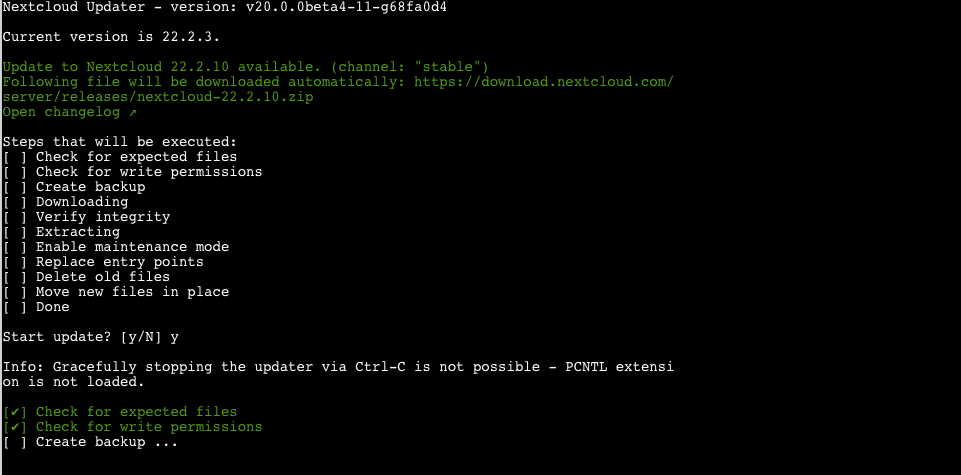
If the command is working and no error is thrown you should get the following output (I already pressed Y that I want to update NextCloud):
If you have a problem with the information that stopping the update using Ctrl-C is not possible, you can install the PCNTL extension using snap.
The Updater is now creating a backup, then its downloading the latest NextCloud release, after that it checks the integrity and certain other things. Dependent on the internet connection and the performance of your TrueNAS instance this can take a while.
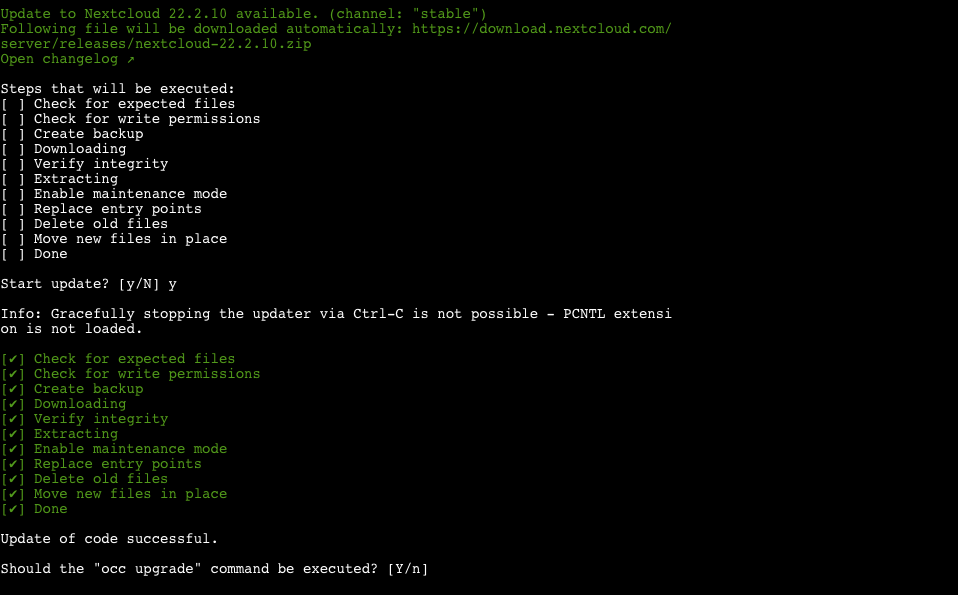
When the update is successfully the systems asks the user if the occ upgrade command should be executed. This is necessary to finish the update. During this step changes in the database and the file data structure of NextCloud are executed and new versions of the plugins are installed.
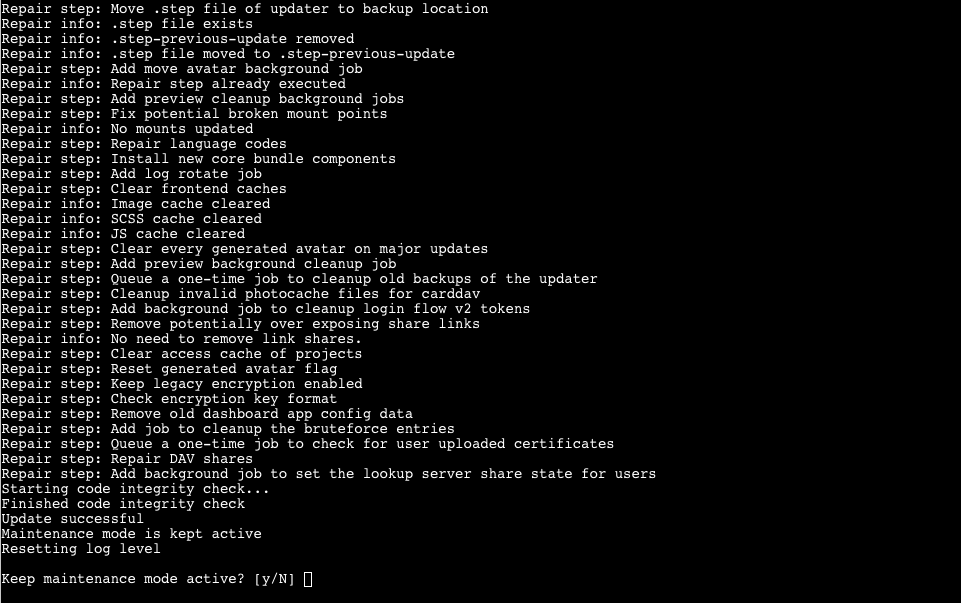
Press “Y” to execute the occ upgrade. After a while everything should be finished and NextCloud asks you if the maintenance mode should stay active. Enter “N” and NextCloud should again be online.
The update is only executed from the running version to the next one and not to the latest! If there are several versions in between it can be necessary to execute the update command more than one time.
One of the great features of the ZFS filesystem is the snapshot function. With this, you can easily and efficiently backup the current state of the filesystem. Let us assume you have a fileserver and accidentally a user deletes some important folders. With the snapshot functionality you can rollback this modification quicker than with every backup.
These feature can also be used to easily replicate your Storage to another device to ensure data safety and high availability. In difference to a traditional backup the snapshot makes a 1:1 replication of your ZFS filesystem. In case of a disaster you can simple map your network shares to the second storage and it works. Traditional backups are usually not directly accessible by the client. However, ZFS replication is in my opinion not a replacement for a traditional backup. Therefore we make both in our company: Every hour a new snapshot is created on our main storage and replicated to a failover second storage. Every night both storage devices backup to a S3 instance.
In this blog entry I will give a brief introduction how to replicate the iocage dataset (which contains the jails) to a second (backup) TrueNAS device with the possibility in case of an emergency to start the jails on the backup device. This time I will use the admin interface.
In this scenario I have two TrueNAS devices:
The first (main) device
The second (backup) device
1. Create a periodic snapshot task on your first (main) TrueNas storage device
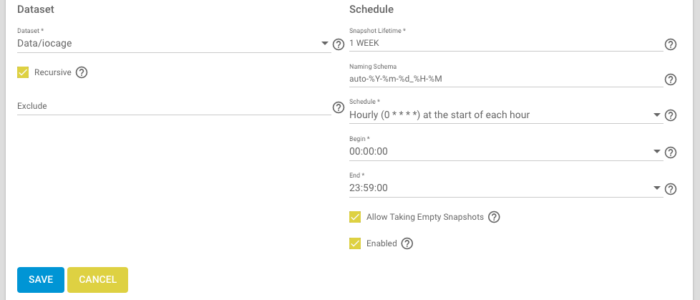
Login into the admin interface of your TrueNAS device ans select “Tasks” and than “Periodic Snapshot Tasks”. Press add and create a new task:
As dataset select your pool and than the iocage dataset, in my case: Data/iocage
Check “Recursive”
“Snapshot Lifetime”: You are free to select a Snapshot Lifetime. This defines how many days or weeks you can rollback your data. In this example I selected 1 WEEK
“Naming Schema”: This can be left with the default settings.
“Schedule”: Defines how often a snapshot is created. In my case I want to create a snapshot every hour. Depends on your needs and also storage capacity, every day, every week or every month can be the right choice. Also a custom value is possible.
“Begin” and “End” is adjusted based on the selected Schedule.
Enable “Allow Taking empty Snapshots”
Enable “Enabled”
Finally press save
2. Create a SSH connection to your second (backup) device
In this step we will create a SSH connection to the second (backup) TrueNAS device. This is necessary for replication. Select “System” and than “SSH Connections” on the first (main) device:
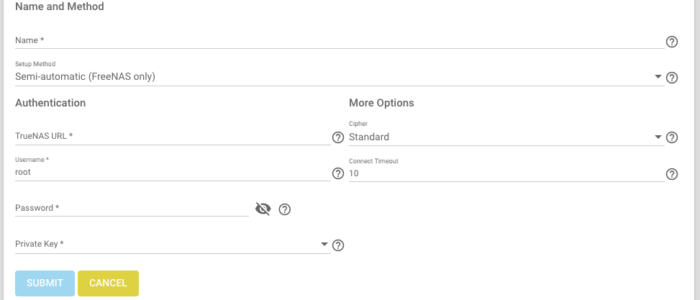
Press “Add”
Enter a “Name” for the SSH connections, I use the name of the other device, in my case “LittleAlice-1”
“TrueNAS URL”: This can be the hostname or the IP of the second storage.
“Username”: the username to login on the other device, e.g. root
“Password”: The password the user on the other device.
“Private Key”: Select “Generate New”, than the two devices exchange automatically there keys.
“More option”: Leave the default settings
Press “Submit”
Now the SSH-Connections is configured.
3. Create the iocage replication task between the two TrueNAS devices
First, login to the second (backup) TrueNAS device and create the “iocage” dataset manually:
Select “Storage” and than “Pools”
If not already done create a new Pool. I will not go into detail how to do this.
In the Pool create a new dataset called “iocage”, leave the default options.
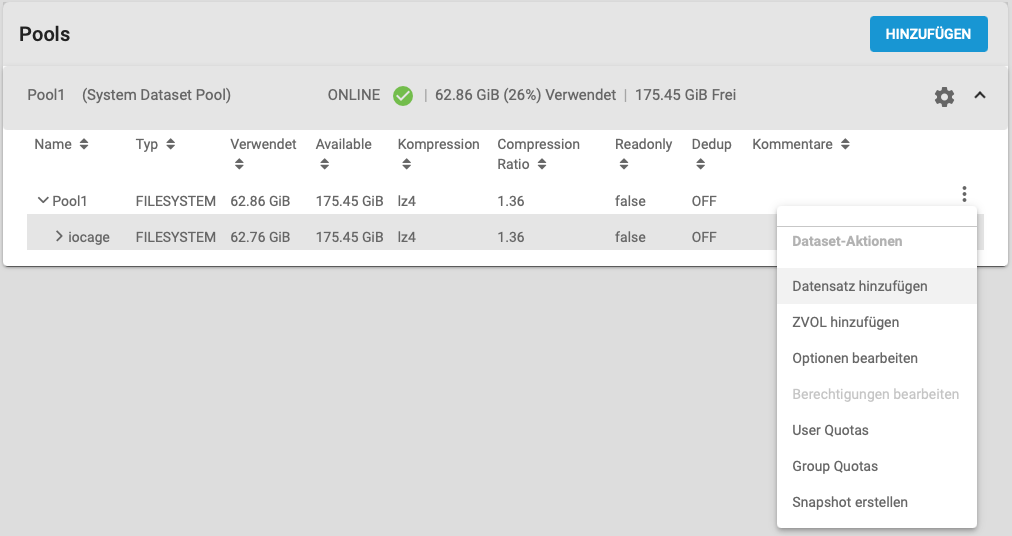
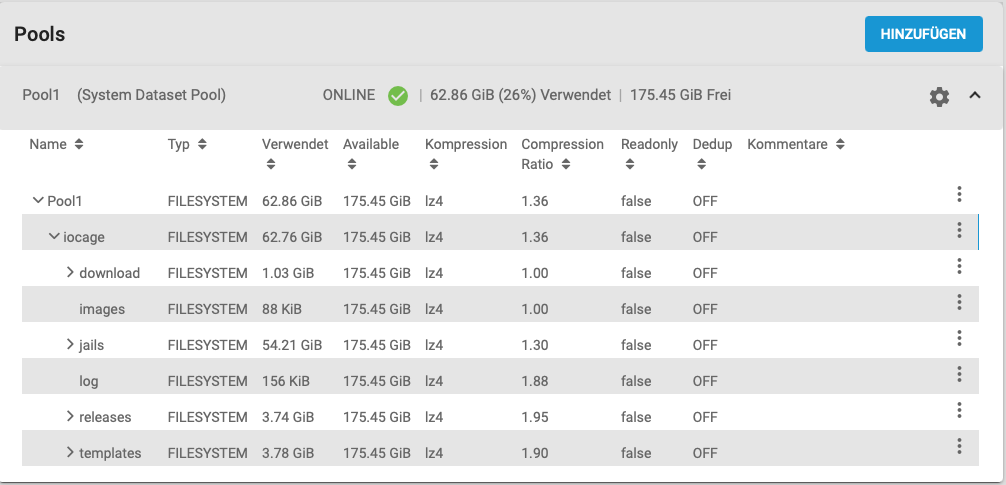
Finally the Pool list should look the following way:
No you can go back the the first (main) TrueNAS device and select “Tasks” and “Replication Tasks”:
Press “Add”
Press “Advanced Replication Creation”
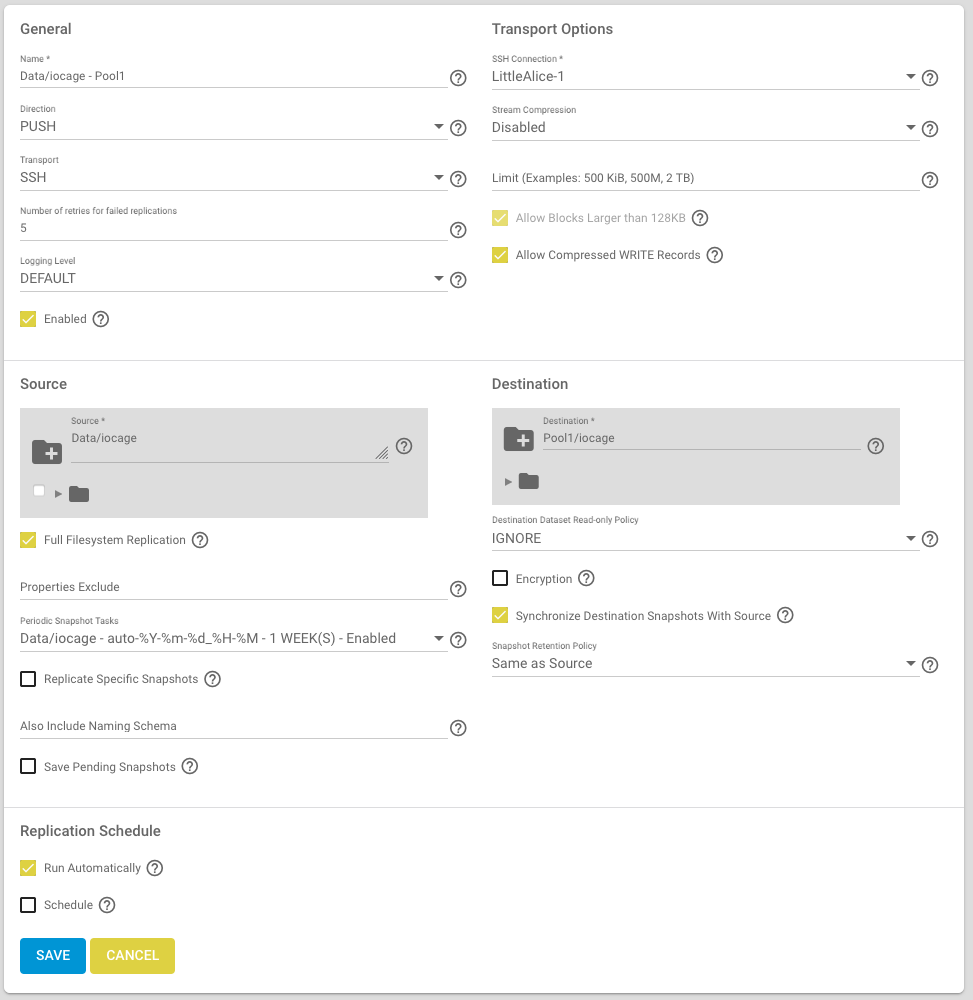
Give the Replication Task a name under “Name”, in my case Data/iocage – Pool1
“Direction”: PUSH
“Transport”: SSH
“Number of retries for failed replications”: 5
“Loggin Level”: DEFAULT
“Enabled”: Checked
“Source”: Select the iocage dataset
“Full Filesystem Replication”: Checked
“Periodic Snapshot Task”: Select the one we created in step 1.
“Replicate Specific Snapshots”: unchecked
“Save pending Snapshots”: unchecked
“Run automatically”: If checked this task is always executed after the “Periodic Snapshot Task” form step 1 has been executed. You can also define your own Schedule or run manually.
“SSH-Connection”: Select the SSH connection we created in step 2
“Stream Compression”: I have unchecked this, because I replicate to a device in the local network, which has enough throughput.
“Limit”: Leave the default value
“Allow Block Larger than 128KB”: Leave the default setting
“Allow Compressed WRITE Record”: Leave the default setting
“Destination”: Select the iocage dataset on the second TrueNAS device. This only works if the SSH connections could be created successfully.
“Destination Dataset Read-Only Policy”: I selected IGNORE because I am sure that on the second device there will be no changes to the iocage dataset, excepted in an emergency case. The advantage of this approach is that you do not have to disable the readonly mode on the second device in case of an emergency. But this approach can lead to inconsistent data and in worst case, you loose data. Therefore be very carefully! If you are not sure select SET.
“Encryption”: If you want to transfer the data encrypted check this option.
“Synchronize Destination Snapshots With Source”: checked
“Snapshot Retention Policy”: Same as Source
Finally press “Save” and you will come back to the overview.
Now you can wait until the replication starts automatically, or you start the replication task manually by selecting the created replication task and press run. Depending of the size of the iocage dataset the replication can take a while.
But if everything works after a while you should be able to see the replicated iocage on the second (backup) device:
4. Checking the replication on the second device
After a while login to the backup device an than select “Storage” and than “Pools”. Now you should see the replicated iocage dataset:
Congratulation you have successfully created a periodic snapshot task and a replication to another device. Feel free to post any comments.
Last summer I decided to replace my QNAP NAS by a more comprehensive NAS. I am working a lot with Dell servers, and therefore it was an easy decision for me to use a Dell PowerEdge R340 with currently two 10 TB Seagate Iron Wolf hard discs, and two 16GB microSDHC/SDXC Cards as replacement. I know using such a server as a private NAS might be exaggerated, for some, but I wanted a rack device and more important enough server resources for experimental reasons. As operating system I decided to use TrueNAS Core, formerly FreeNAS.
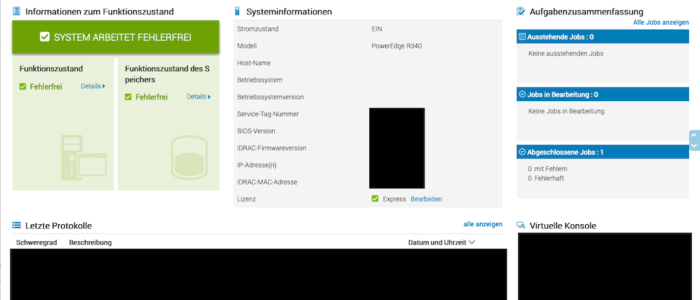
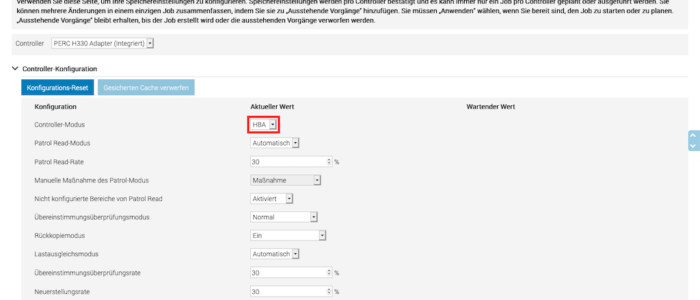
I configured the PERC Raid Controller in HBA mode using iDRAC, because TrueNas is using ZFS which has an integrated RAID functionality. In fact, using a Hardware RAID with TrueNAS is definitely not suggested! The two screenshots below show, how to switch to HBA mode using iDRAC:
I installed TrueNAS on one of the two 16GB microSDHC/SDXC Cards. The two 10TB Seagate discs should exclusively be used as storage devices and not partly for the operating system. The second 16GB microSDHC/SDXC Card will later be used to mirror the operating system.
I performed the installation using the web interface of iDRAC, which is really a comfortable way to do it. iDRAC is an independent administration tool, shipped with all Dell servers and works immediately after the server is plugged in to the power supply. From iDRAC you can control and administrate the complete server. There is also a remote console feature.
There are a lot of tutorials available in the web how to install TrueNAS therefore I do not want to go into detail and refer to them.
After installing TrueNAS Core, creating one or more pools and sharing we have a working NAS which we can access, using SMB, AFP etc. Again, I do not want to go into detail and reference to the TrueNAS documentation because scope of this blog is how to create a private cloud using NextCloud and how to access it from anywhere in the world.
Installing NextCloud
Now let us start with the installation of NextCloud. TrueNAS provides a certain number of plugins to extends the functionality of the NAS. Each plugin will be installed in his own jail and is therefore independently. Wikipedia defines a jail as a “OS-level virtualization that allows system administrators to partition a FreeBSD-derived computer system into several independent mini-systems called jails, all sharing the same kernel, with very little overhead”. Simply spoken, it’s a FreeBSD container virtualization like Docker. Some plugins are officially maintainanced by iXsystems and there are also a certain number of community plugins available.
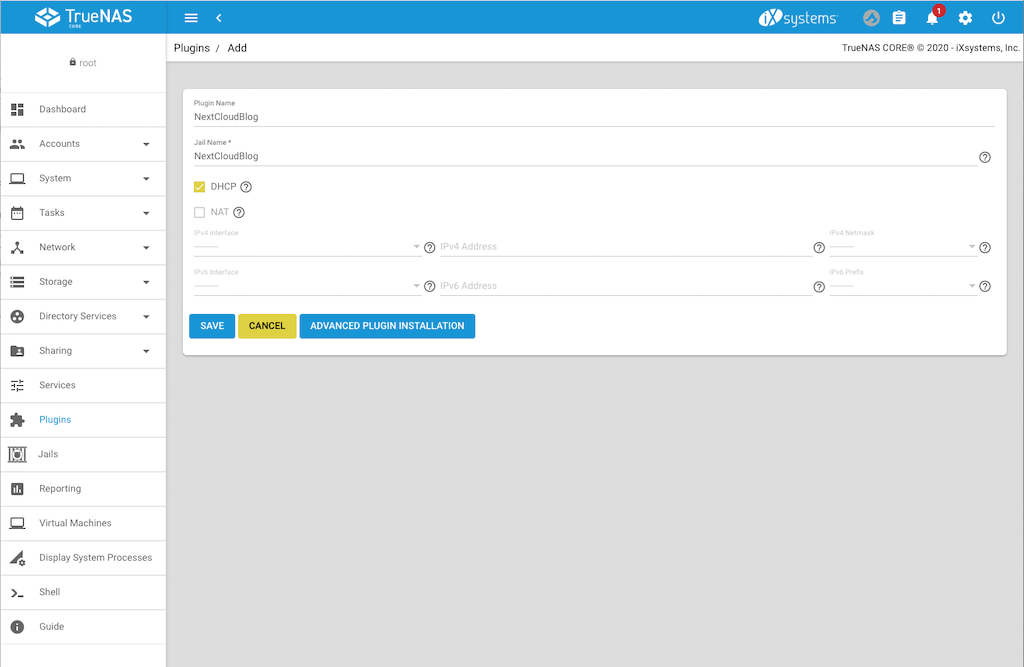
NextCloud is an official plugin, therefore we simply goes to Plugin int the TrueNAS backend and select NextCloud. At the time when this entry was written the plugin is using NextCloud 20.0.4, instead of 20.0.5. However this is nearly the current version and shows me, that the plugin is actively maintenanced by iXsystem. Select the plugin and press install. A form is opened where you can define the settings. Enter the plugin name and jail name you want. Disable NAT, we will give this jail its own IP-Address. Select the interface on which the NAS ic connected, enter the IP-Addres you want that next cloud is listening and the netmask. Alternatively press DHCP if you want to manage the IP-Address in your router, as I mostly do. The following screenshot shows the settings:
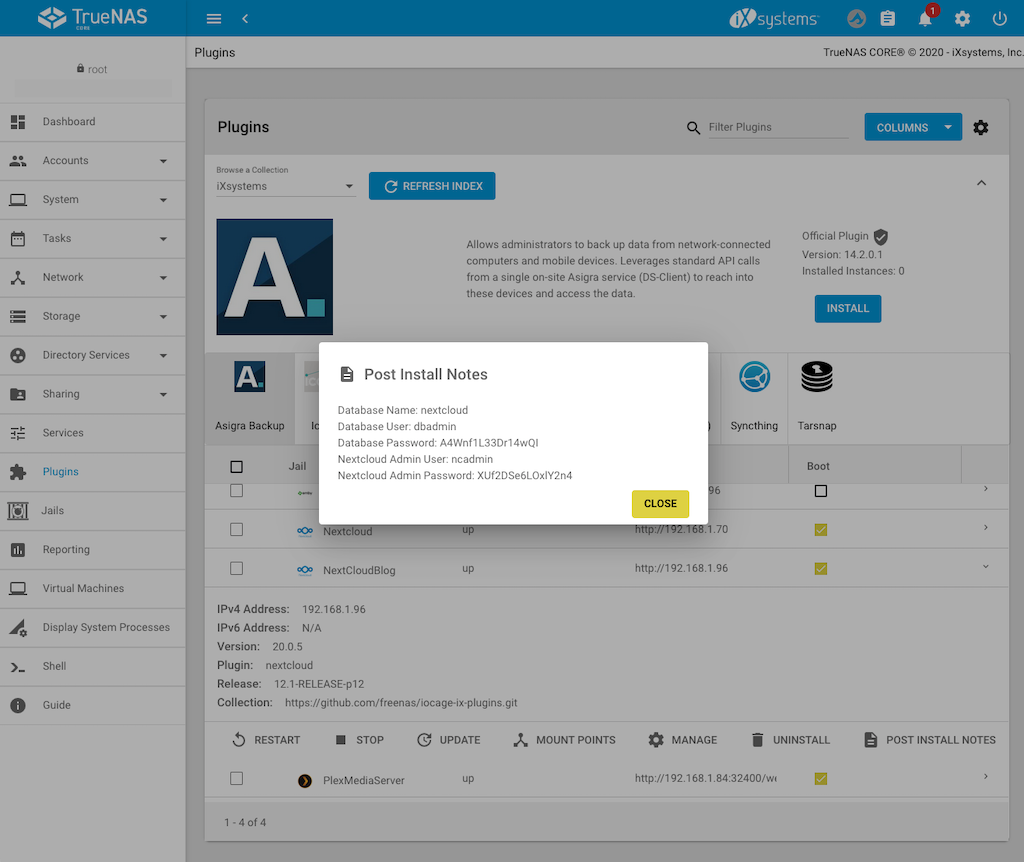
Press save and installation dialog is displayed and wait until it is finished. Press “Close” to close the dialog which informs you about the successfully installation. Next press “Post Install Notes” to display the username and password for the admin access to NextCloud and copy it or write it down:
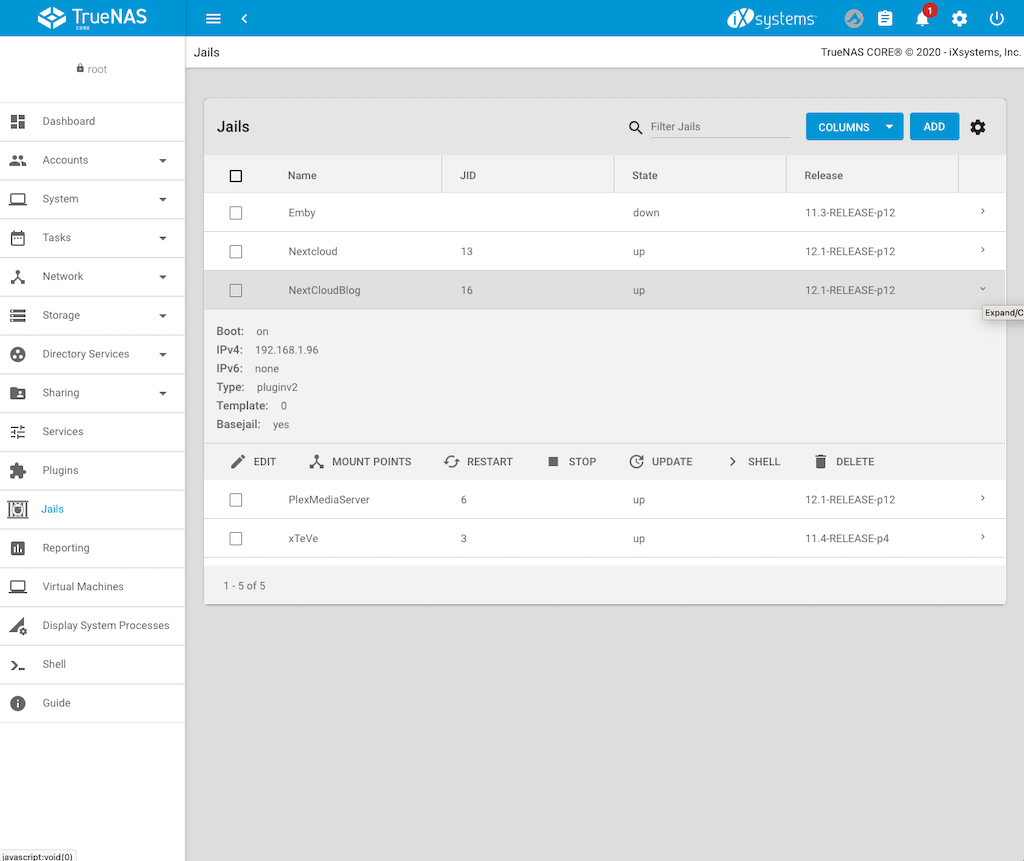
Now switch to Jails to get the IP-Address of your NextCloud jail and to create mount points:
Creating the mount points for the jail
Before we access our NextCloud instance for the first time, we will mount the NAS directories which should be accessible from the jail and therefore from NextCloud. To do this:
Stop the jail
After the jail has stopped press “Mount Points”
Press on “Actions” and select “Add”
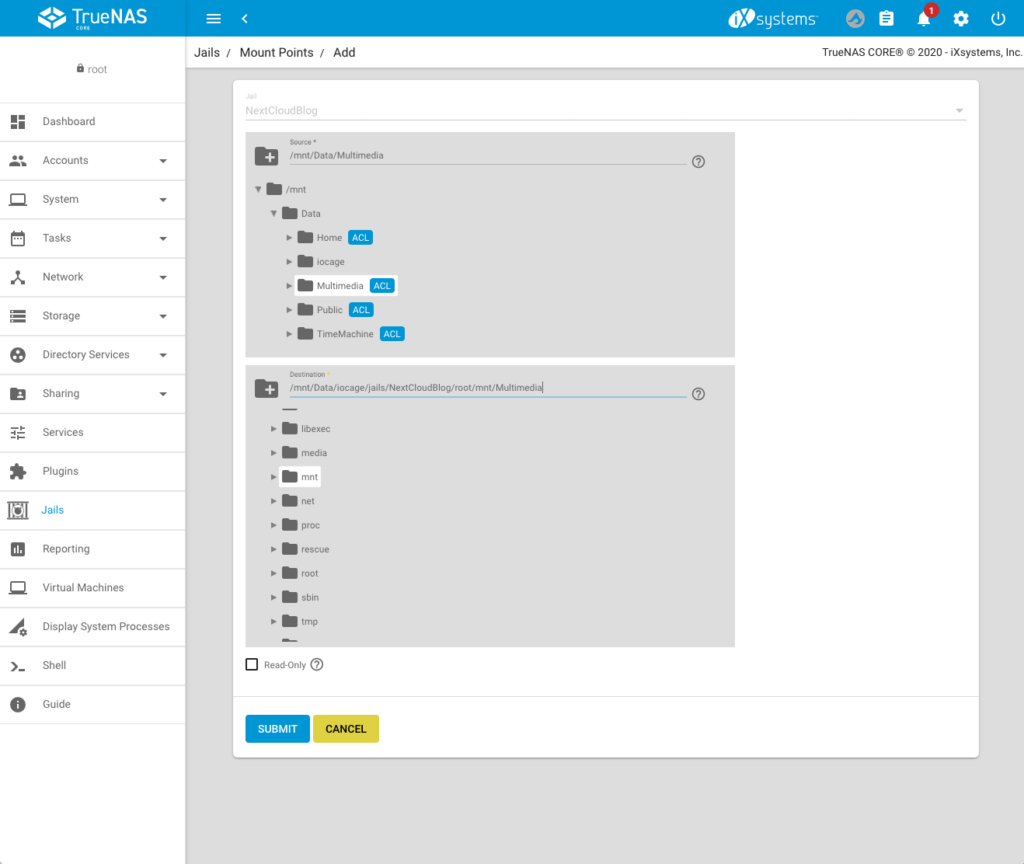
On the top, select the directory which should be accessable from the jail (in my case /mnt/Data/Multimedia)
Below select the mounting point in the jail (in my case: /mnt/Data/iocage/jails/NextCloudBlog/root/mnt/Multimedia). You do not have to create the folder in the jail first, you can directly enter the path (the folder Multimedia does not exist in the jail, but it will now be created).
6. Press “Submit”. You can add additional Mount Points if you want. 7. Go back to jails and start the jail.
Add the local network to the trusted domains of NextCloud
Unfortunately before we can use the NextCloud webinterface we need to add the local network to the trusted domains. To do this:
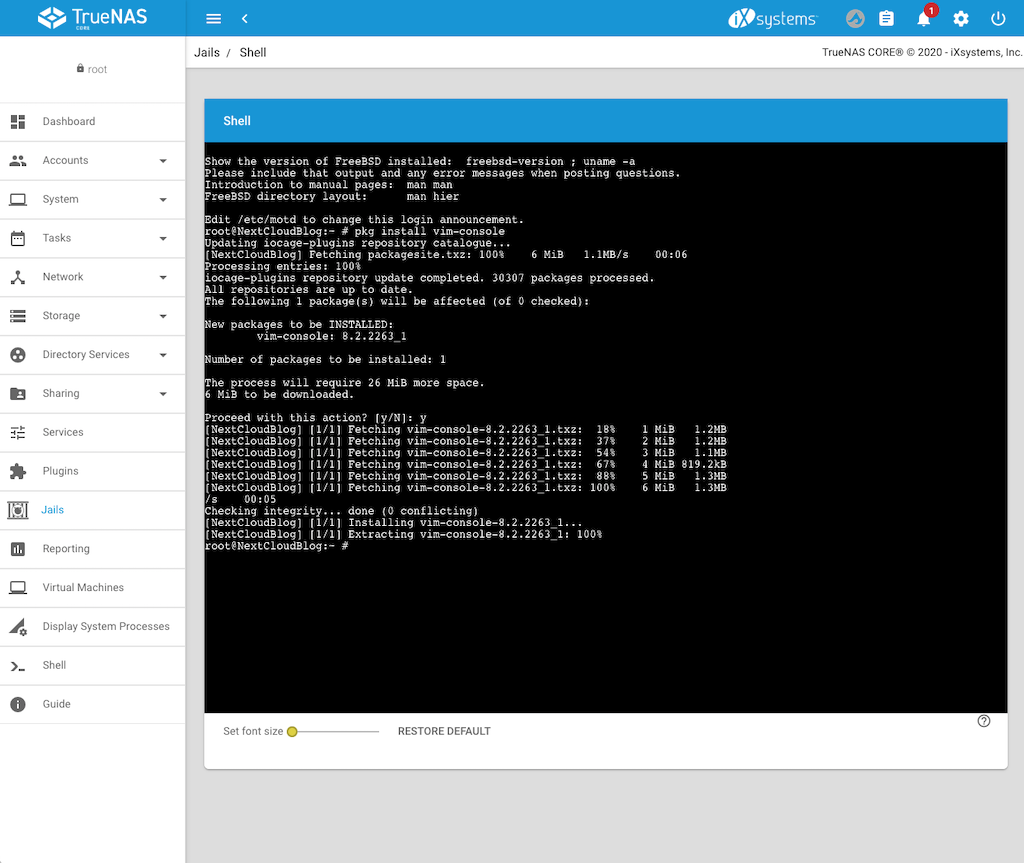
Select the NextCloud jail and press the “Shell button”
Install the vim editor to directly edit the config.php file by using the following command: pkg install vim-console
Go to the config file by the entering the following command: cd /usr/local/www/nextcloud/config
Open config.php file to edit: vim config.php
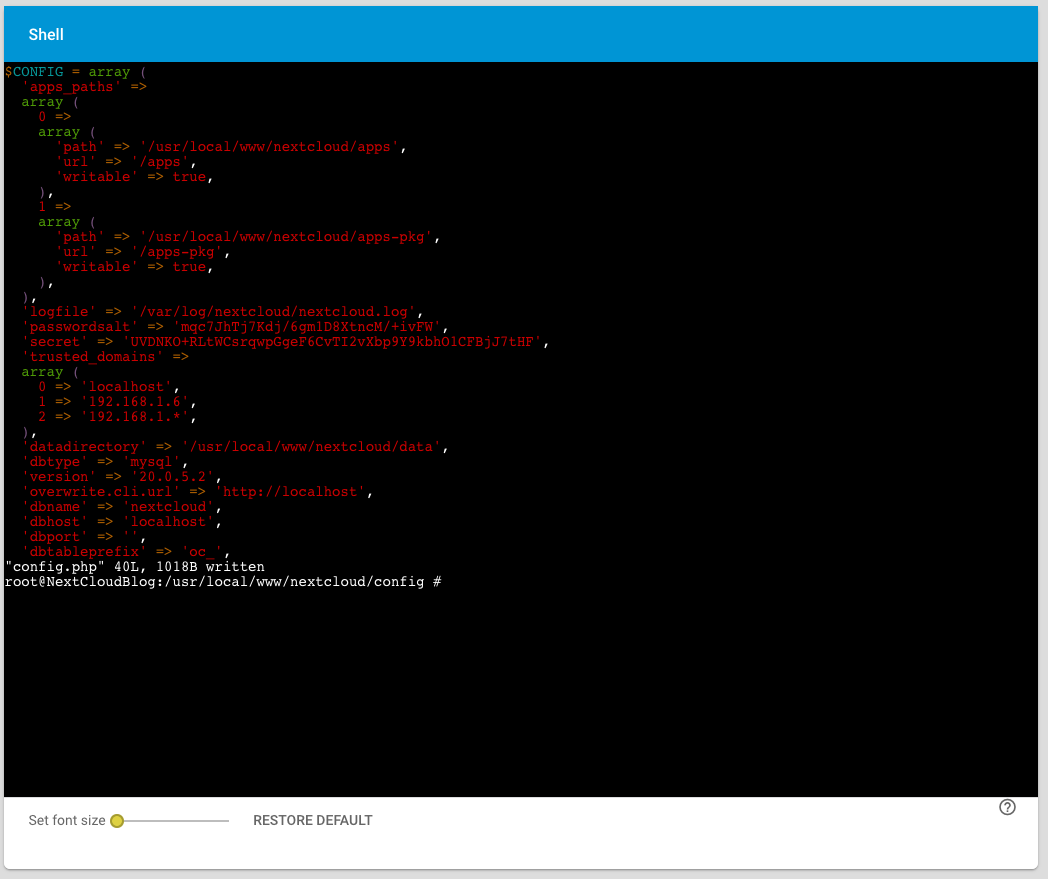
Press i to insert and edit the lines
Add the whole home network by adding the following line to the trusted domains: 2 => '192.168.1.*' or whatever your home network IP-Address is.
Press Esc and then enter :wq to store the file and exit vim.
Accessing NextCloud for the first time
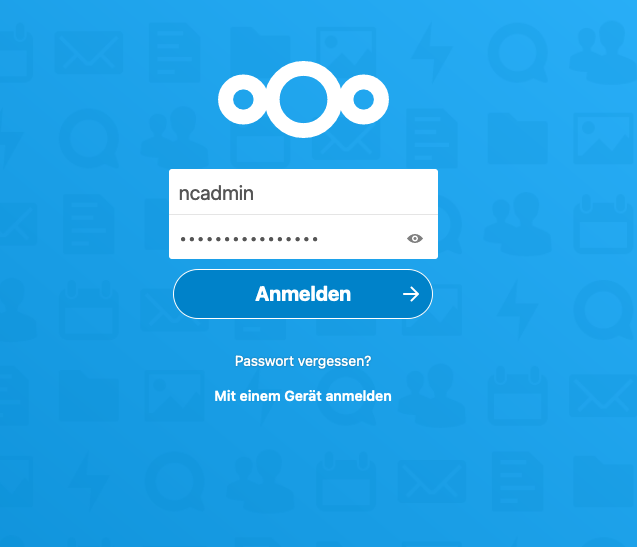
No we can login to NextCloud for the first time by entering the IP-Address of the Jail:
I would suggest to change the password of ncadmin or simply create a new admin user. In the next step we will add the Multimedia mounting point to NextCloud.
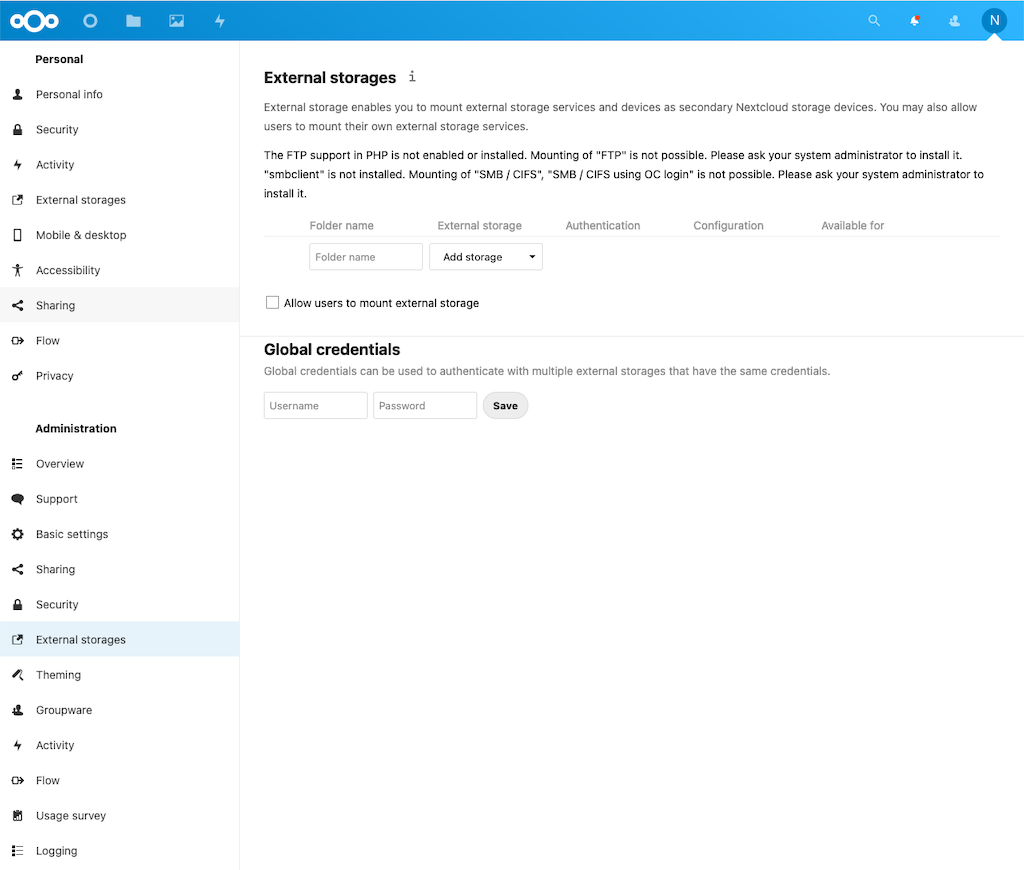
Enable External storage to add a local directory to NextCloud
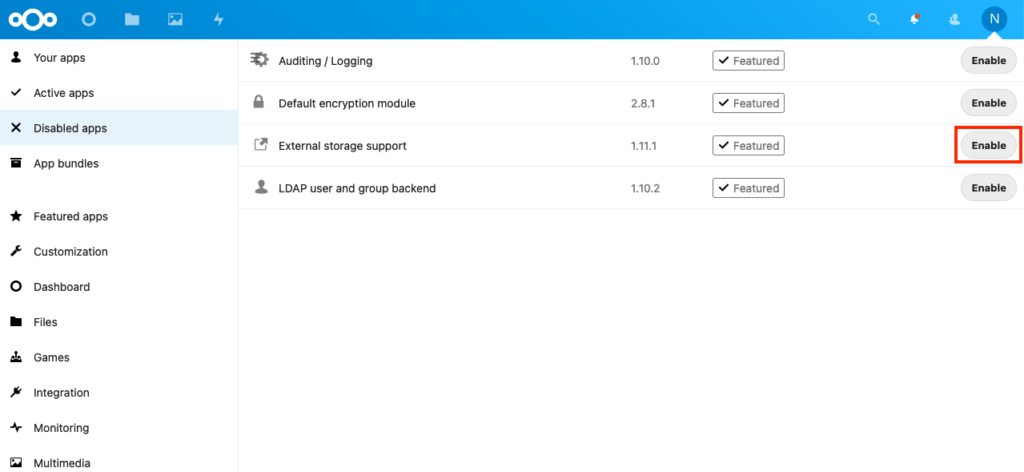
In the NextCloud backend we switch to apps and then to “Disabled apps”. There we find the “External Storage support” app and enable it:
In the next step we switch to settings and select “External Storages”
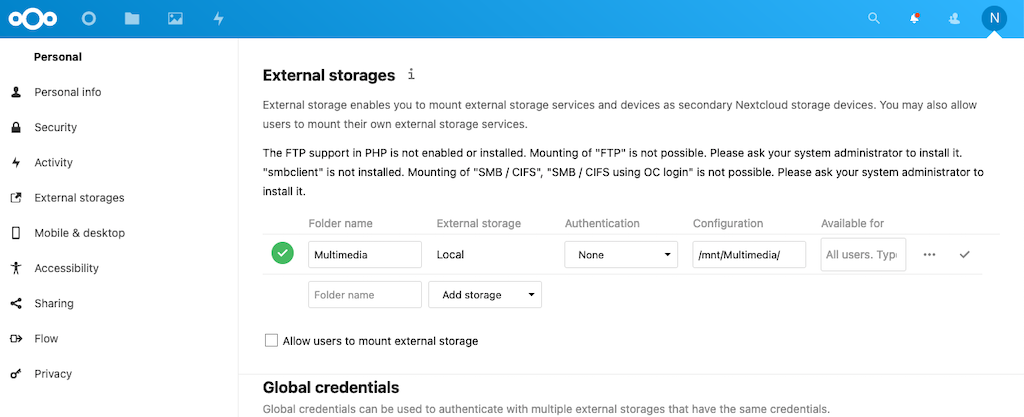
Now we can enter the “Folder Name”, the type of “External storage” (Local), the “Authentication”, the “Configuration” (meaning mounting point, or location) and who is allowed to access our external storages (“Available for”). Final press the Checkmark to check and store the configuration. Based on this tutorial the external storage configuration looks the following way, the green checkmark confirms that the external storage is accessable:
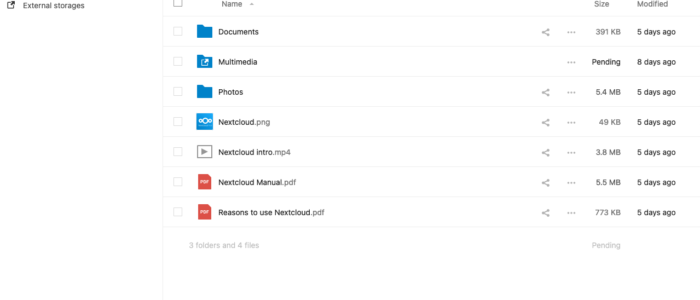
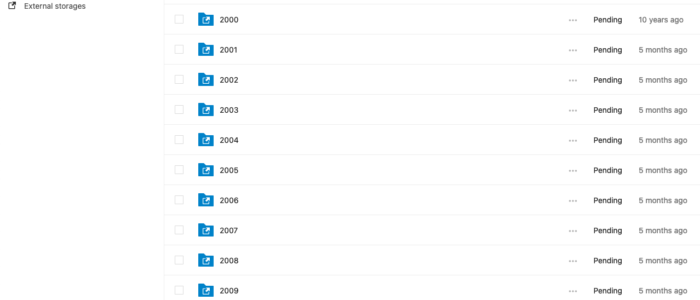
If you now switch to “Files” you will see a reference to the external storage:
Congratulation, you are now able to access the external storage using NextCloud! You can now download the NextCloud App on you mobile devices and use it.
In part two of this tutorial we will secure the NextCloud jail using https with let’s encrypt and allow access from outside the local network.
Any kind of feedback is highly appreciated.
We use cookies on our website to give you the most relevant experience by remembering your preferences and repeat visits. By clicking “Accept All”, you consent to the use of ALL the cookies. However, you may visit "Cookie Settings" to provide a controlled consent.
This website uses cookies to improve your experience while you navigate through the website. Out of these, the cookies that are categorized as necessary are stored on your browser as they are essential for the working of basic functionalities of the website. We also use third-party cookies that help us analyze and understand how you use this website. These cookies will be stored in your browser only with your consent. You also have the option to opt-out of these cookies. But opting out of some of these cookies may affect your browsing experience.
Necessary cookies are absolutely essential for the website to function properly. These cookies ensure basic functionalities and security features of the website, anonymously.
Cookie
Duration
Description
cookielawinfo-checkbox-advertisement
1 year
Set by the GDPR Cookie Consent plugin, this cookie is used to record the user consent for the cookies in the "Advertisement" category .
cookielawinfo-checkbox-analytics
11 months
This cookie is set by GDPR Cookie Consent plugin. The cookie is used to store the user consent for the cookies in the category "Analytics".
cookielawinfo-checkbox-functional
11 months
The cookie is set by GDPR cookie consent to record the user consent for the cookies in the category "Functional".
cookielawinfo-checkbox-necessary
11 months
This cookie is set by GDPR Cookie Consent plugin. The cookies is used to store the user consent for the cookies in the category "Necessary".
cookielawinfo-checkbox-others
11 months
This cookie is set by GDPR Cookie Consent plugin. The cookie is used to store the user consent for the cookies in the category "Other.
cookielawinfo-checkbox-performance
11 months
This cookie is set by GDPR Cookie Consent plugin. The cookie is used to store the user consent for the cookies in the category "Performance".
CookieLawInfoConsent
1 year
Records the default button state of the corresponding category & the status of CCPA. It works only in coordination with the primary cookie.
viewed_cookie_policy
11 months
The cookie is set by the GDPR Cookie Consent plugin and is used to store whether or not user has consented to the use of cookies. It does not store any personal data.
Functional cookies help to perform certain functionalities like sharing the content of the website on social media platforms, collect feedbacks, and other third-party features.
Performance cookies are used to understand and analyze the key performance indexes of the website which helps in delivering a better user experience for the visitors.
Cookie
Duration
Description
_gat
1 minute
This cookie is installed by Google Universal Analytics to restrain request rate and thus limit the collection of data on high traffic sites.
Analytical cookies are used to understand how visitors interact with the website. These cookies help provide information on metrics the number of visitors, bounce rate, traffic source, etc.
Cookie
Duration
Description
_ga
2 years
The _ga cookie, installed by Google Analytics, calculates visitor, session and campaign data and also keeps track of site usage for the site's analytics report. The cookie stores information anonymously and assigns a randomly generated number to recognize unique visitors.
_gid
1 day
Installed by Google Analytics, _gid cookie stores information on how visitors use a website, while also creating an analytics report of the website's performance. Some of the data that are collected include the number of visitors, their source, and the pages they visit anonymously.
Advertisement cookies are used to provide visitors with relevant ads and marketing campaigns. These cookies track visitors across websites and collect information to provide customized ads.